
Integrating RFID readers with an indoor map: a step-by-step guide
Show every RFID reader on a live 3D store map: roll up reads in a small relay, push them through a table API and colour readers by status on each floor.
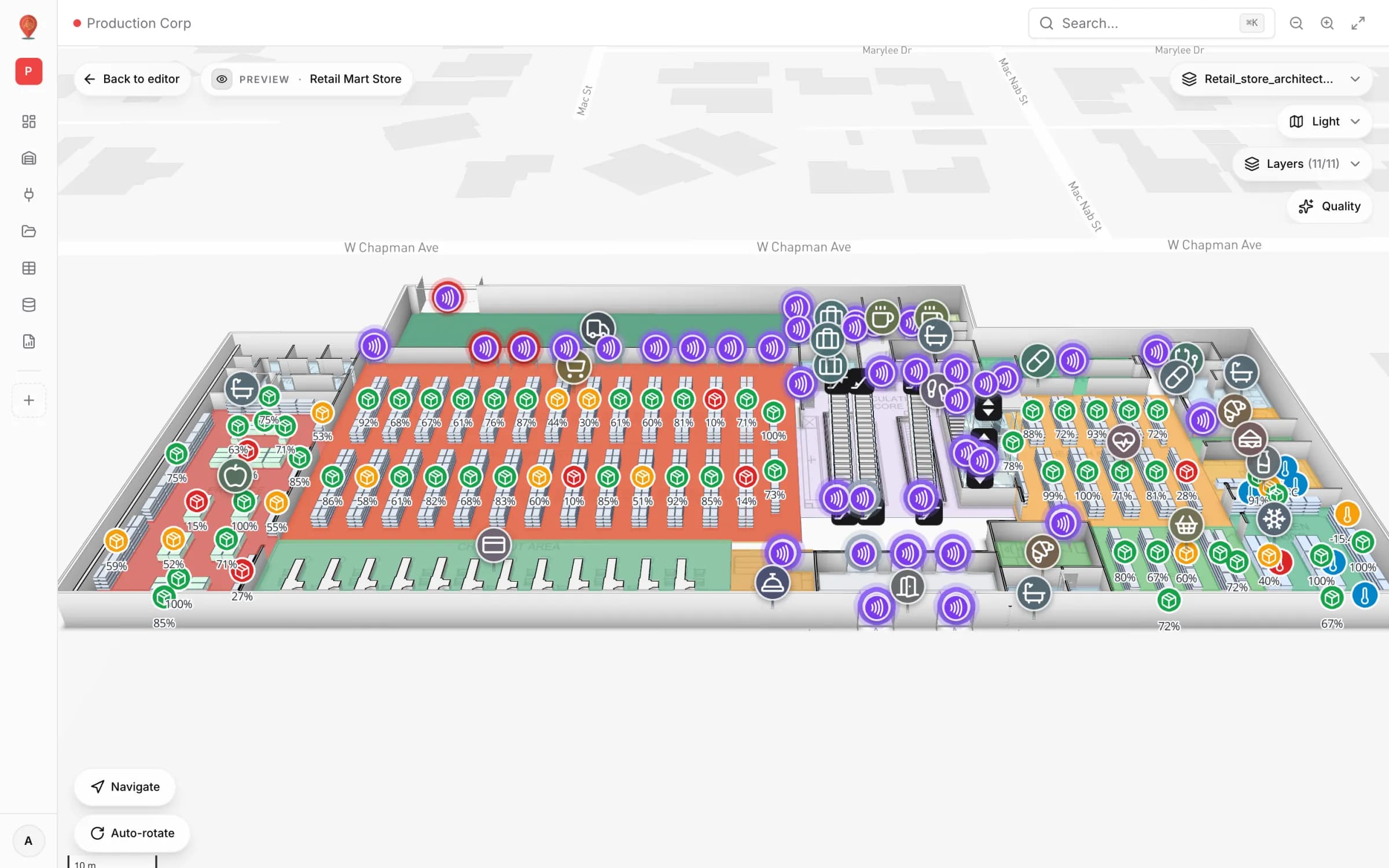
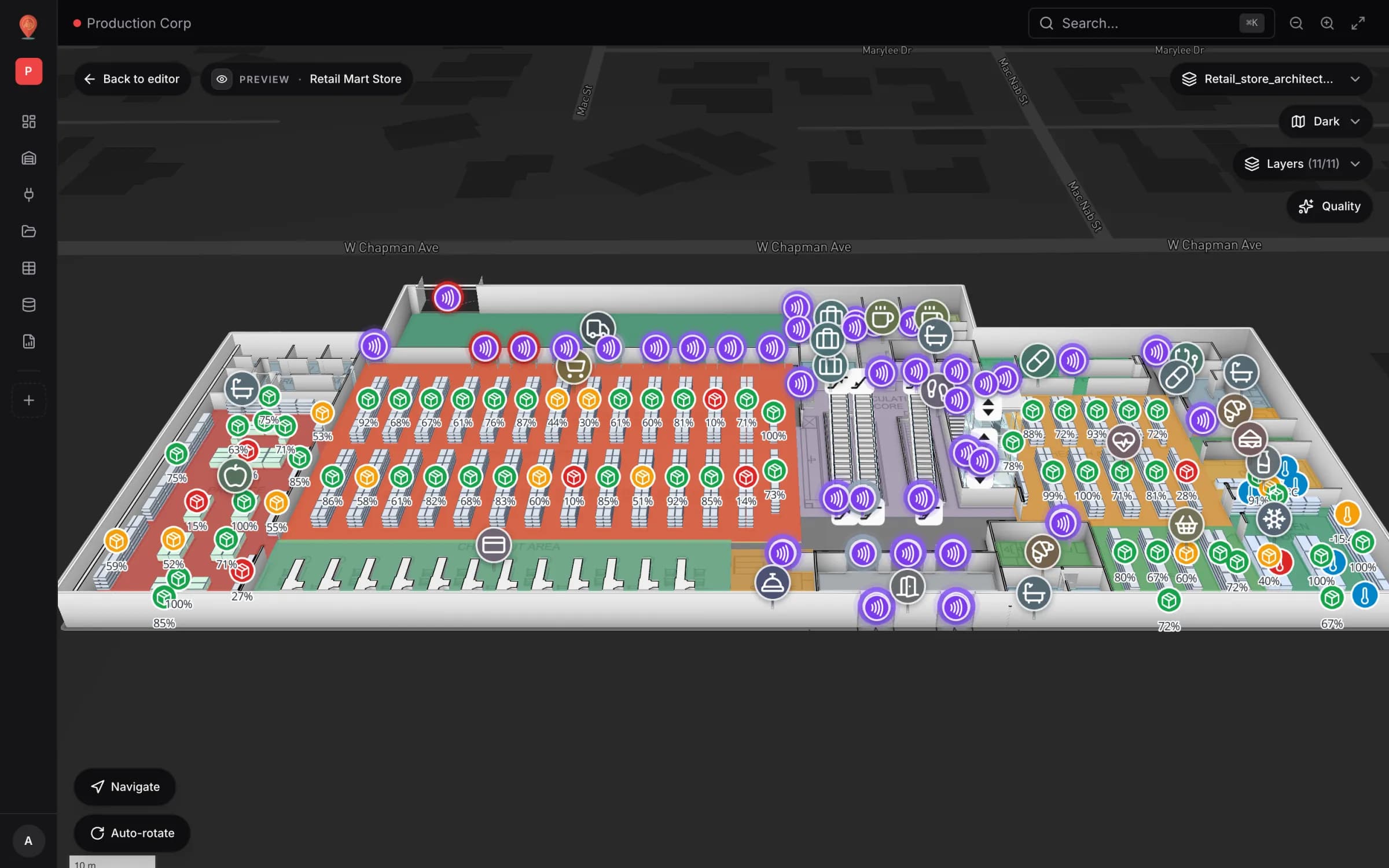
What you will build
RFID has been a workhorse in stores and warehouses for years, yet most teams still read it as a scrolling event log or a grid of counters. Neither tells you which dock gate went quiet, or whether the escalator readers on Level 2 are seeing anything at all. This guide puts every reader on the floor plan instead. It follows a real demo facility in Spatial Map, so every screenshot below is something you can reproduce.
The demo: 85 readers in a three-floor store
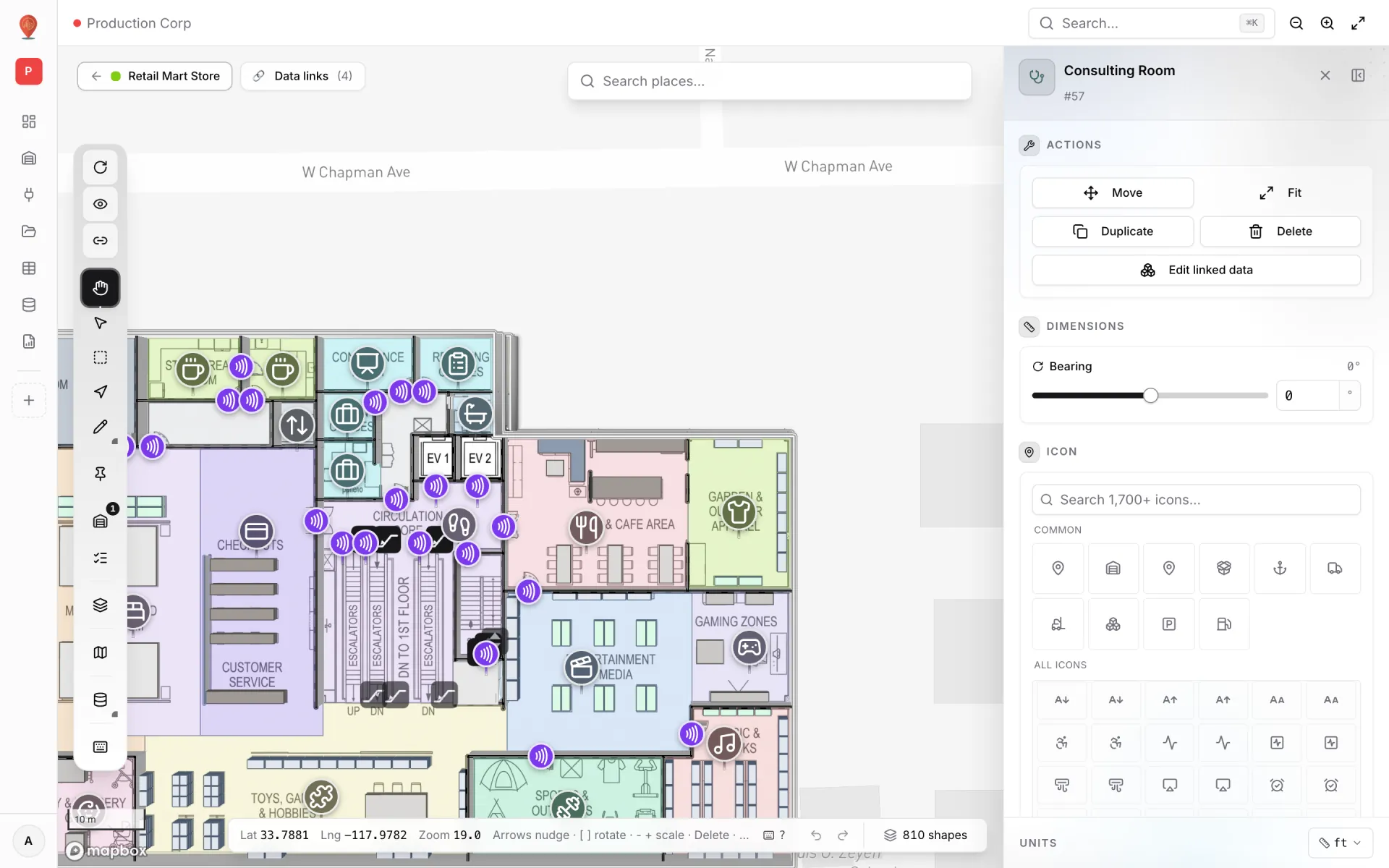
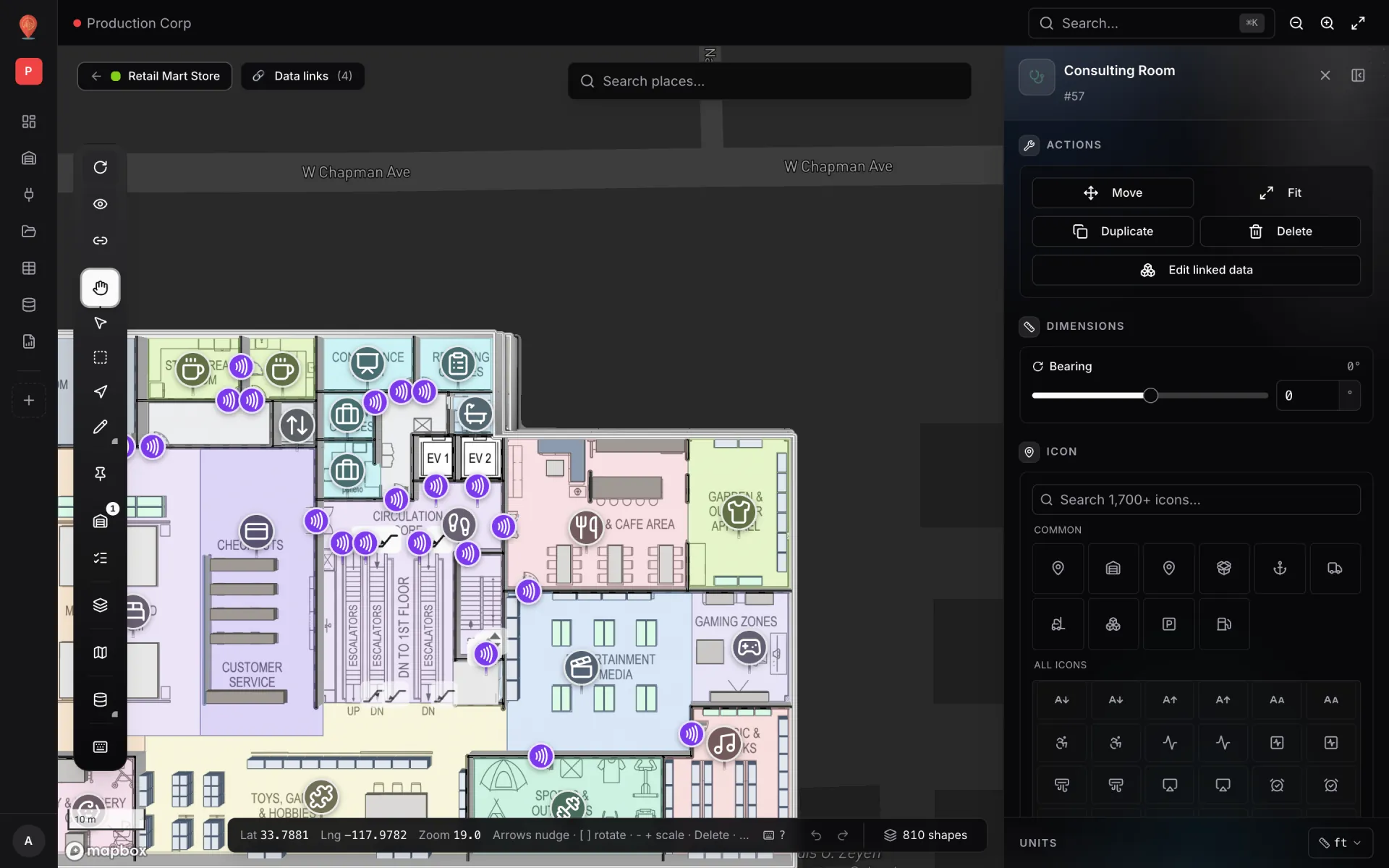
The example is Retail Mart Store, a three-floor store (Ground, Level 1, Level 2) in the Production Corp demo workspace. It has 85 fixed readers: 66 on doorways and gates between departments, 9 at lift doors, 9 at the ends of escalators and 1 on the stairs. Each reader is a marker on the map, named after the reader — for example “RFID-G-02 · Office ↔ Receiving / Loading Docks”. One table, Retail Mart · RFID Reader Reads, holds one row per reader.
How the pieces fit together
Fixed UHF readers report tag reads through edge middleware — the reader’s own LLRP interface, or the vendor’s SDK running on a small box next to it. That middleware is very good at reading tags and has nothing useful to say to a map. So you add one small piece in between: a relay that you own. It listens to the middleware, rolls the reads up per reader, and every few seconds writes the result into a Spatial Map table through the table’s write API. The map and the report read from that table.
Why roll up instead of forwarding every read? A busy gate sees hundreds of reads a minute, many of them the same tag seen by two antennas. A map can’t show that usefully, and the table API is rate-limited per key. One row per reader — reads today, reads in the last hour, unique tags, in/out counts, the last tag and SKU, and a status — is exactly what the demo table holds and what a shift lead wants to see. If you need per-tag positions instead, the same pattern works with one row per tag at its last-seen reader; see real-time indoor asset tracking.
| Way in | Freshness | Use it when |
|---|---|---|
| Table write API (POST /rows/bulk) | Seconds — open maps reload as soon as a write lands | You can run a relay next to the middleware. The recommended path. |
| Pull from a REST API (table’s API & access tab) | About a minute — the server polls on a timer | The middleware already serves per-reader counts on a REST endpoint. |
| Upload file | Whenever you upload | You only have a daily CSV or Excel export of counts. |
Step 1 — Create the table and an API key
- 1Create the table
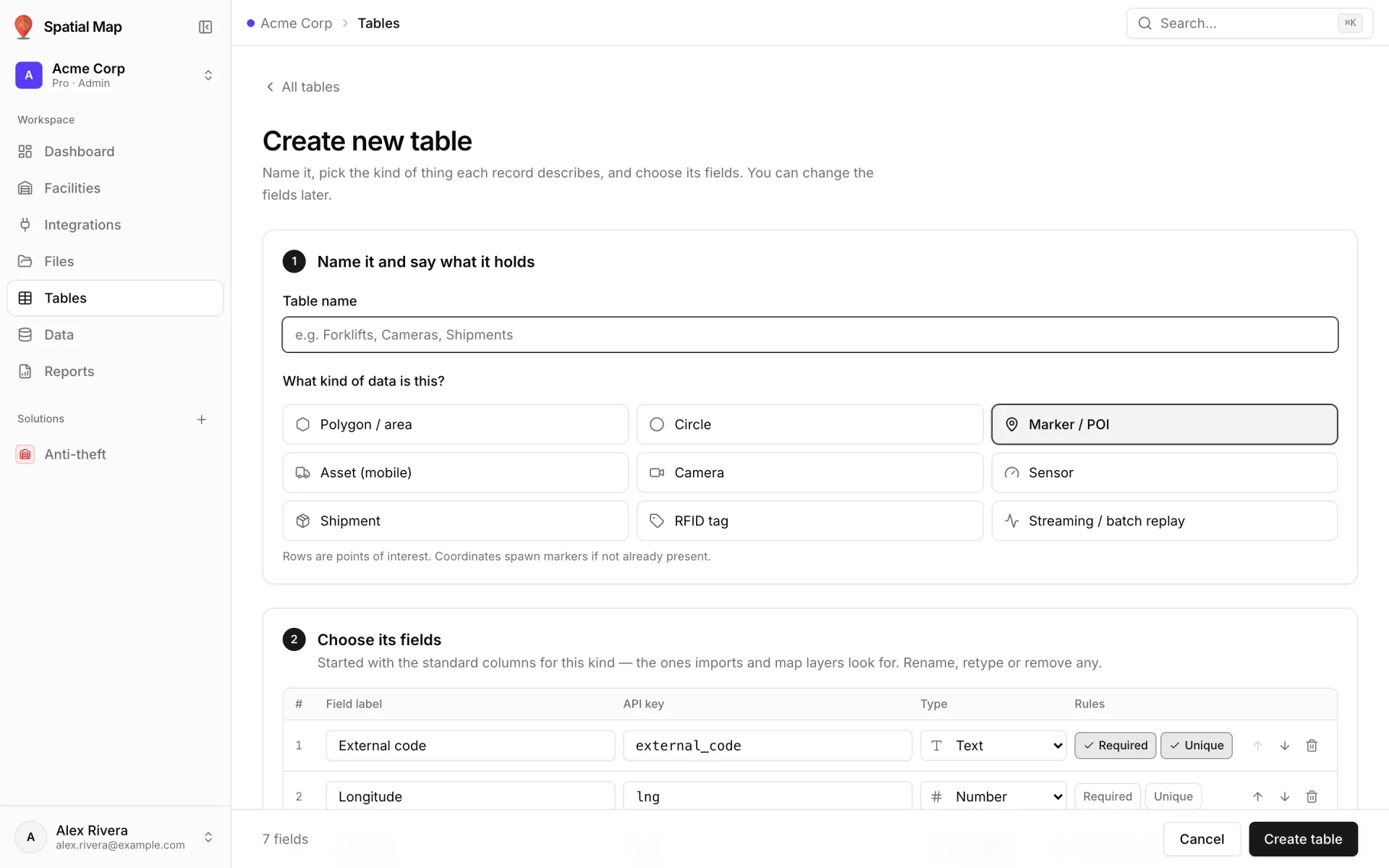
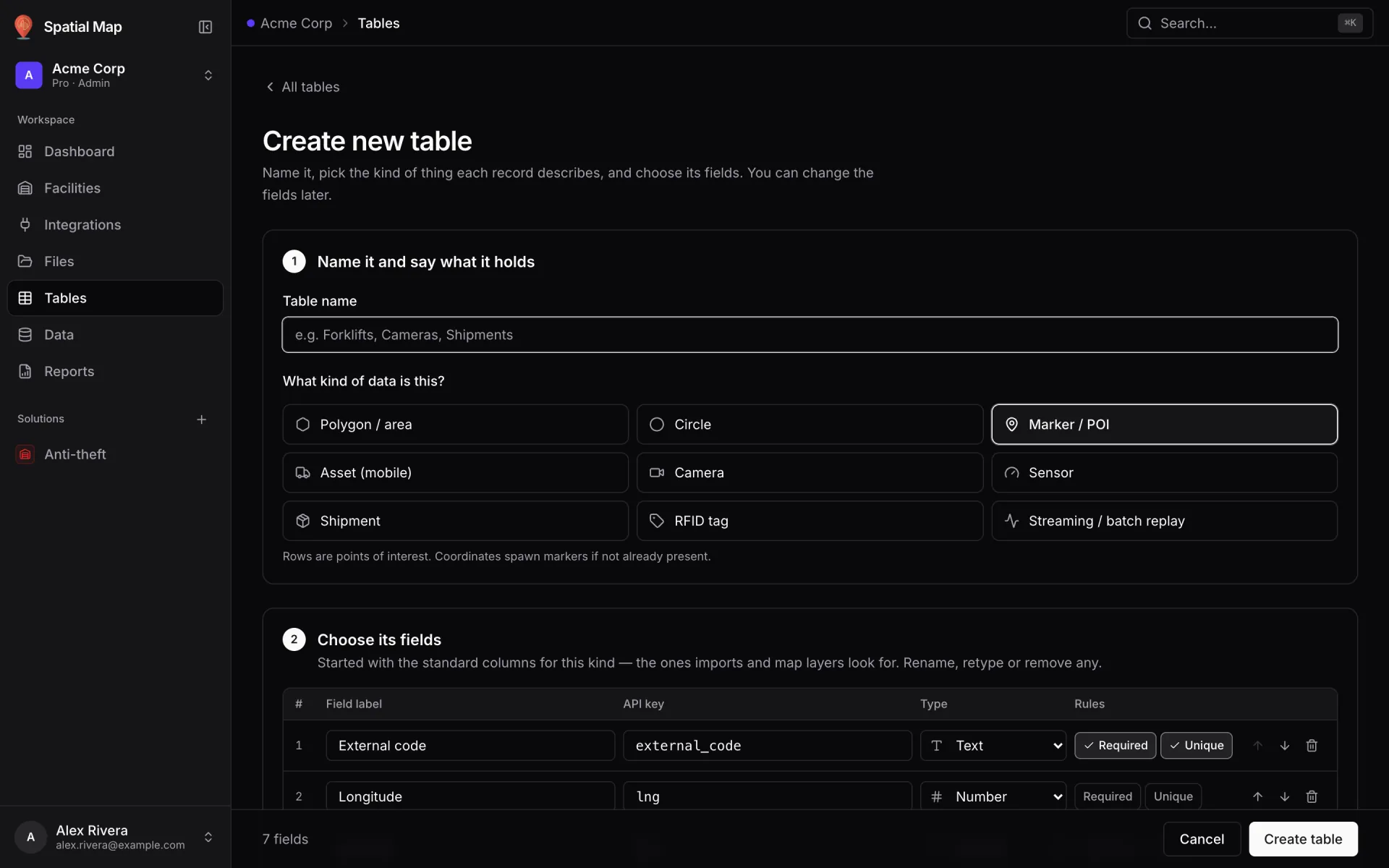
Go to Tables → Create new table, name it (the demo uses “Retail Mart · RFID Reader Reads”) and pick RFID tag as the kind. The standard columns it suggests are only a starting point: rename, retype or remove them to match what your relay will send.
- 2Shape one row per reader
Add a text field `reader_id` marked Required and Unique, then `reader_name`, `floor`, `reader_type`, `status`, the integer counters (`reads_today`, `reads_last_hour`, `unique_tags_today`, `in_count_today`, `out_count_today`, `alerts_today`), `last_read_at` as a datetime, `last_tag_epc`, `last_sku`, `last_direction`, `rssi_dbm`, `firmware` and `elevation_m`. Every write is validated against this schema.
- 3Create a key
On the table’s API & access tab, type a key name and click Create key. The key starts with `sgv_tbl_` and is shown once, so put it straight into the relay’s secrets. A key can write to this one table only; give each relay its own key so you can revoke one without breaking the rest. Owners and Admins can create keys.
- 4Copy the base URL
The same tab lists the 12 endpoints with copy-paste curl. In production the base is `https://app.spatialmap.io/api/v1/public/tables`; the key decides which table you write to, so there is no table id in the path.
Step 2 — Write the relay
The relay is a few dozen lines in whatever language your team prefers. Subscribe to the middleware’s read events (LLRP reports or the SDK’s callback), keep a small in-memory counter per reader, and on a timer — every 5 to 10 seconds is plenty — send every reader that changed in one bulk call. Use the reader id as `entityKey`, so each call updates the existing row instead of adding a new one.
curl -X POST https://app.spatialmap.io/api/v1/public/tables/rows/bulk \
  -H "Authorization: Bearer $SPATIALMAP_TABLE_KEY" \
  -H "Content-Type: application/json" \
  -d '{
    "rows": [
      {
        "entityKey": "RFID-G-02",
        "payload": {
          "reader_id": "RFID-G-02",
          "reader_name": "RFID-G-02 · Office ↔ Receiving / Loading Docks",
          "floor": "Ground",
          "reader_type": "Gate",
          "status": "Active",
          "reads_today": 590,
          "reads_last_hour": 56,
          "unique_tags_today": 288,
          "in_count_today": 294,
          "out_count_today": 296,
          "last_read_at": "2026-10-08T09:25:12Z",
          "last_tag_epc": "E2801121130DB42AB66C7A7B",
          "last_sku": "SKU-339201 Frozen Peas 1kg",
          "last_direction": "Out",
          "alerts_today": 2,
          "elevation_m": 2.4
        }
      },
      {
        "entityKey": "RFID-L1-15",
        "payload": {
          "reader_id": "RFID-L1-15",
          "reader_name": "RFID-L1-15 · Escalator 2 top · L1",
          "floor": "Level 1",
          "reader_type": "Escalator",
          "status": "Idle",
          "reads_today": 525,
          "reads_last_hour": 29,
          "unique_tags_today": 220,
          "in_count_today": 261,
          "out_count_today": 264,
          "last_read_at": "2026-10-08T09:25:49Z",
          "last_tag_epc": "E280115AC002CF6117A1B75B",
          "last_sku": "SKU-509112 LED TV 55in",
          "last_direction": "Out",
          "alerts_today": 0,
          "elevation_m": 6.067
        }
      }
    ]
  }'
`POST /rows` and `POST /rows/bulk` are upserts: the payload you send becomes the row’s full state, so always send the complete row. To change a single field — say, marking a reader Offline when its heartbeat stops — use `PATCH`, which merges onto the stored payload.
curl -X PATCH https://app.spatialmap.io/api/v1/public/tables/rows/RFID-G-01 \
  -H "Authorization: Bearer $SPATIALMAP_TABLE_KEY" \
  -H "Content-Type: application/json" \
-d '{"status":"Offline"}'No relay? Two other ways in
- Pull from a REST API — on the table’s API & access tab, enter the middleware’s URL, an interval (30 seconds minimum in the form), the row key field, the JSON path to the items, any headers and the field mapping, then click Start polling. A server-side worker runs it about once a minute, even when nobody has a map open. Each poll reads up to 1,000 rows from a response of up to 10 MB.
- Upload file — for stores that only export daily counts. Add a CSV, Excel, JSON or GeoJSON file under Integrations → Add integration → Upload file, and use Re-import for the next day’s export.
The map and report steps below are the same whichever way the data arrives. The API reference is in Tables, and a complete worked example is Push rows with the table write API.
Step 3 — Put the readers on the map
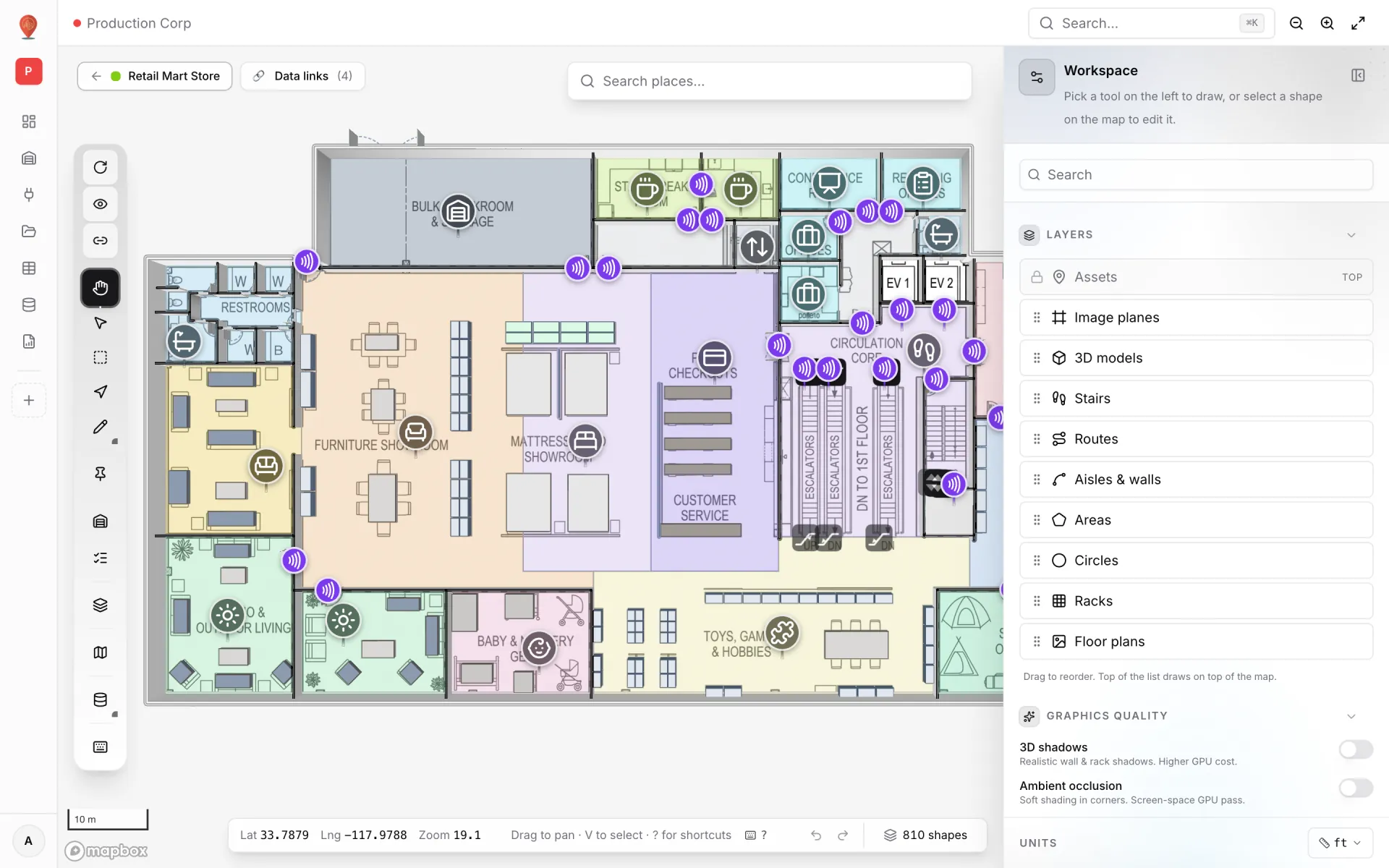
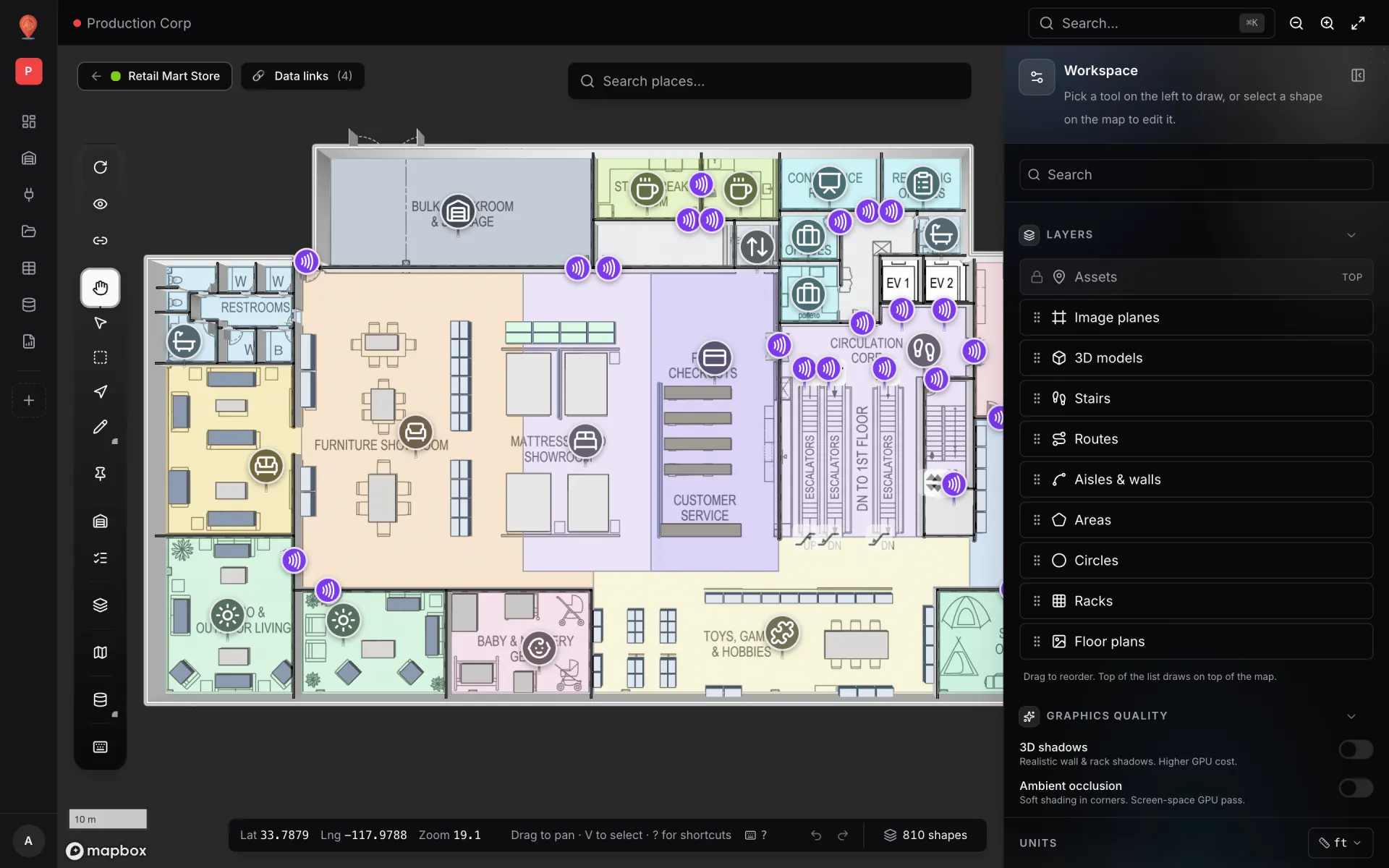
Each reader needs a marker at its real position: on a doorway, beside a lift door, at the top or bottom of an escalator. Place them with the Marker tool on the right floor and give each marker exactly the name your relay writes into `reader_name`. That name is the join key in the next step, so copy it rather than retyping it. In a multi-floor store, build the floors, lifts and escalators first — Multi-floor store with escalators and lifts walks through the same Retail Mart layout.
Step 4 — Link the table to the reader markers
Open the facility in the editor and click Data links, then New data link (also reachable from the Data menu → Manage data links). The demo link is called RFID reader activity. Here are its settings, section by section:
- 1Data source
The table Retail Mart · RFID Reader Reads.
- 2Display mode
Pulsing zone activity — an animated ring with a count badge at each reader marker. The badge shows `reads_last_hour`, chosen as the label field under Connect fields.
- 3Attach to shapes
Target markers and match by Attribute join: the row field `reader_name` against the marker’s name.
- 4Floor scope
From record, with `floor` as the field to read the floor from. The table stores text (“Ground”, “Level 1”, “Level 2”), so each value is mapped to one of the facility’s floors — Level 2 readers only pulse on Level 2.
- 5Style rules
Three rules on `status`: Active in violet, Idle in grey, Offline in red. Rules are checked top-down and the first match wins.
- 6Map tooltip
Trigger on hover, showing reader id, type, floor, status, the counters, last read, last EPC, last SKU, direction, signal and firmware; a click opens the detail panel.
| Display mode | Fits RFID when… |
|---|---|
| Pulsing zone activity | You have fixed readers and per-reader counts — the demo’s choice. |
| Value badge on shape | You want a plain number on each reader or zone, without animation. |
| Color a shape | You count per area (a department, a dock) and want the whole area tinted. |
| Live location marker | Rows carry their own lat/lng — for example one row per tag at its last-seen reader. |
| Heatmap of activity | You care about density across the floor rather than individual readers. |
| Historical movement | You want to replay how rows changed, using the table’s change log. |
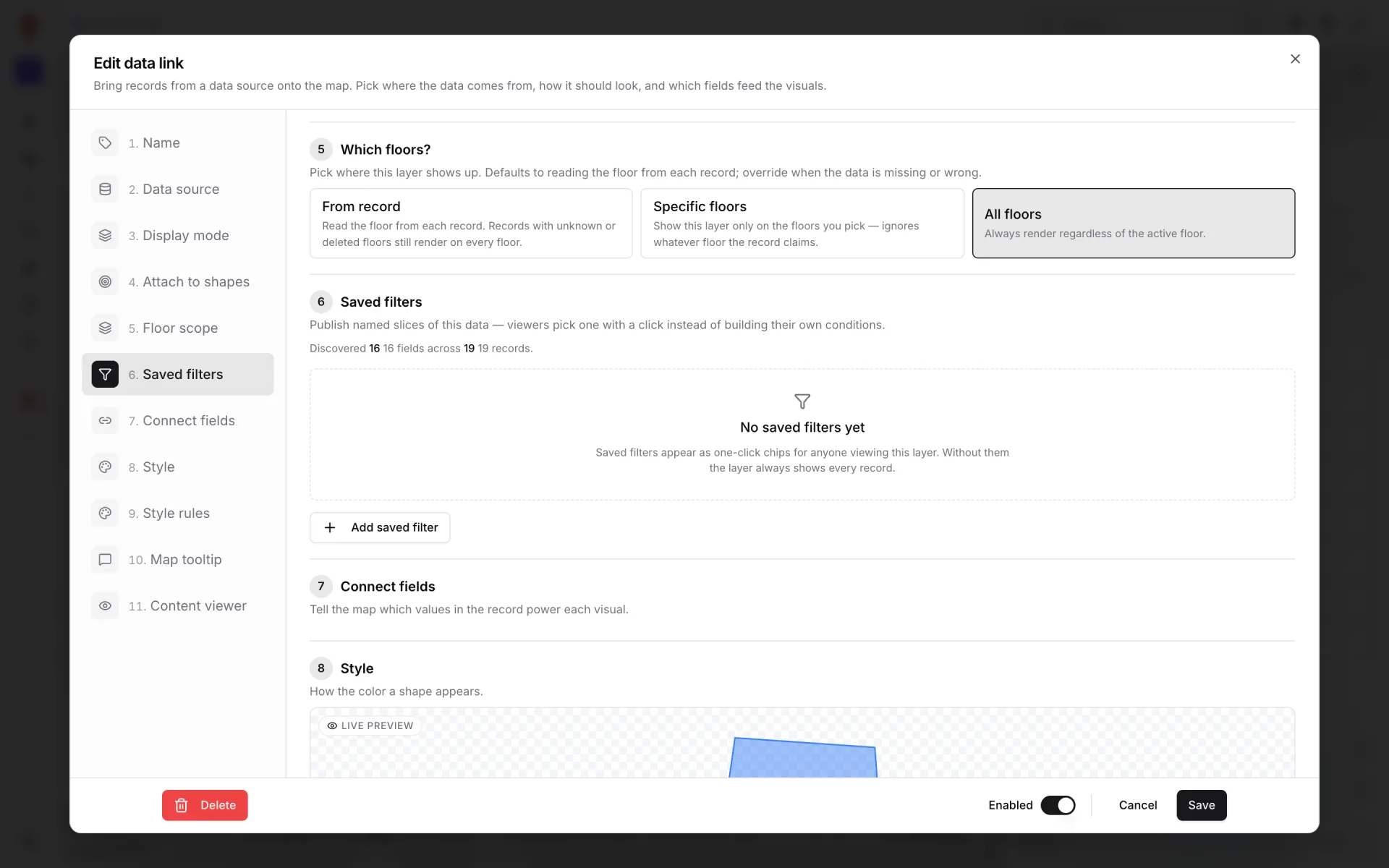
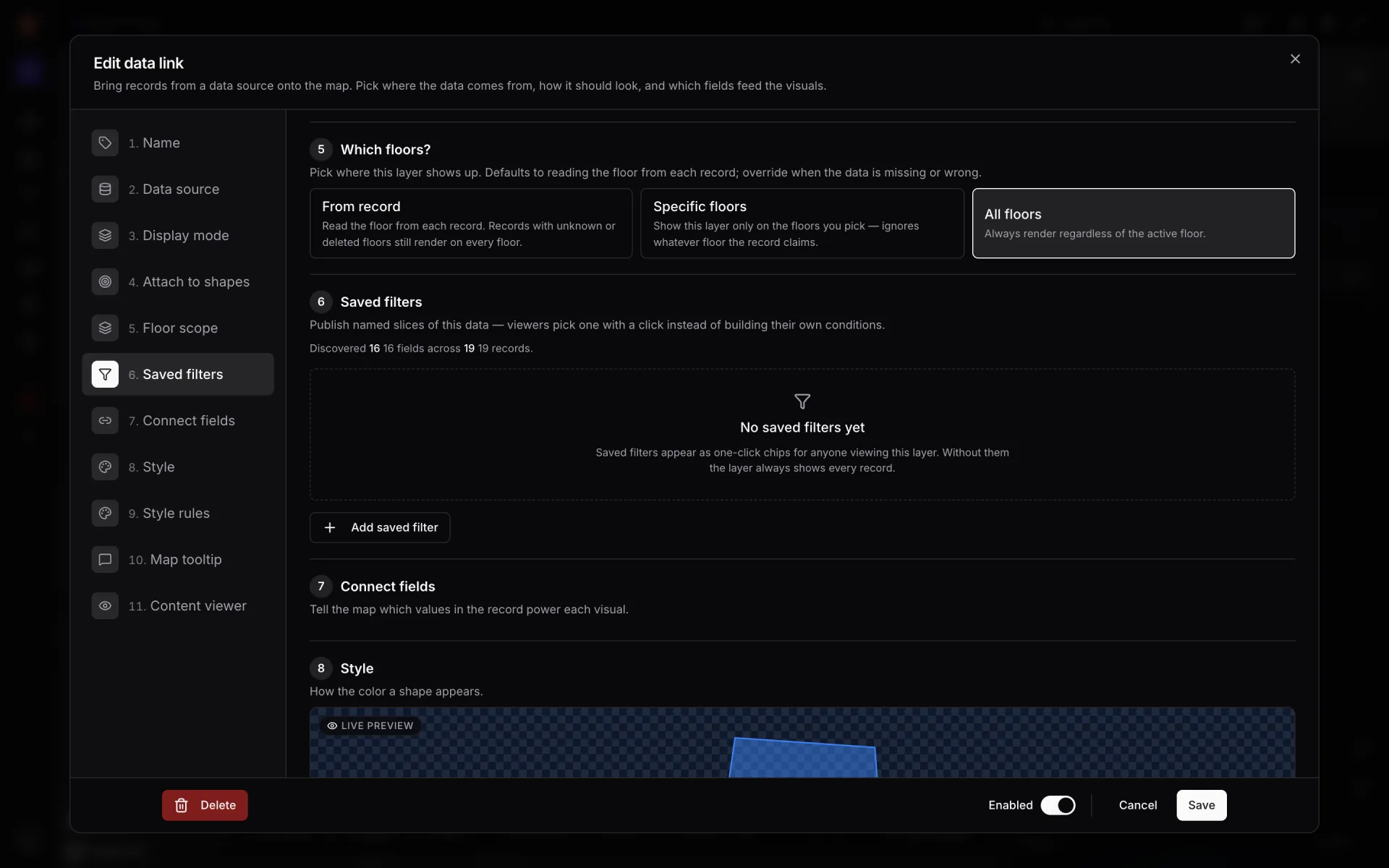
Every option is explained in Source and render mode and Style and rules.
Step 5 — Watch it live, then build the report
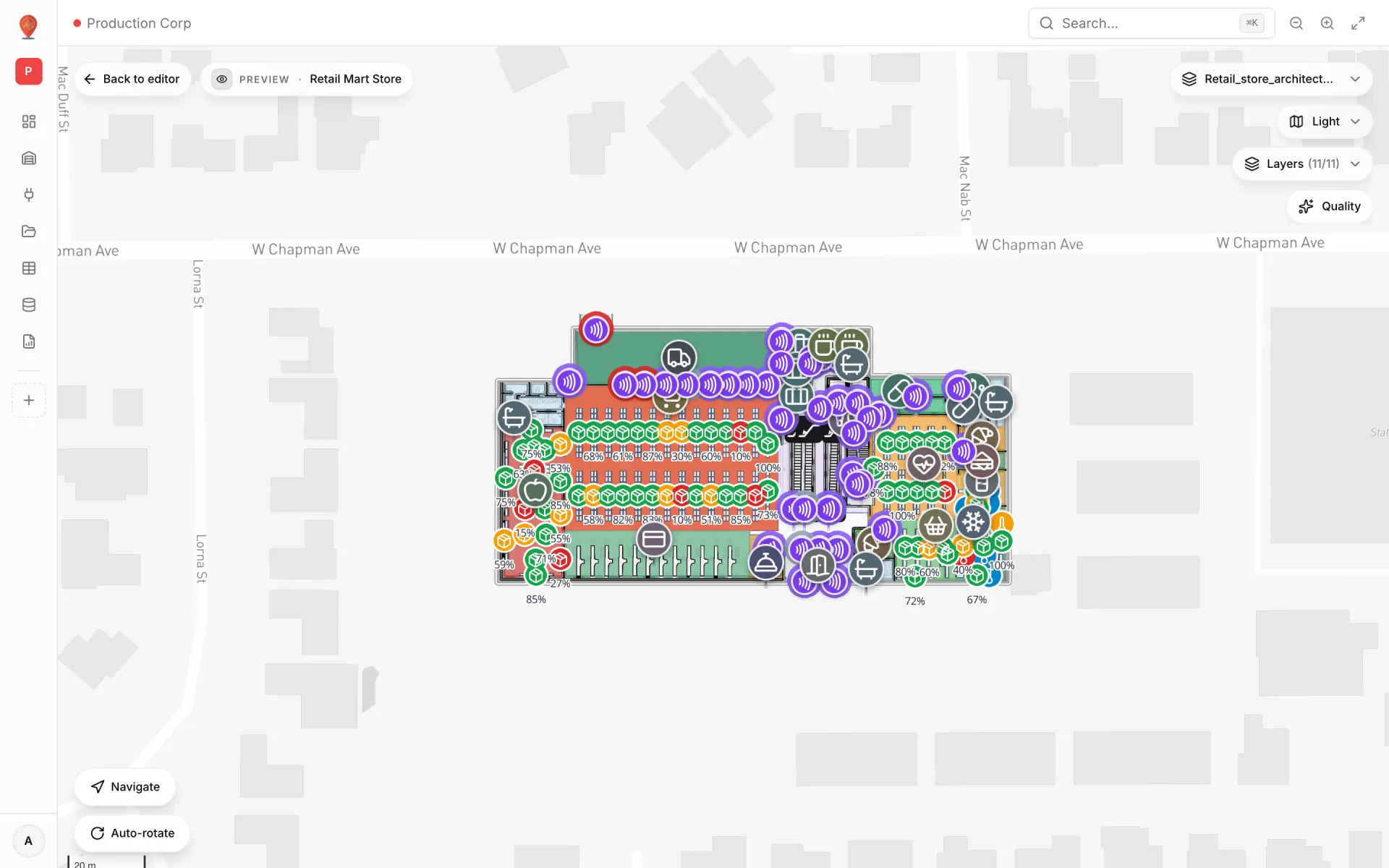
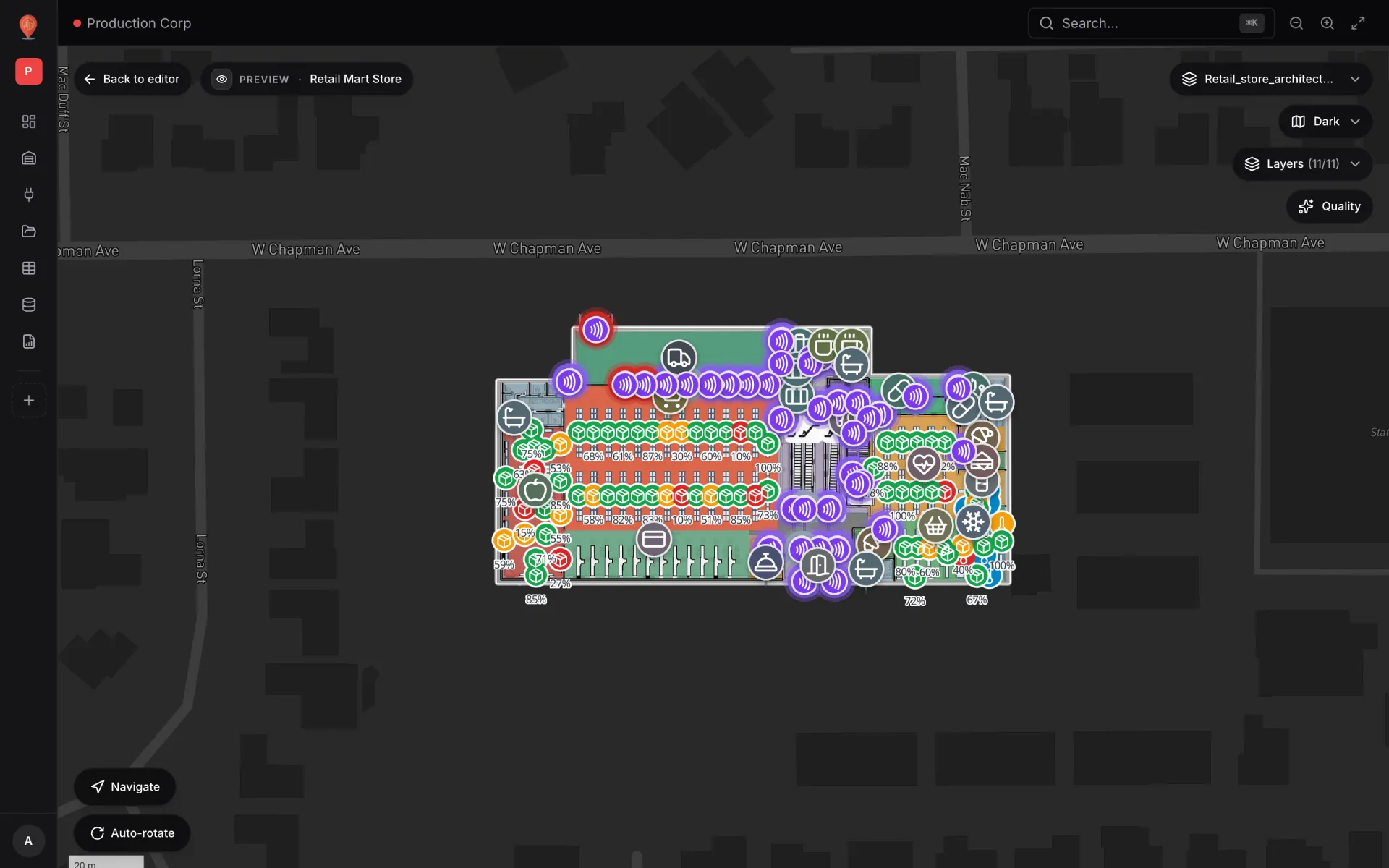
Save the link and open the facility in Preview or through a share link. Every reader marker now pulses with its last-hour count, coloured by status. When the relay writes, the server notifies open maps and they reload that layer straight away, with a 30-second refresh as a safety net. Hover a reader for the tooltip; click it for the full record and its History.
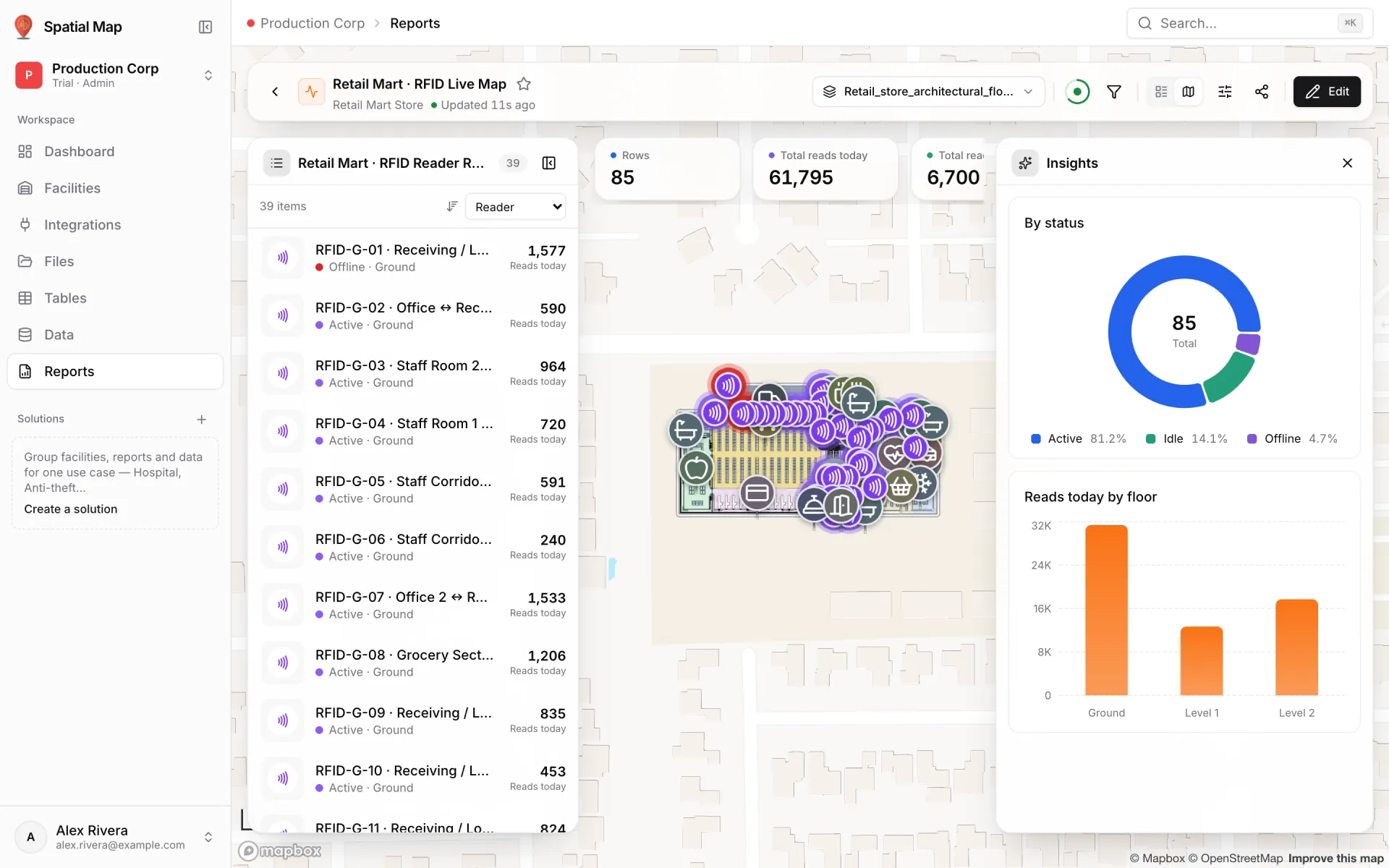
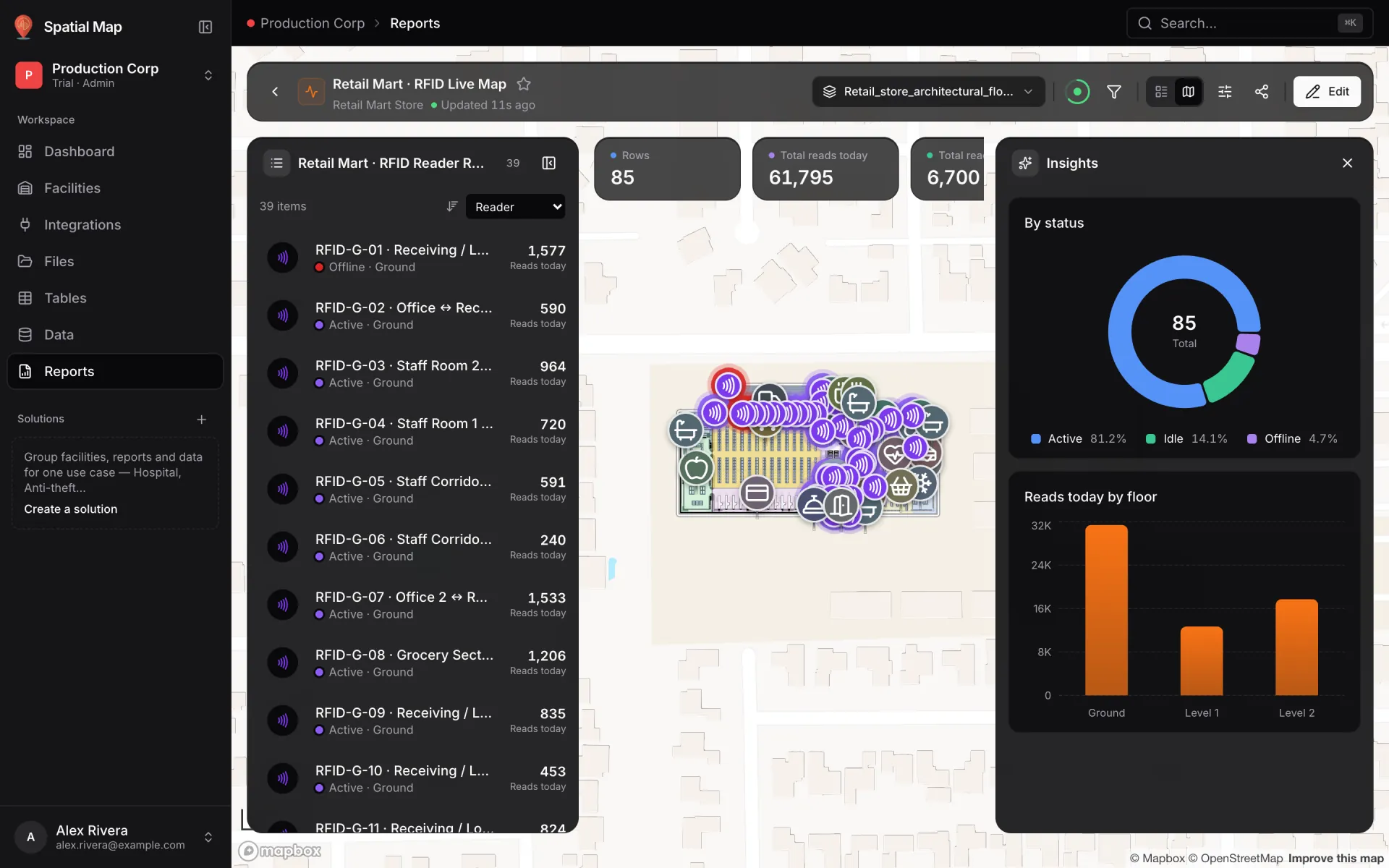
For people who don’t live in the editor, the demo also has a full-map report, Retail Mart · RFID Live Map. The reader list sits on the left, the live store map in the middle, and the numbers float over it: KPIs for rows, total reads today, total reads in the last hour and unique tags today, a By status donut and a Reads today by floor bar chart. The Floor, Status and Search filters narrow everything at once — pick Offline and you have the morning maintenance list. See Full-map reports.
Pitfalls we have seen
“Send the map state, not events: one row per reader, refreshed every few seconds, is something a shift lead can read at a glance.”
Where to go next
The demo suggests a few natural extensions. Add a style rule on `alerts_today` (the “Exit alerts today” field) so gates with exit alerts stand out — it changes a colour on the map and in the report; it does not send a notification. Combine reader status with shelf stock and cold-chain sensors on the same floors, as in the retail solution, or focus on exits and gates with the anti-theft solution. For moving assets rather than fixed readers, read real-time indoor asset tracking.
Try the platform your data belongs on.
Spatial Map turns spreadsheets, sensor streams, and CAD drawings into one live 3D facility view — nothing to install, seven-day free trial.
See it live
Keep reading
- TutorialWarehouse KPI dashboards with a live 3D map: a builder tutorialA chart says 66% of bins are occupied; a map says where. This tutorial walks through the guided 12–13 step report builder to put both on one warehouse dashboard — using the real Rack Inventory report from our demo warehouse.
- TutorialFrom spreadsheet to spatial: turning a bin inventory CSV into a live rack mapA CSV in a shared drive helps no one on the floor. The same CSV painted on your rack layout is a shift meeting.
- TutorialWMS integration guide: REST, webhooks and WebSockets for a live warehouse mapYour WMS may speak REST, webhooks or WebSockets. Spatial Map pulls REST endpoints, imports files and receives pushes as table API writes — here is how to pick a path and wire it, with working curl and a small relay.