
From a CAD or PDF floor plan to a 3D browser map, step by step
Import a DWG or PDF floor plan at true scale, place it on a real map and trace rooms, walls and doors into a 3D map your team opens in a browser.
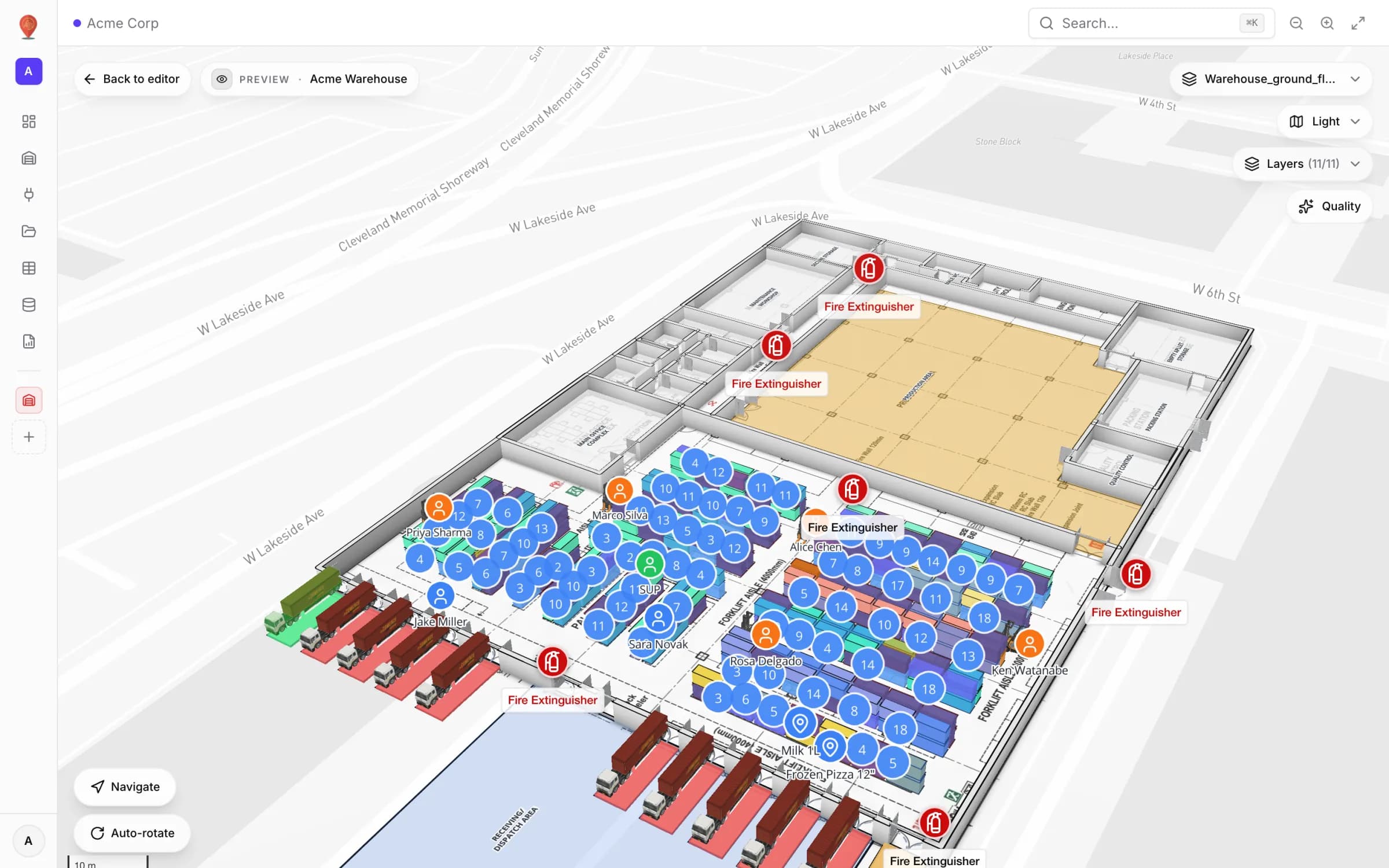
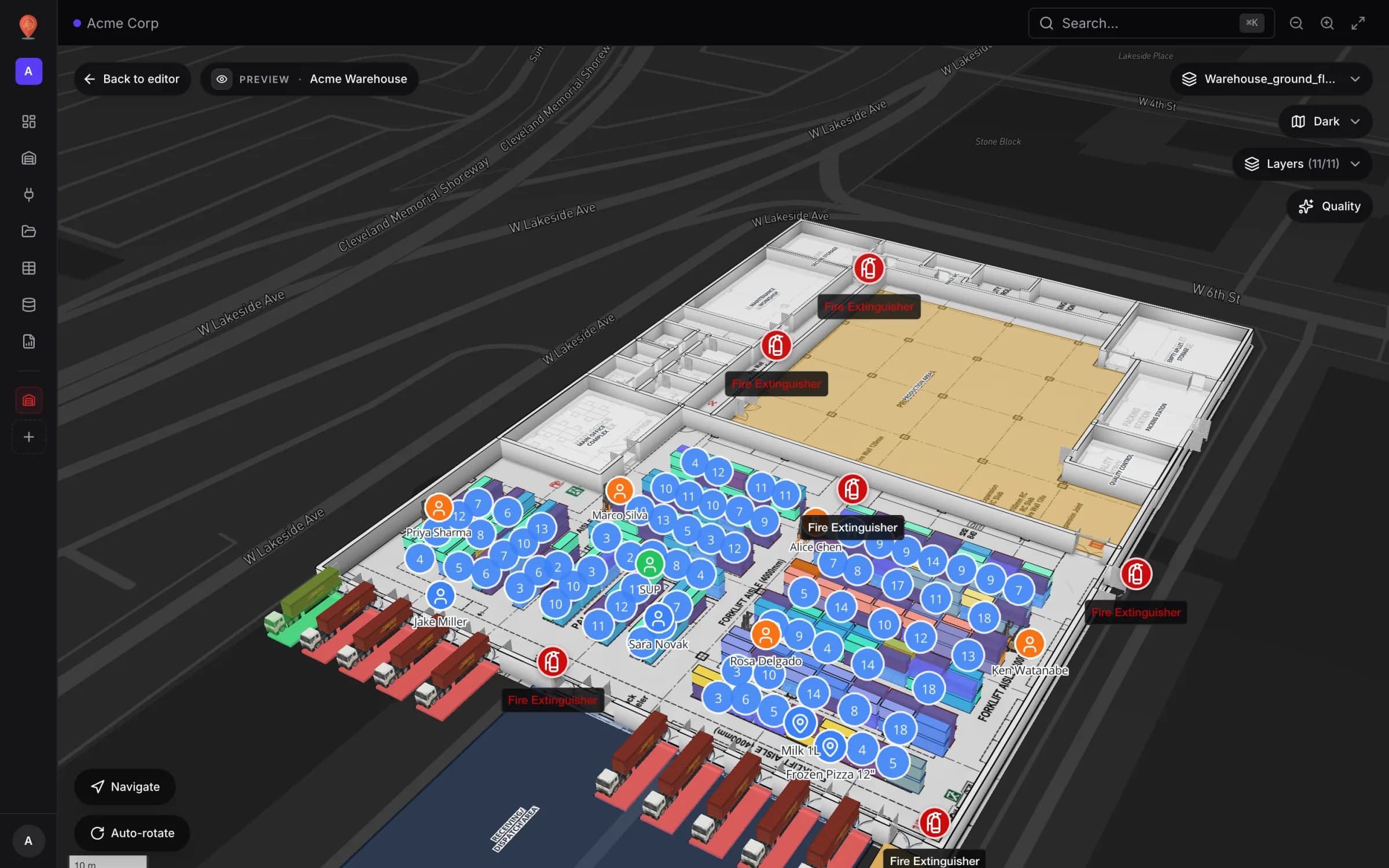
What you get
The pipeline in one picture
The trick to a floor plan that stays useful for years is not the drawing, it is the placement. A DWG or a scaled PDF already knows its real size, so all you set is where it sits and which way it faces. Once it lines up with the building on the basemap, every shape you trace on top gets real coordinates for free, every sensor you add later lands in the right room, and every share link shows the plan at the real address. The CAD & PDF import guide covers every dialog option.
What the import does, and what it doesn’t
| File | What the dialog asks | Size on the map |
|---|---|---|
| PNG, JPEG, GIF, WebP | Nothing: it uploads straight away | The box you drag |
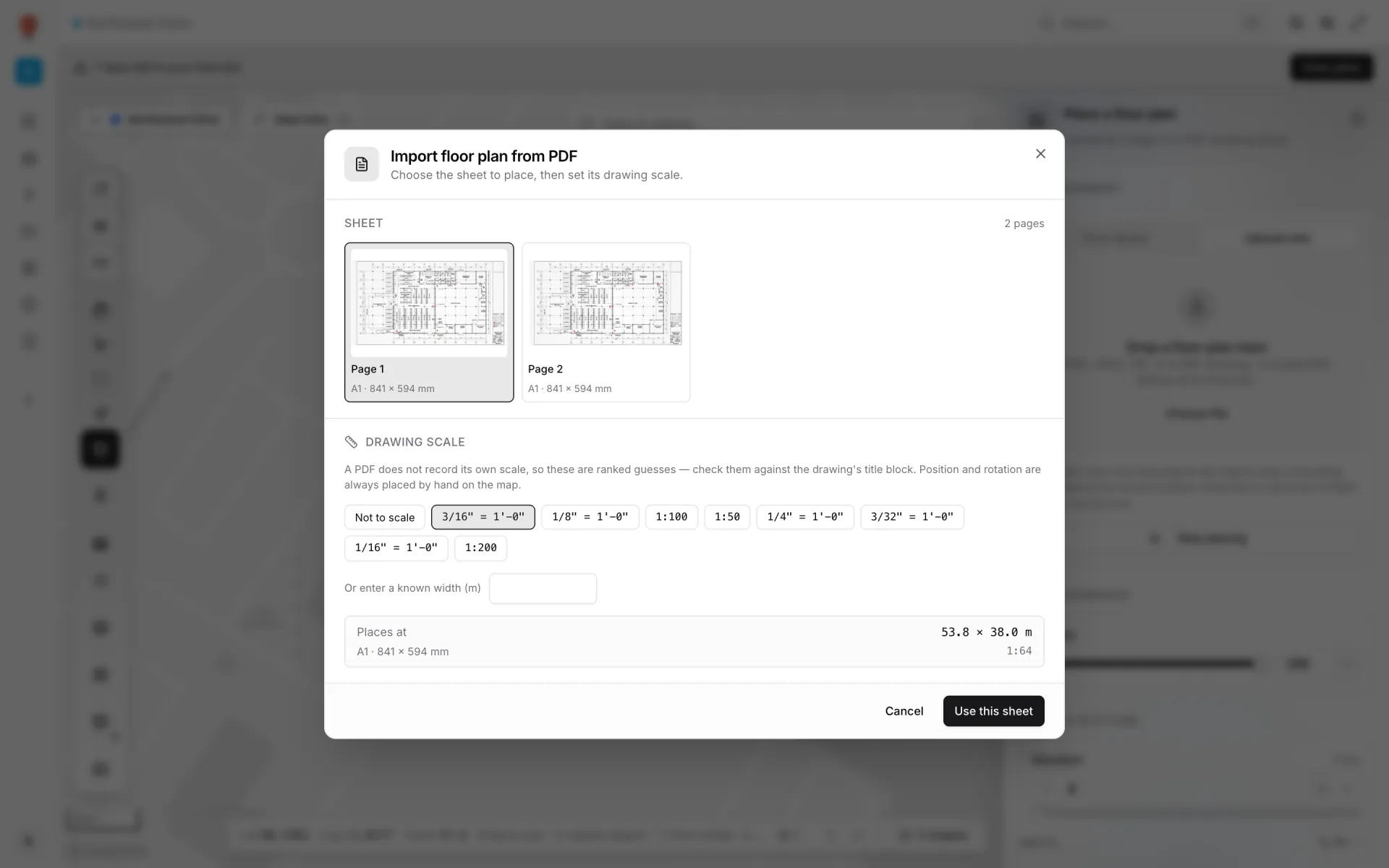
| Import floor plan from PDF: which sheet, and its drawing scale | True size once you pick a scale; dragged size with Not to scale | |
| DWG (AutoCAD R2004–R2018) | Import floor plan from CAD drawing: the drawing units and which layers to draw | Always true size |
A PDF never records the scale it was plotted at, so the dialog matches the page against 17 standard ISO A, ANSI and ARCH sheet sizes and offers ranked guesses such as 1:100. Check the guess against the title block, or type a width you know into Or enter a known width (m). A DWG is drawn in real units; the dialog reads them from the file, shows the building size each unit would give, and lists every layer with its entity count. Dimension, hatch and title-block layers start unticked.
Import and place, step by step
- 1Open the Floor plan tool
In the facility editor press I (or 8), or pick Add floor plan from the Draw menu, and drop the file into “Drop a floor plan here”. Plans you uploaded before are under From library.
- 2PDF: choose the sheet and the scale
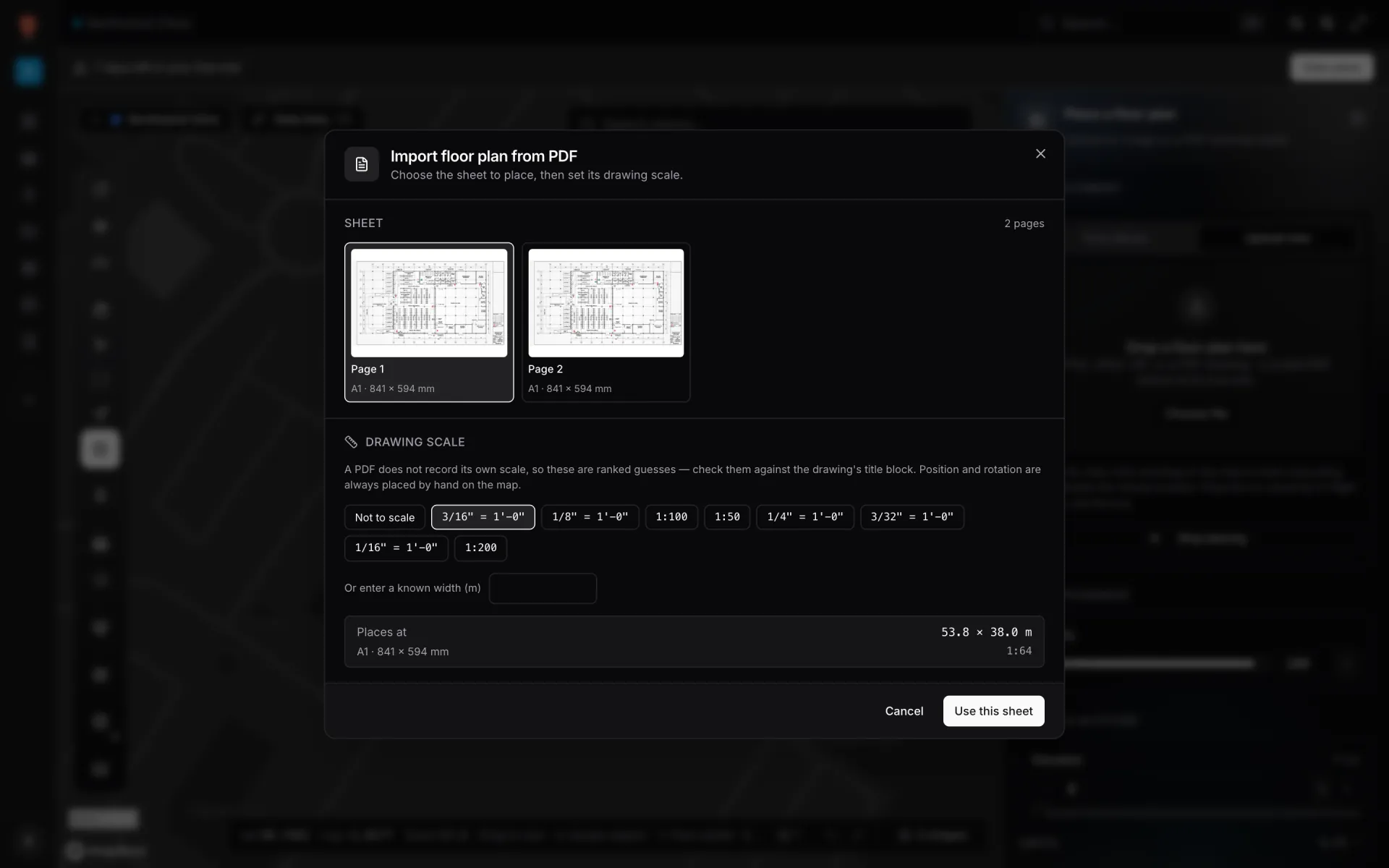
Pick the page from the thumbnails, check the preselected Drawing scale chip against the title block or enter a known width, and confirm with Use this sheet. Places at shows the real-world size before you commit.
- 3DWG: confirm units and layers
Check the unit under Drawing units: each chip shows the building size it implies, so a wrong unit is obvious. Untick electrical, plumbing and furniture layers you don’t need, then click Use this drawing.
- 4Drag it onto the map
For a scaled PDF or a DWG, the side panel reads “Drag on the map to position the sheet”: the size is fixed and only the position follows your drag.
- 5Line it up with the building
Select the plan, rotate it with the Rotation slider or the [ and ] keys, nudge it with the arrow keys, and lower the Opacity until the outline sits on the building in the basemap.
The result: the plan sits at its true size, turned until it matches the street grid. When the architect sends a revision, Replace image swaps the drawing and keeps that placement, so everything traced on top stays aligned.
Trace what operations needs
The placed plan is a backdrop. The 3D building, and everything data can attach to, is what you draw on it with the tools in the Draw menu. Everything you draw sits on the map, with nothing to measure or type:
- Area (P) for rooms, departments and zones. Give each a name and a role such as Room; names are what room-level data joins on later.
- Aisle (L) for wall runs and walkways, with wall height and thickness in 3D & Altitude.
- Magic walls (W) to raise a closed wall around every area you select, in one click.
- Door (D), Stairs & lifts (S), Rack (G) and Text (T) for openings, vertical transport, shelving and labels.
Height is per shape: set Elevation and Height in the side panel’s 3D & Altitude section. Walls get their storey height, racks their real height, and rooms can stay flat or rise slightly so they read as floor. For a second storey, import its plan the same way and give it its own Elevation so it lands above the first; the viewer’s floor switcher then shows one level at a time, or all floors together.
The accuracy you can expect
Because a DWG is drawn in real units and a PDF has a drawing scale, the size is right from the start. What remains is how carefully you line the plan up with the building on the satellite or street basemap. With a crisp building outline to align to, expect the plan to sit within a metre or two; the bigger the site and the blurrier the imagery, the more care it takes (an illustration, not a guarantee). That is plenty for asset markers, room colours and share links.
The 4096 px limit is deliberate: a floor plan is drawn as a single texture, and many laptops can’t display a larger one. PDF and DWG imports are sized for that automatically; export your own images at 4096 px or less.
What eats afternoons
Try it on your own drawing
Start a 7-day free trial (no credit card, up to five facilities), import one floor and trace its main rooms. Pro is $60 a month or $600 a year for up to four facilities; see pricing. An AI tool that proposes draft shapes from a placed plan is in development; our AI floor plan post explains what is coming and how to get the same result by hand today.
Try the platform your data belongs on.
Spatial Map turns spreadsheets, sensor streams, and CAD drawings into one live 3D facility view — nothing to install, seven-day free trial.
Keep reading
- TutorialWarehouse KPI dashboards with a live 3D map: a builder tutorialA chart says 66% of bins are occupied; a map says where. This tutorial walks through the guided 12–13 step report builder to put both on one warehouse dashboard — using the real Rack Inventory report from our demo warehouse.
- TutorialFrom spreadsheet to spatial: turning a bin inventory CSV into a live rack mapA CSV in a shared drive helps no one on the floor. The same CSV painted on your rack layout is a shift meeting.
- TutorialWMS integration guide: REST, webhooks and WebSockets for a live warehouse mapYour WMS may speak REST, webhooks or WebSockets. Spatial Map pulls REST endpoints, imports files and receives pushes as table API writes — here is how to pick a path and wire it, with working curl and a small relay.