
From spreadsheet to spatial: turning a bin inventory CSV into a live rack map
Import a bin inventory CSV or Excel file onto your warehouse racks: match rows to rack cells, map SKU and status, then colour bins with style rules.
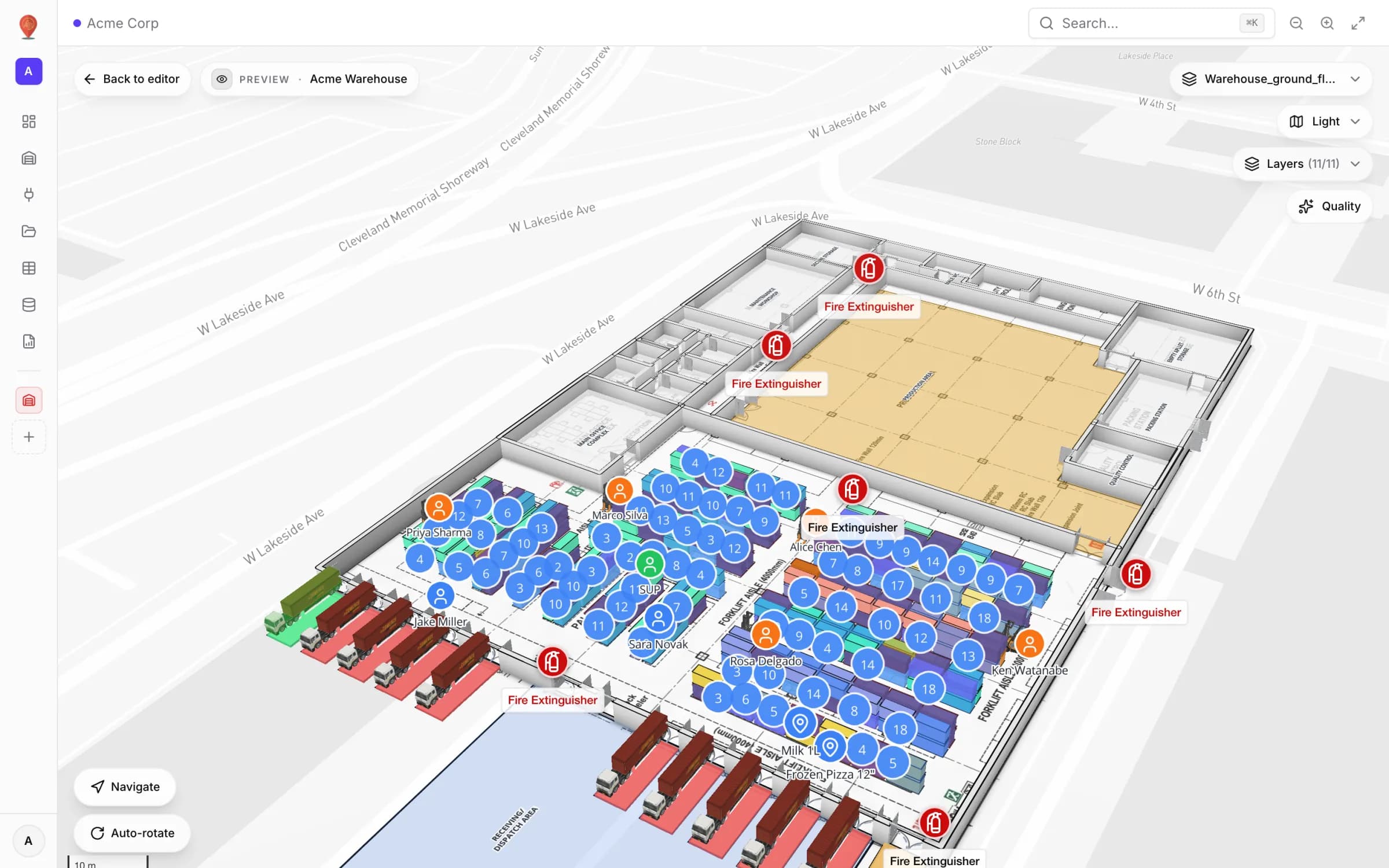
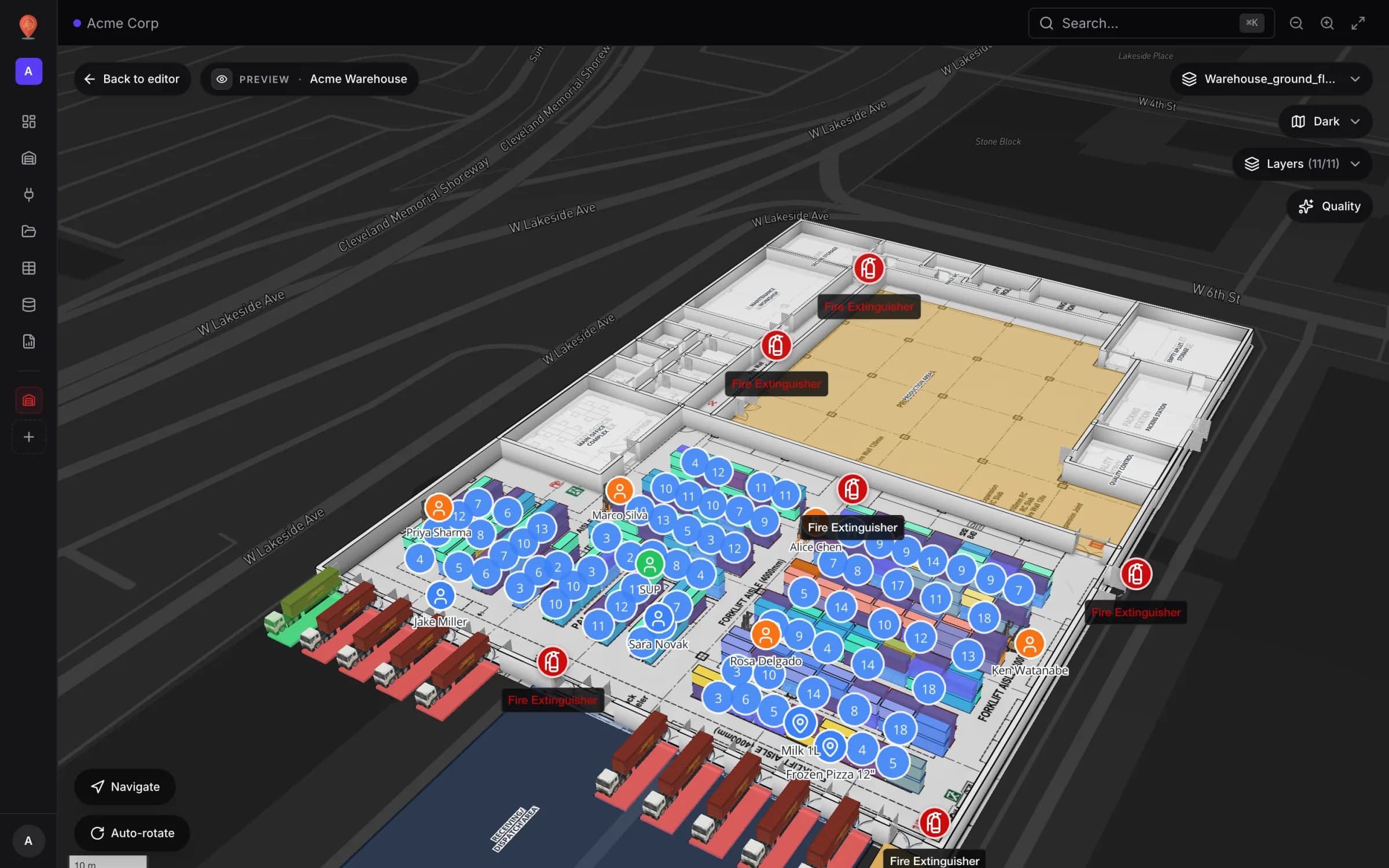
What twenty minutes buys you
The pipeline
The Spatial Map bin import is intentionally short: read the file, say how each row finds its bin, send the other columns somewhere useful, check the preview, import. Everything after that — status colours, quantity bands, ABC classes, expiring stock — is a style rule on top of the same bins, on racks you already drew. The warehouse solution shows how it fits into a full warehouse set-up.
Import in six steps
- 1Draw the racks
If the racks are already on the map, skip this. Otherwise pick the Rack tool (G) and click two corners. Rows and columns follow the footprint and the cell size, and square racks can stack into levels. In the side panel’s Labels section, set a Prefix and Start number so every cell carries a readable label. See the Rack tool docs.
- 2Open the import
Go to Integrations, click Add integration and choose Upload file. Drop the CSV or XLSX. The Import a file dialog walks through File, Match, Mapping, Preview and Done.
- 3Tell each row where it belongs
On Match, name the source and, if you like, pick a Facility so rows outside it are skipped. Then choose Match each row by: Bin label (the cell text on the rack), External code (one column with a unique WMS code), Grid cell (rack + row + column, plus an optional level) or Other shape (a polygon, line or marker matched by name).
- 4Map the remaining columns
On Mapping, send each column to a bin field — SKU, Capacity, Notes, Status, External code — or to a custom attribute such as quantity, ABC class or expiration date, or skip it. Leave Create missing attributes automatically on so the side panel shows the new attributes.
- 5Preview and import
The preview counts matched grid cells, new bins and skipped rows, and flags rows with warnings before anything is saved. Import, then click a rack and use Edit bin properties on any cell to see what landed there.
- 6Add the status rules
In the editor side panel’s Style rules section, add one rule per state you care about: empty in grey, reserved in amber, and so on. Rules run top-down and the first match wins.
bin_code,sku,qty,status,abc_class,expiration_date
A-B01-L1,,,empty,,
A-B01-L2,DRY-1042,120,occupied,A,2027-03-01
A-B02-L1,FRZ-2001,42,reserved,B,2026-11-20
B-B51-L1,PAP-8003,86,occupied,C,Keeping the map current
Re-import on the file’s card (on the Integrations screen) runs the import again with the stored file — handy after you relabel or redraw a rack. When a new export arrives, upload it with Upload file and the same match key; rows land on the same bins and nothing else in the facility moves.
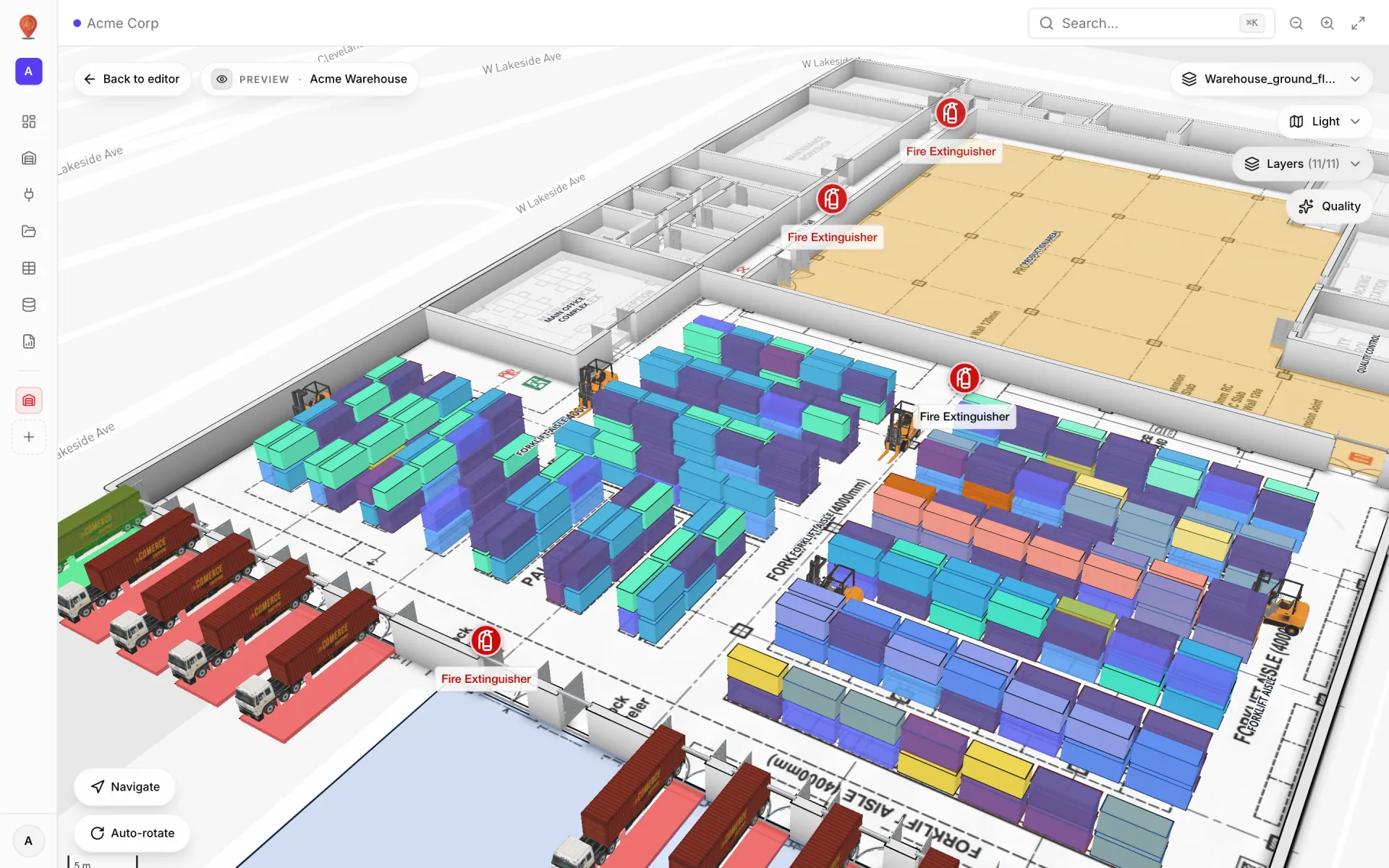
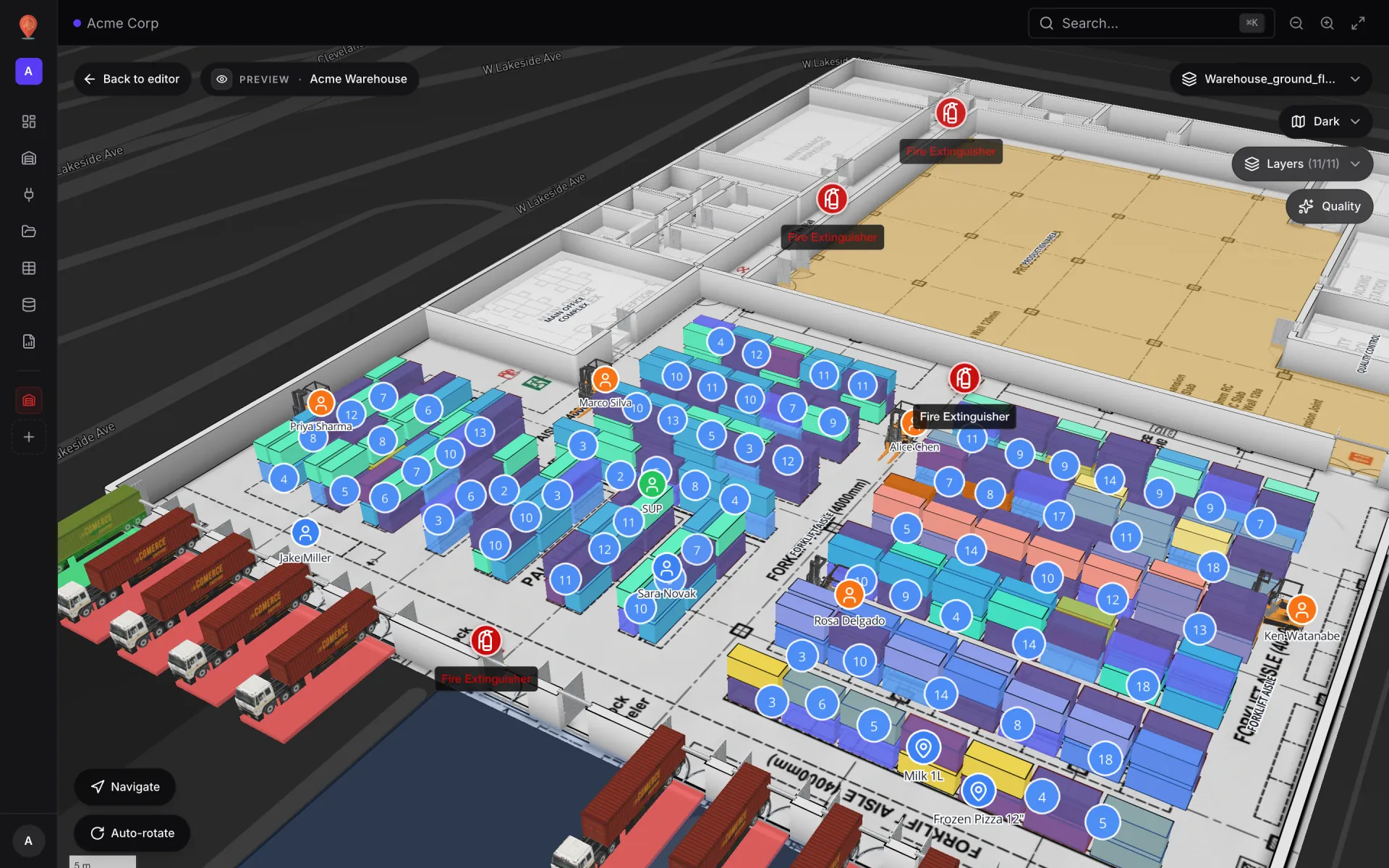
Once a weekly snapshot isn’t enough, move the data into a table. That is how the Acme Warehouse demo works: a Rack Inventory table holds one row per bin (314 of them, codes like A-B01-L1), and a data link with the Color a shape display mode tints each rack cell, matching rows to cells by external code on the bin_code field. Your WMS can write to the table through its write API, or Spatial Map can pull from a REST endpoint on a schedule (tables, data links). Linking the table also creates a report for it — see warehouse KPI dashboards with a live 3D map.
Style rules that pay for themselves
These are the five rules the Acme Warehouse demo runs on its racks — a good starting set for any bin layer:
- Blocked bins — status is blocked: solid red with a BLOCKED label.
- Expired stock — the expiration date is in the past: dark red, labelled EXPIRED.
- Expiring within 30 days — amber, labelled EXPIRING.
- A-class fast mover — ABC class A and occupied: purple, so slotting drift stands out.
- Empty pick-face — empty and a pick face: blue with a REPLENISH label.
Two things that will trip you
Try the platform your data belongs on.
Spatial Map turns spreadsheets, sensor streams, and CAD drawings into one live 3D facility view — nothing to install, seven-day free trial.
See it live
Keep reading
- TutorialWarehouse KPI dashboards with a live 3D map: a builder tutorialA chart says 66% of bins are occupied; a map says where. This tutorial walks through the guided 12–13 step report builder to put both on one warehouse dashboard — using the real Rack Inventory report from our demo warehouse.
- TutorialWMS integration guide: REST, webhooks and WebSockets for a live warehouse mapYour WMS may speak REST, webhooks or WebSockets. Spatial Map pulls REST endpoints, imports files and receives pushes as table API writes — here is how to pick a path and wire it, with working curl and a small relay.
- TutorialFrom a CAD or PDF floor plan to a 3D browser map, step by stepPick the sheet or the layers, confirm the scale or units, drop the plan onto the map and line it up. The drawing arrives as a true-size picture; the 3D building is what you trace on top. Here is the whole path, with what it does and doesn’t do.