
AMR / AGV navigation and your facility map: what Spatial Map gives a robotics team (and what it doesn’t)
Spatial Map is not a fleet manager. It gives AMR/AGV teams facility geometry as GeoJSON, a route check from walls, doors and racks, and live robot positions.
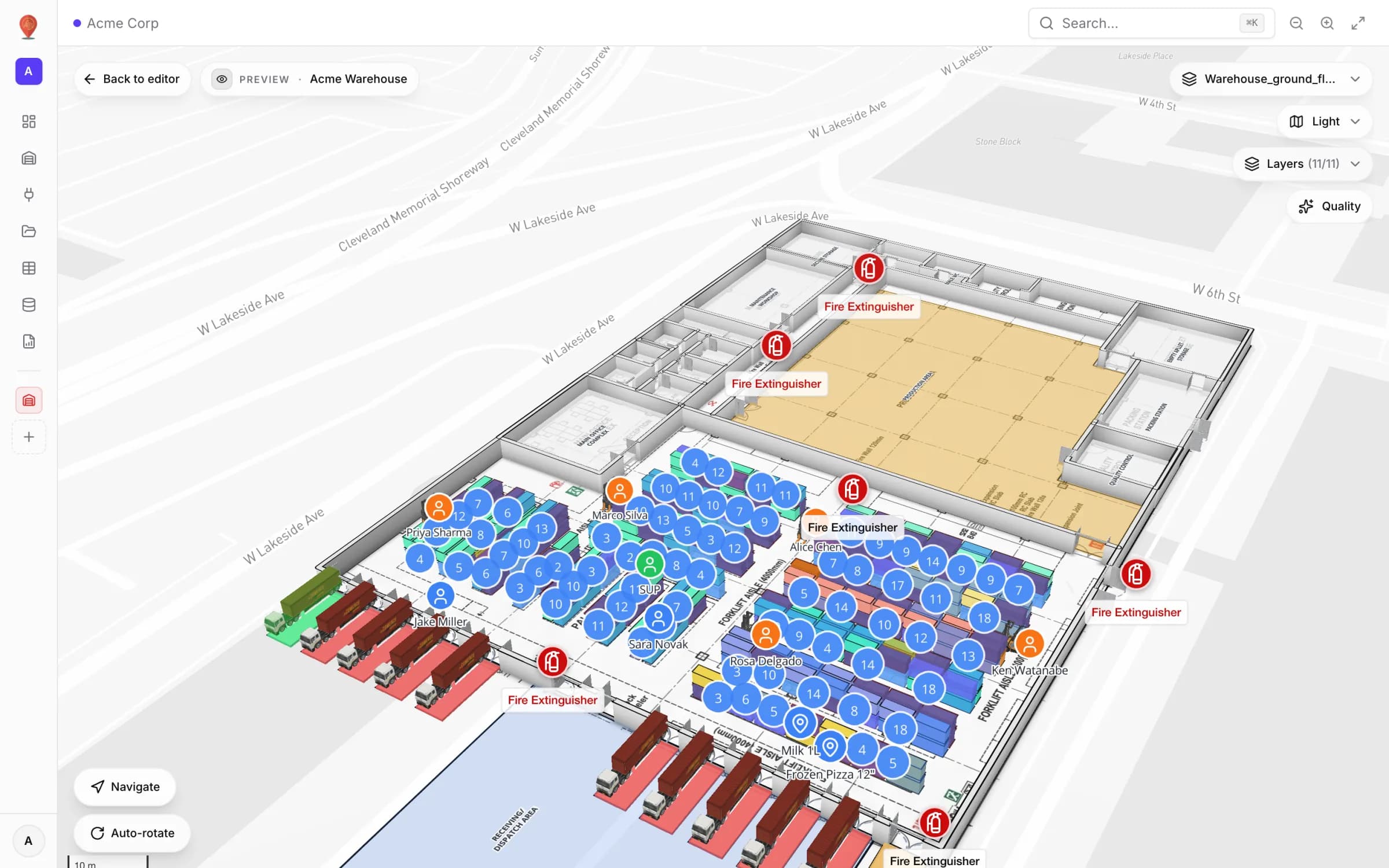
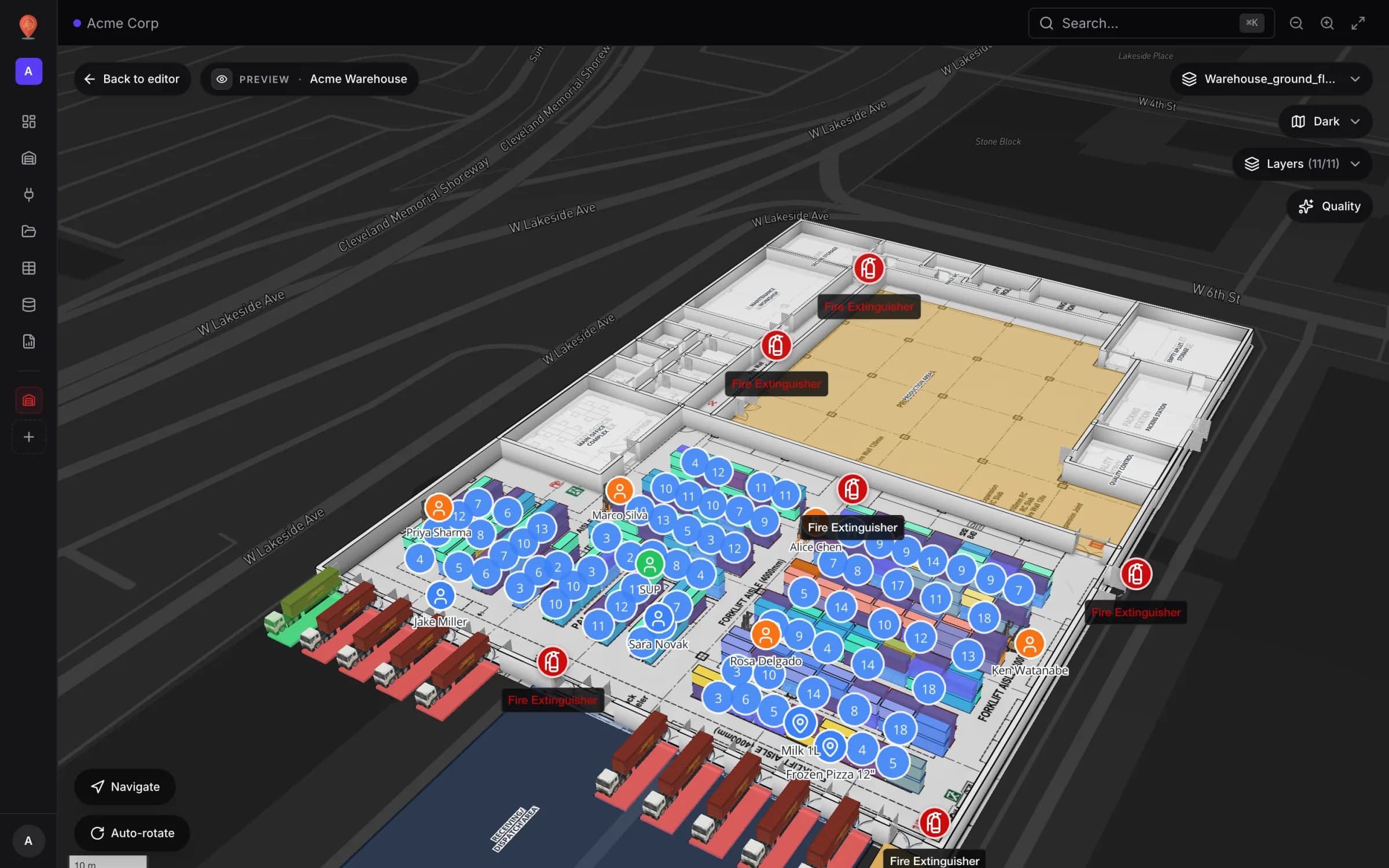
What the map can and can’t do for a fleet
How Spatial Map actually routes
There is no hand-maintained graph of nodes and edges. When you ask for a route, Spatial Map lays a grid of 25 cm cells over the current floor and marks each cell open or blocked from what is drawn there. Open floor — the rooms, zones and aisles you drew as areas — is walkable. Lines and walls block, using their wall thickness. Each door opens a gap in the wall it sits on. Every rack cell is an obstacle. Walls and racks are padded by about 0.3 m of clearance, so a gap narrower than roughly 0.6 m counts as closed. A* then finds the shortest open path, which is straightened and centred in each aisle.
Routing stays on one floor. Stairs, lifts and escalators are drawn and labelled on the map, but the search does not climb them, and there is no "prefer lifts" option. A multi-floor trip is two routes: one to the lift on the first floor, one from the landing on the next. The full rules are in the wayfinding docs.
Hand the geometry to the fleet
Spatial Map does not expose routing through an API, SDK or fleet-manager connector, and it does not publish a navigation graph. What it gives a robotics team is the source geometry. In the editor, the Data menu’s export opens Export shapes…, which writes the facility as GeoJSON (a FeatureCollection with each feature’s kind in properties.kind and its full geometry), JSON, Excel or CSV — everything, chosen kinds (lines and walls, doors, racks, areas, stairs…) or just the selection.
{
  "type": "FeatureCollection",
  "features": [
    {
      "type": "Feature",
      "geometry": { "type": "LineString", "coordinates": [[-81.70061, 41.50012], [-81.70002, 41.50013]] },
      "properties": { "id": 412, "kind": "line", "name": "North wall", "floorPlanId": 48, "rotation": 0 }
    },
    {
      "type": "Feature",
      "geometry": { "type": "LineString", "coordinates": [[-81.70041, 41.50012], [-81.70037, 41.50012]] },
      "properties": { "id": 88, "kind": "door", "name": "Dock door 3", "floorPlanId": 48, "rotation": 0 }
    }
  ]
}Show the fleet on the map — monitoring, not control
Where Spatial Map does help day to day is visibility. If your fleet manager or middleware can report where each robot is, the map can show it next to the racks, people and stock it already displays:
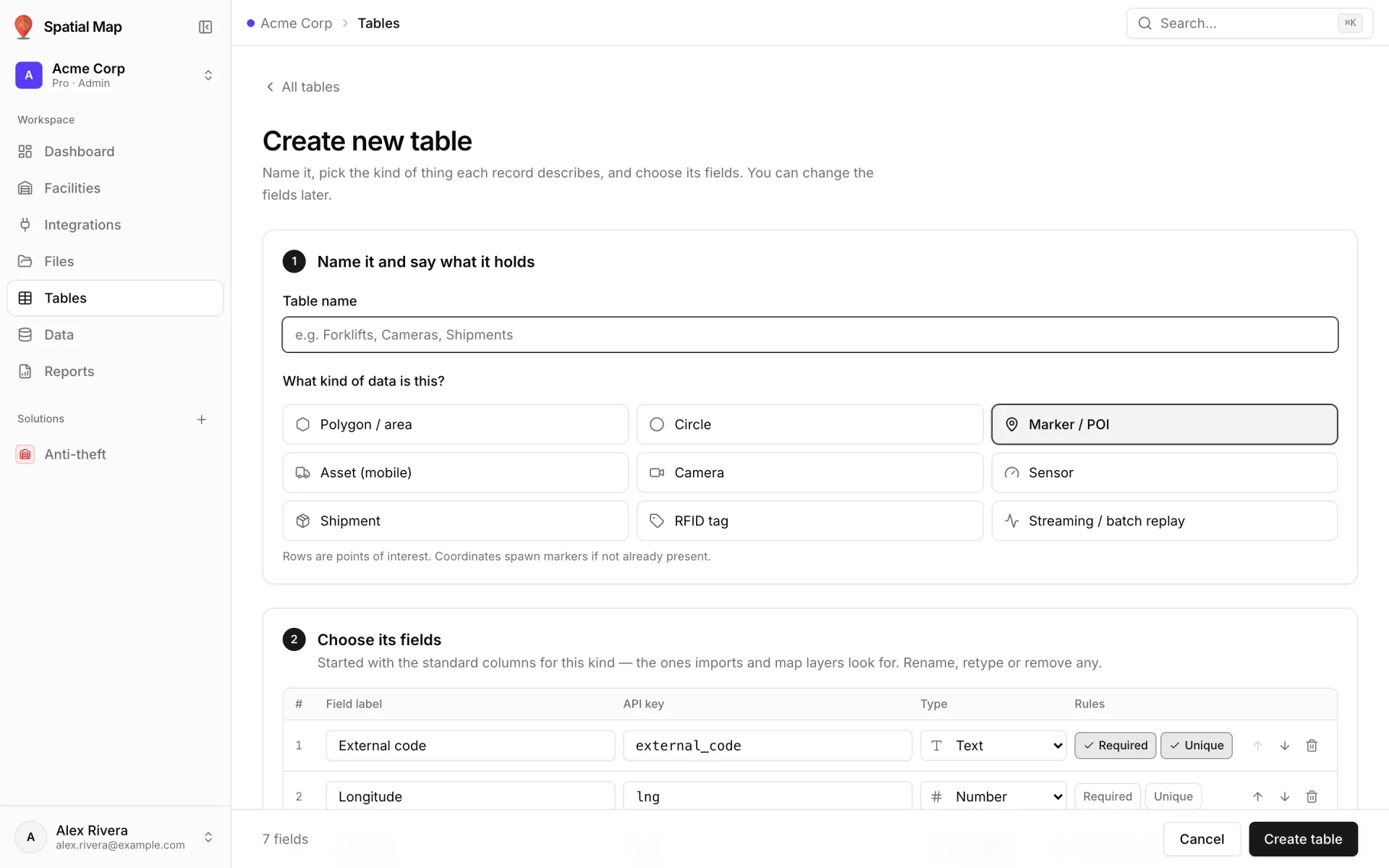
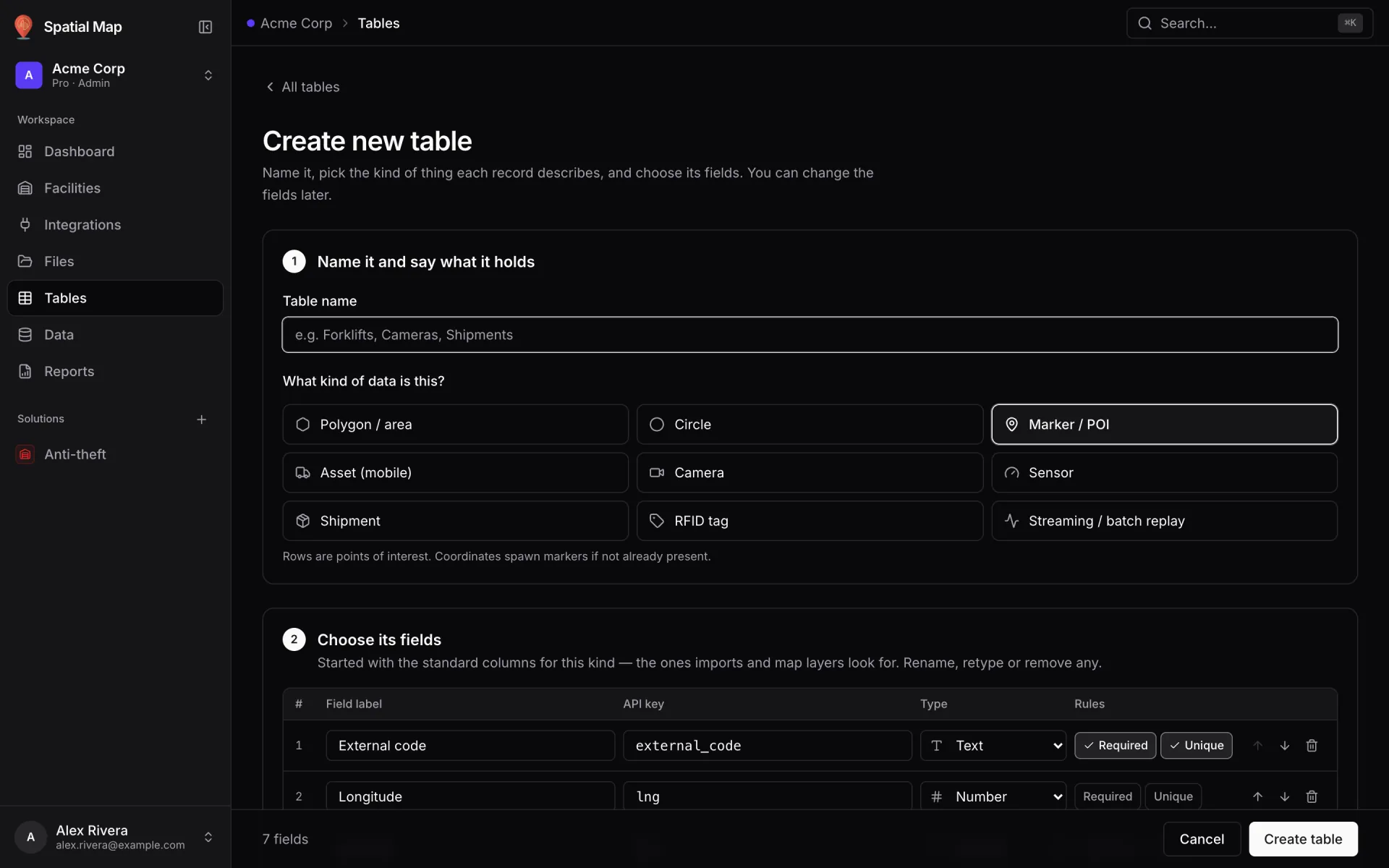
- 1Create a table for the fleet
In Tables, create a table such as “Forklifts” or “AMRs” and pick Asset (mobile). It starts with the standard columns — an external code plus longitude and latitude — and you add battery, state or task fields (tables).
- 2Feed it positions
Push rows from your middleware with the table’s write API — one bearer token per table, bulk upserts of up to 1,000 rows per call, 60 requests a minute per token by default — or let the table pull from a REST endpoint on a schedule (the poller checks about once a minute). It is near-real-time visibility, not a control loop.
- 3Link it to the facility
Add a data link with Live location marker to place each robot at its coordinates, Movement trails to draw recent paths, or Historical movement to replay the table’s change log with a player at the bottom of the map (data links).
- 4Report on the work
Log tasks in a table too. The Acme Warehouse demo keeps a Pick Events log with a forklift on every event, and its Forklift Utilization report turns that into a trips-per-forklift donut — the same wizard works for robot missions.
What to expect
For the people side of the same routing — the Navigate button in the viewer, walking times, turn-by-turn steps — read indoor wayfinding with turn-by-turn directions. For operations around the robots, see Spatial Map for warehouses.
Try the platform your data belongs on.
Spatial Map turns spreadsheets, sensor streams, and CAD drawings into one live 3D facility view — nothing to install, seven-day free trial.
See it live
Keep reading
- Deep-diveWhat is indoor mapping? A practical guide (2026)Indoor mapping turns a building’s floor plans into a structured, multi-floor digital map. This guide explains how indoor maps are made, how they become digital twins, and how to choose software.
- Deep-diveIndoor wayfinding software: turn-by-turn directions on your floor planGPS stops at the front door. Here’s how Spatial Map builds walking routes from the floor plan you already maintain, gives visitors turn-by-turn directions in the viewer, and, honestly, where floors, lifts and accessibility fit in today.
- Deep-diveAI floor plan to digital twin: what’s coming, and how to do it todayAI that turns a floor plan into rooms and walls is the most requested shortcut in digital-twin projects. Ours, AI Map, is in development and not usable yet. Here is what it is being built to do, and the workflow that gets you the same result today.