
AI floor plan to digital twin: what’s coming, and how to do it today
AI Map, which proposes rooms, walls and doors from a floor plan, is coming soon. Today you trace the plan with Areas and Magic walls. Here is how.
The short version
Where AI Map stands today
Most digital-twin projects stall at the same step: somebody has to redraw the building. The architect’s drawing exists, but turning it into rooms and walls you can attach data to has always meant tracing. AI that does the tracing for you is the obvious shortcut, and it is the one we are building.
Open the Draw menu in the editor and you will see the AI Map button at the end of the tool row, dimmed, with a small SOON badge. Clicking it opens an “AI Map — coming soon” notice instead of starting the tool. That is the honest state of things: the feature is in active development, it is not available to use, and we would rather tell you that than demo something you can’t try.
What AI Map is being built to do
AI Map is designed to speed up tracing, not to replace it. You place a floor plan as usual, then ask AI Map to read the whole floor, or drag a rectangle over one wing. It proposes four kinds of draft shape:
- Aisles and wall runs: long, thin features, such as the rack rows that define aisles on a warehouse plan.
- Areas: enclosed rooms and zones, named from the room label printed inside them when the text can be read.
- Doors: placed across the opening between two jambs.
- Stairs: placed as a straight flight that you can reshape afterwards.
The design is review-first. Each detection comes with its kind, any label read from the plan and a confidence score, with Accept and Reject per row and a bulk accept above a confidence threshold. What you accept becomes an ordinary shape: you can move it, restyle it, undo it or delete it like anything you drew. What you reject never touches the map.
Why it is a computer-vision pipeline, not a chat model
Our first prototype sent the image to a general vision-language model and asked for rooms, doors and coordinates. It was quick to build and hard to trust: on real warehouse plans the coordinates drifted, interior doors were often missed and aisles were found less than a third of the time. General models are good at describing an image and much weaker at saying exactly where a doorway is.
So AI Map is being built as a pipeline in which each stage does one job: a segmentation model splits the image into regions, geometry clean-up turns each region into a simple polygon, shape rules decide whether a polygon is a wall run, a room, a door or a stair, OCR reads the room names, and the result is converted to map coordinates with the same maths the editor uses to draw the placed plan. Each stage can be measured and improved on its own, and every accept or reject tells us where the rules need work.
How you do it today: Areas, then Magic walls
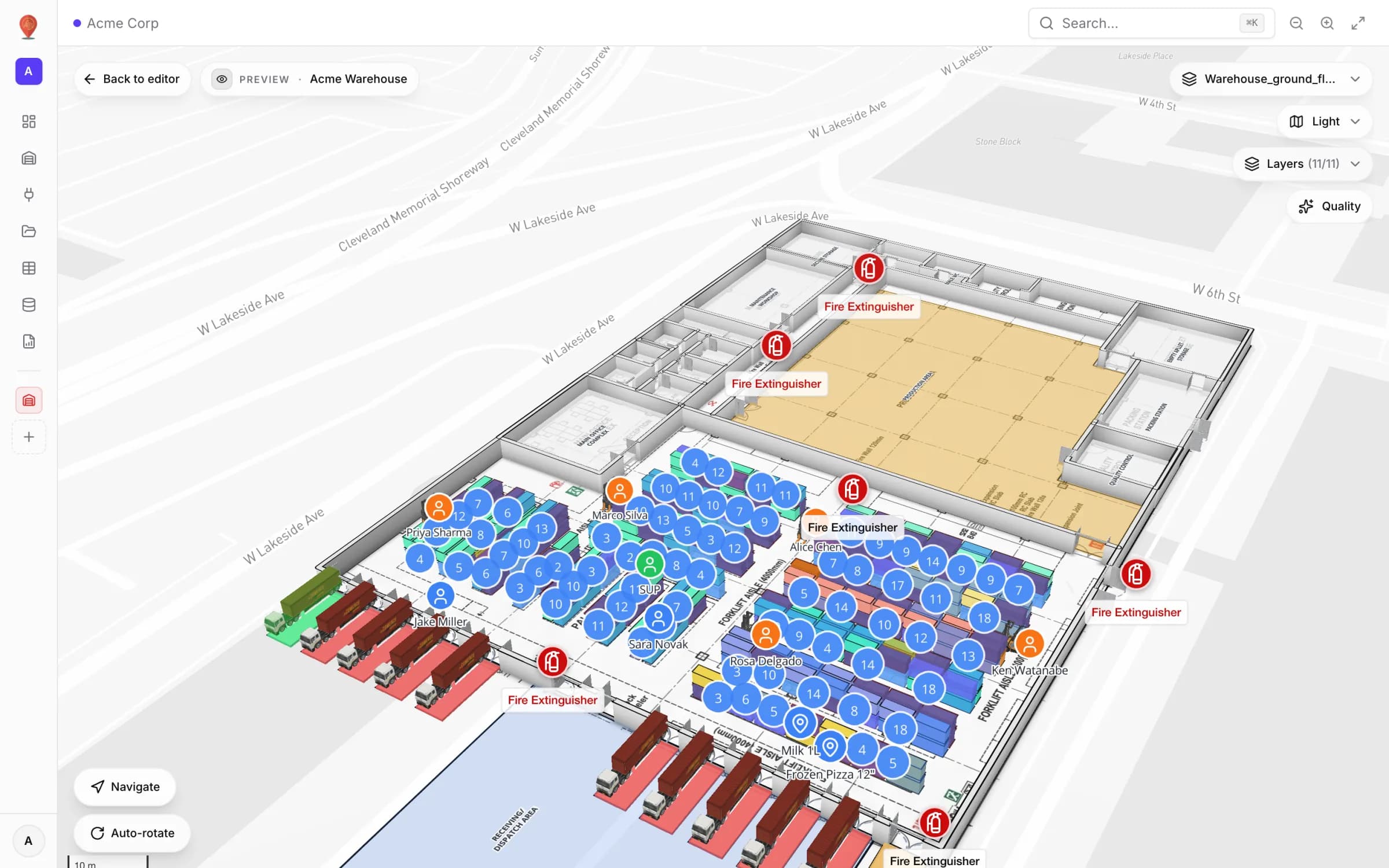
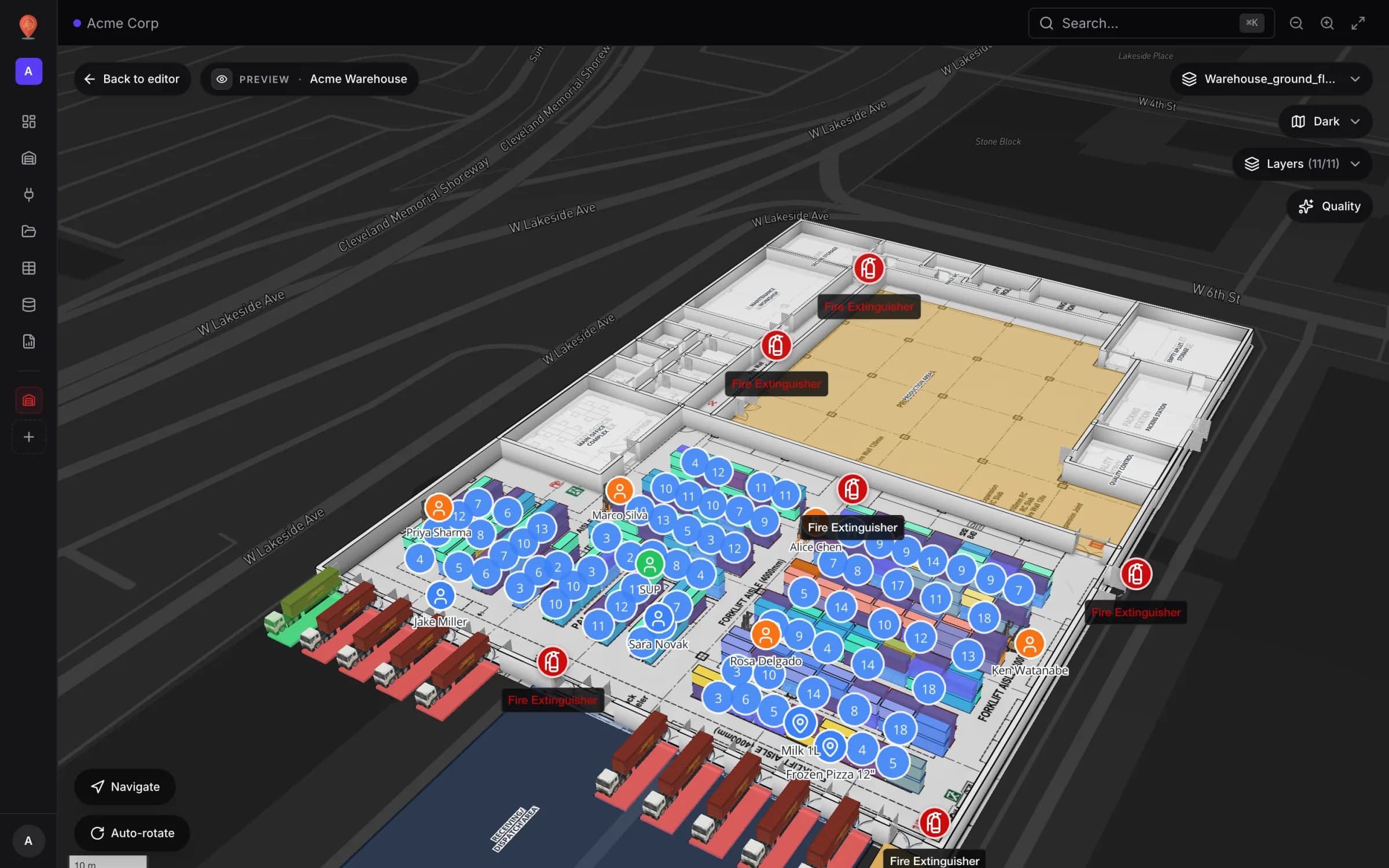
Until AI Map ships, the reliable path is to trace. It is faster than it sounds, because the plan already sits at true size on the map and two tools do most of the work. The walls, offices, racks and dock doors of our Acme Warehouse demo were built this way.
- 1Import and place the plan
Press I in the editor and drop in a PDF, DWG or image. A PDF gets its scale from the sheet, a DWG from its units; drag it onto the map and rotate it until it sits on the building. Our CAD to 3D guide walks through it.
- 2Trace each room with Area (P)
Click around the room’s corners and close the shape. Name it as it is known on site (“Office 1”, “QC-03”) and pick a role such as Room. Names matter: room-level data joins on them later.
- 3Raise the walls with Magic walls (W)
Set the wall height and thickness you want, open Magic walls (from areas), click the areas to include and press Generate walls. Each area gets one closed wall around its outline, offset just outside it. From then on the walls are ordinary aisle shapes.
- 4Open the doorways
Magic walls produce closed rooms, so add a Door (D) wherever people walk through. Doors open a gap in the wall, which is also what lets indoor wayfinding route through it.
- 5Finish the floor
Add Stairs & lifts (S), shelving with Rack (G) and room names with Text (T). Press ? in the editor for the full shortcut sheet.
From drawing to digital twin
A 3D model of a building is still a drawing; a digital twin is the same model with the building’s data on it. Every area, rack or door you traced can be the target of a data link. Data comes in from a REST API polled on a schedule, an uploaded CSV, XLSX, JSON or GeoJSON file, or a table your own systems write to through its API. Show it as live location markers, value badges, coloured rooms, heatmaps or movement trails; it updates without a page refresh.
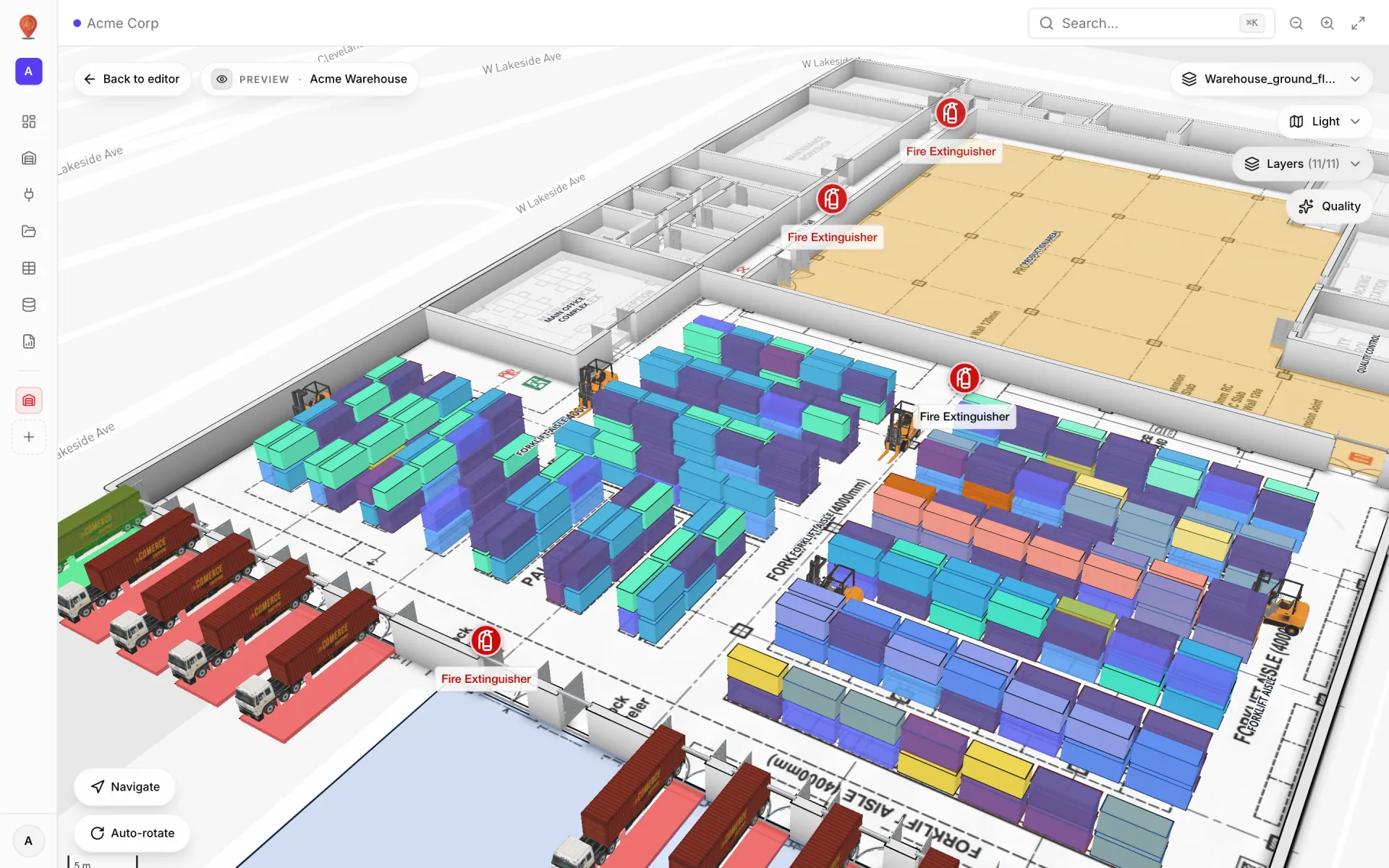
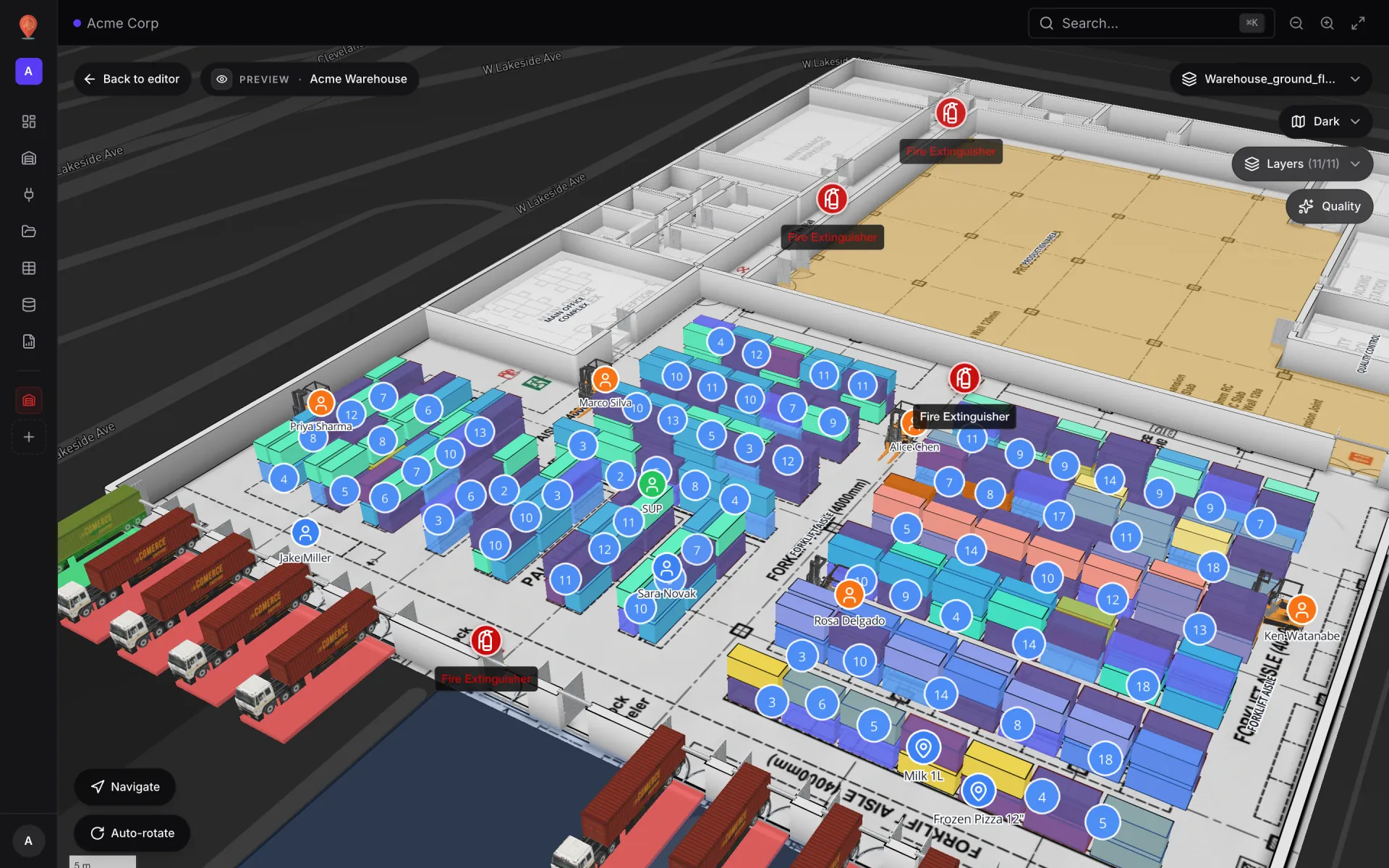
In the Acme Warehouse demo, the traced rack cells are tinted from the Rack Inventory table, each row matched to its cell by bin code. Rooms work the same way: a rooms table with a status field joins on the area names typed while tracing. That is why naming shapes carefully pays off.
Get your plans ready for AI Map now
The habits that make tracing quick today are the same ones that will give AI Map clean input when it arrives:
- Start from the cleanest source. A DWG or a vector PDF renders as crisp black linework; a phone photo of a fire-escape plan does not.
- Untick annotation layers when importing a DWG. Dimension runs, hatching and title blocks look like walls and rooms to a detector and get in your way when tracing.
- Crop the plan to the building with the floor plan’s Crop settings, so legends and title blocks stay out.
- Place and scale the plan first. Shapes are positioned through the plan’s placement, so a well-placed plan gives well-placed shapes.
Try the platform your data belongs on.
Spatial Map turns spreadsheets, sensor streams, and CAD drawings into one live 3D facility view — nothing to install, seven-day free trial.
Keep reading
- Deep-diveWhat is indoor mapping? A practical guide (2026)Indoor mapping turns a building’s floor plans into a structured, multi-floor digital map. This guide explains how indoor maps are made, how they become digital twins, and how to choose software.
- Deep-diveIndoor wayfinding software: turn-by-turn directions on your floor planGPS stops at the front door. Here’s how Spatial Map builds walking routes from the floor plan you already maintain, gives visitors turn-by-turn directions in the viewer, and, honestly, where floors, lifts and accessibility fit in today.
- Deep-diveMapbox GL marker occlusion: hiding HTML markers behind 3D floors, walls and racksMapbox’s Marker occludedOpacity only reacts to 3D terrain — not to your floor slabs, walls or racks. Here is the analytic depth test we run instead, and the symbol‑layer traps we hit along the way.