
Mapbox GL marker occlusion: hiding HTML markers behind 3D floors, walls and racks
Mapbox GL HTML markers draw above the WebGL canvas, so extrusions can’t hide them. How we occlude them with an analytic camera‑ray vs prism test.
The problem in one sentence
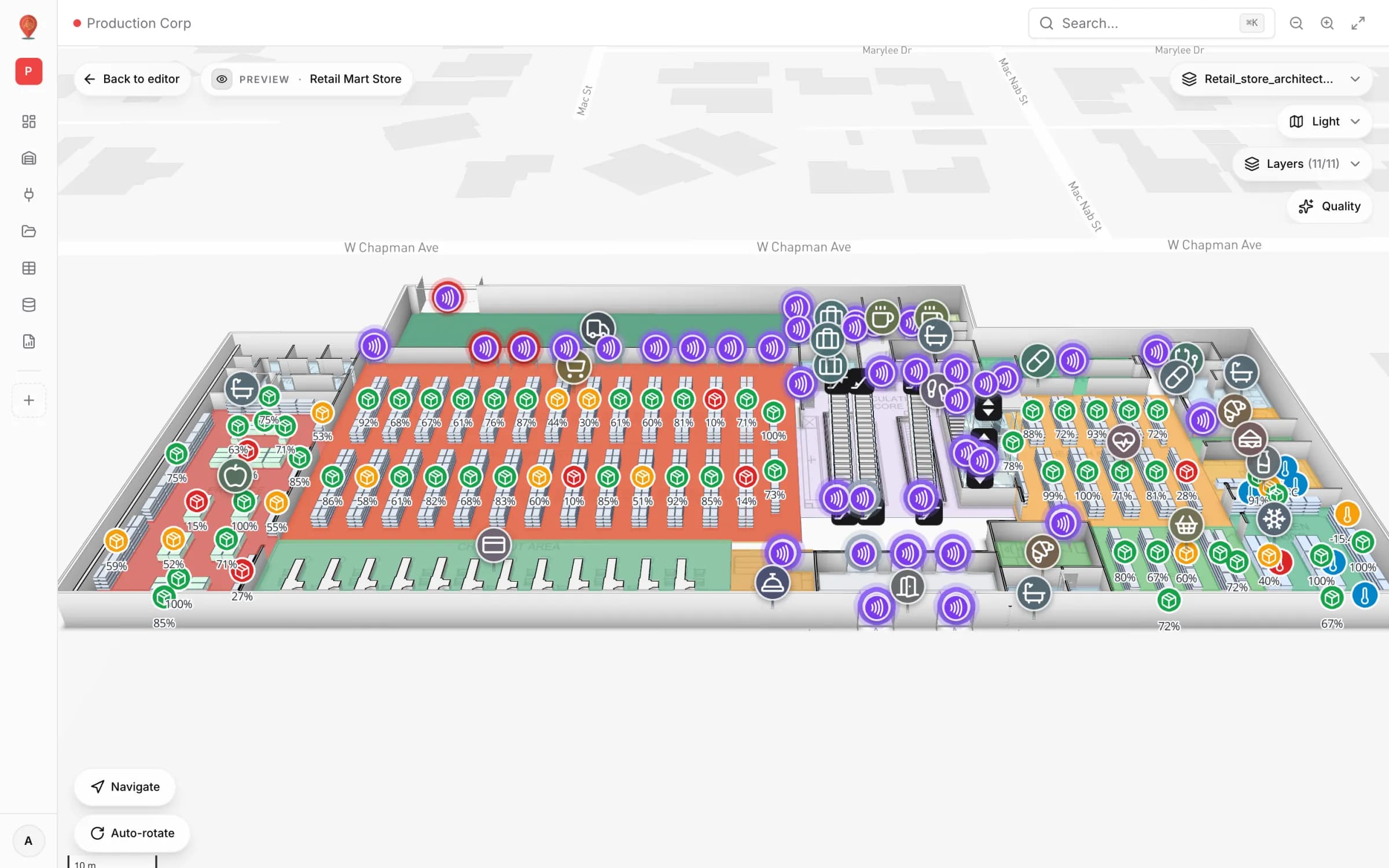
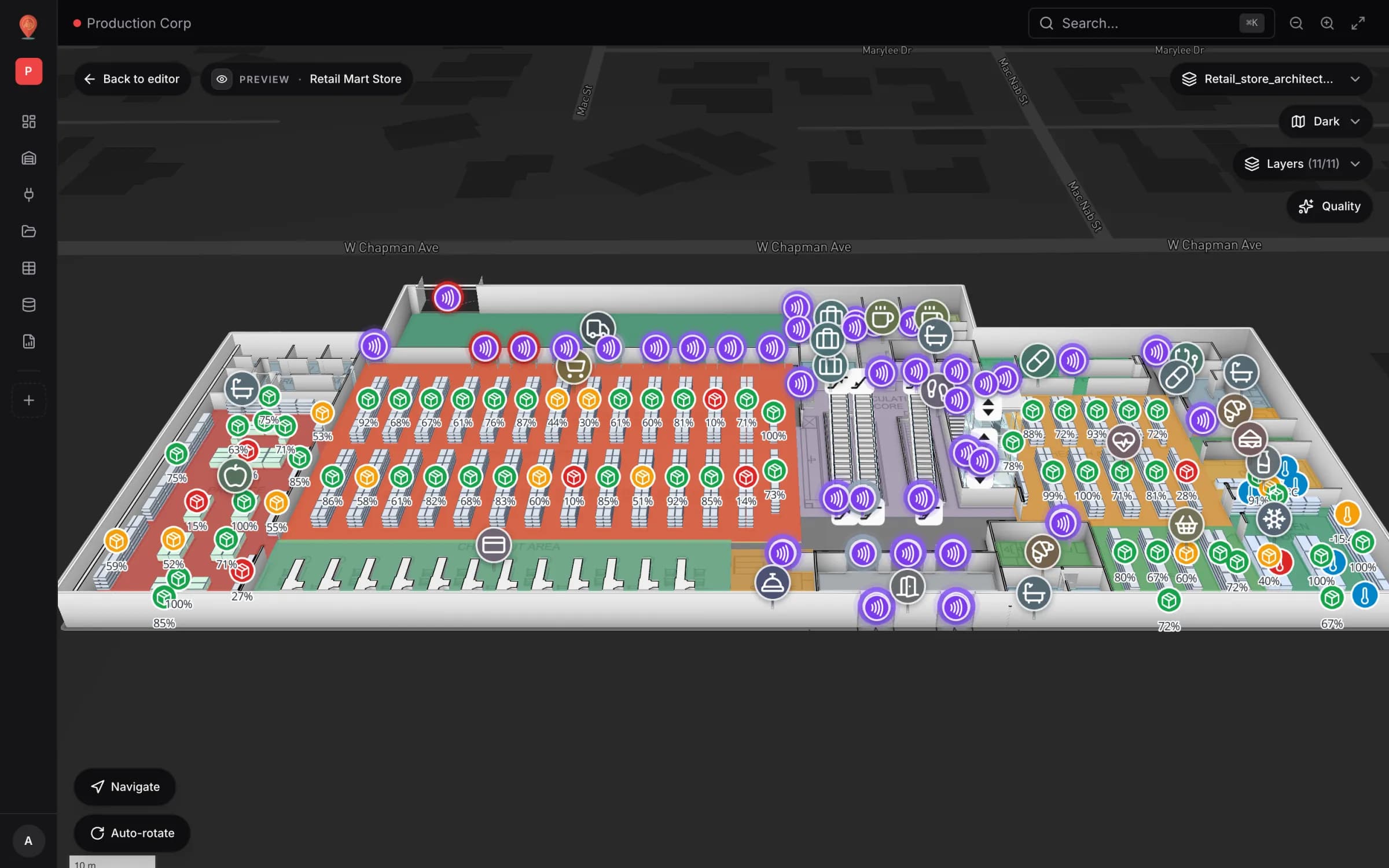
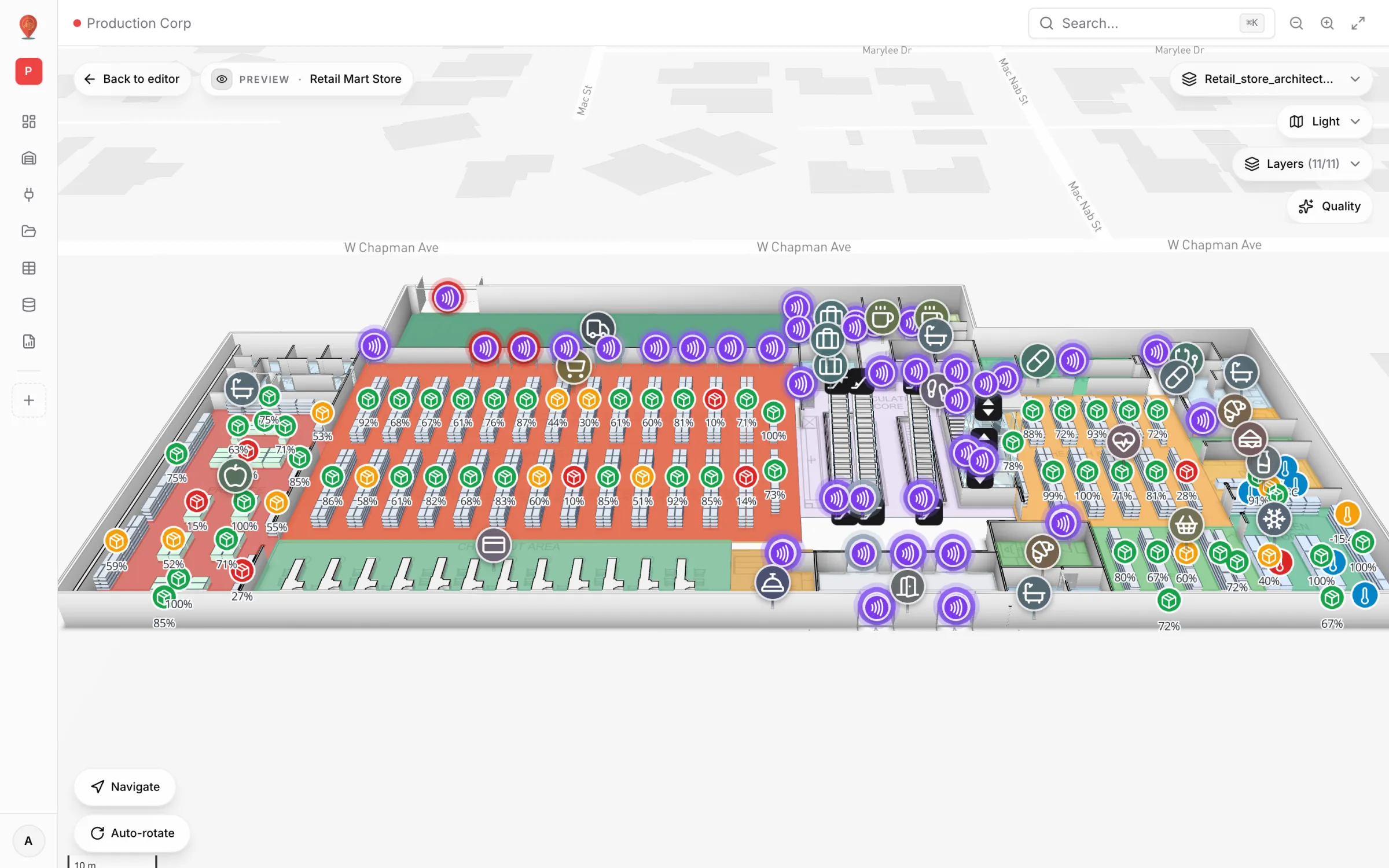
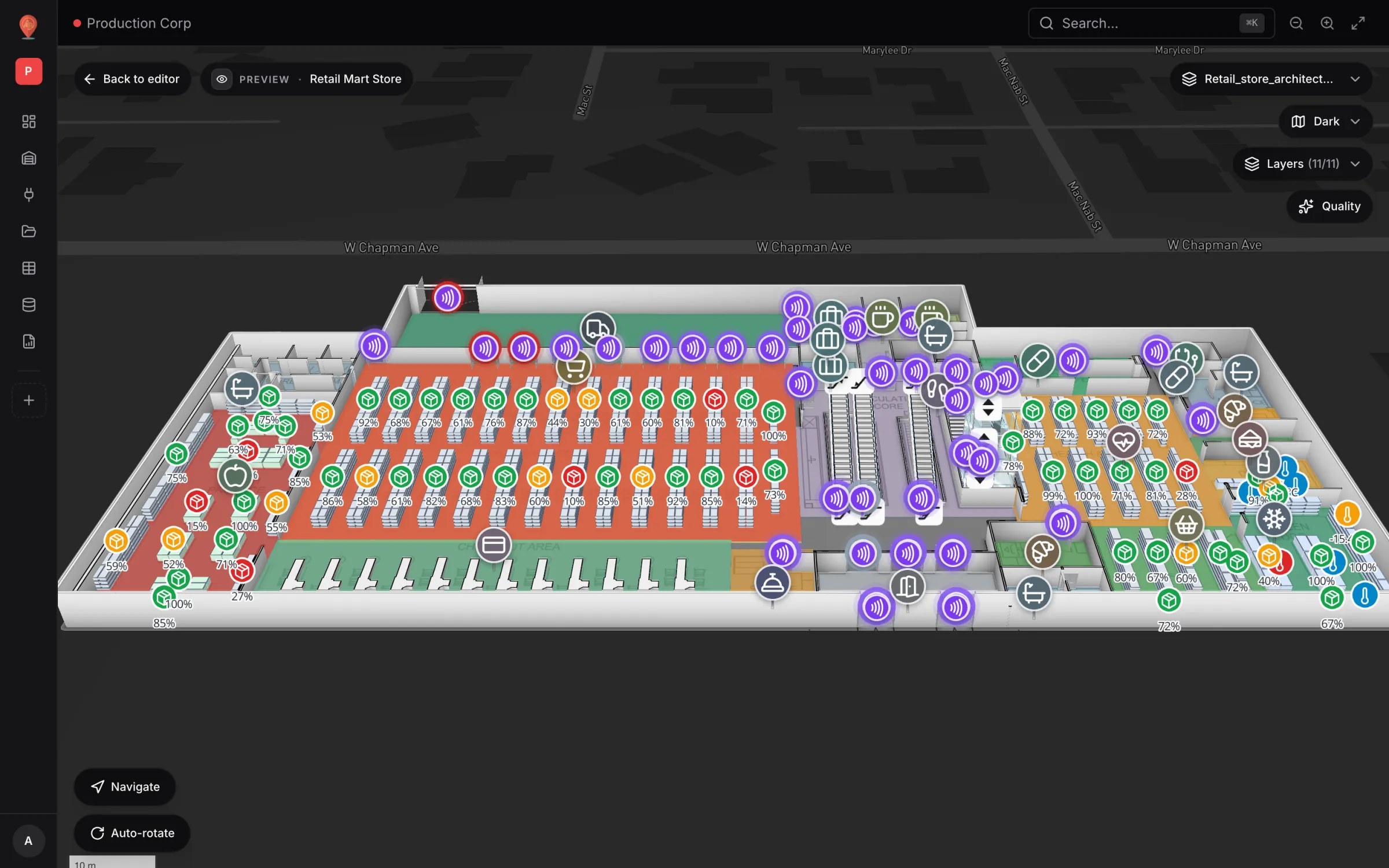
Mapbox GL renders floors, walls, racks and 3D models inside one WebGL canvas, where the depth buffer decides which pixel wins. A `mapboxgl.Marker` is an HTML element layered on top of that canvas. Pitch the camera over a three‑storey store and every ground‑floor marker draws straight through the slabs above it; look straight down and you see every floor’s markers at once, with nothing to tell them apart.
The tempting escape hatch is the Marker’s own `occludedOpacity`. It doesn’t help here: it fades markers behind 3D terrain, and only terrain.
What people usually try (and why it falls short)
- `queryRenderedFeatures` on every camera move. It tells you which features cover a screen pixel, not whether they are nearer to the camera than the marker — and calling it per marker per frame is expensive.
- Swap HTML markers for a symbol layer. Symbols are depth‑tested, but you give up DOM content (React icons, hover states, drag and transform handles) — and, as shown below, the depth test itself is not reliable for things sitting on a floor.
- Draw markers as extruded circles. They join the depth buffer, but they look like squashed cans and are awkward to click.
What we actually wanted: keep the DOM marker exactly as it is, and hide it whenever solid geometry sits between it and the camera.
The fix: one ray, many prisms
Everything the editor extrudes is a prism: a footprint ring swept between two altitudes. So “is this marker behind something?” becomes “does the camera→marker segment, clipped to the prism’s altitude band, cross its footprint?”. One test covers both cases that matter — a marker under a slab (the segment crosses the footprint of a floor above) and a marker behind a wall (the segment crosses a thin footprint spanning the camera’s own altitude band). A flat floor‑plan raster is just the degenerate prism whose base equals its top.
All the maths runs in Mercator space, where a constant altitude is a constant `z`, which makes the slab clip two divisions. Footprints always come from each kind’s own generator, so rotation, wall thickness and image crops match what is actually painted:
- Areas and circles — one prism from elevation to elevation + height (grid‑mode circles: one per cell).
- Walls — the wall polygon with its thickness; a flat polyline has no volume and hides nothing.
- Stairs and lifts — one prism per tread and landing, rotation applied; glass panes are skipped.
- Racks — one prism per cell (row × column × level), so a front rack hides the labels on the rack behind it; flat cells are skipped.
- Floor plans — the cropped image quad (not the raw bounding box) at the plan’s elevation.
- 1Read the camera once
`map.getFreeCameraOptions().position` gives the camera in Mercator x/y/z.
- 2Build the segment
From the camera to the marker’s position at its own altitude.
- 3Clip to the slab
For each prism, clip the segment to `[zBottom, zTop]`. Crossings behind the eye or past the marker drop out — which is why geometry below a marker never hides it when you look down.
- 4Test the footprint
Bounding‑box reject first, then: is either clipped endpoint inside the ring, or does the segment cross an edge?
- 5Stop at the first hit
One occluder is enough; the prism loop breaks and the marker id joins the occluded set.
// Simplified from src/lib/marker-occlusion.ts — the real loop also handles a
// camera level with the marker, an AABB reject and the "embedded in a solid" skip.
const camera = map.getFreeCameraOptions().position!        // read once
const p = mapboxgl.MercatorCoordinate.fromLngLat(marker.position, altitudeM)
const dx = p.x - camera.x, dy = p.y - camera.y, dz = p.z - camera.z

for (const prism of prisms) {
  if (prism.topM <= altitudeM + 0.5) continue              // standing on it, not behind it
  // Clip the camera→marker segment to the prism's altitude slab: two divisions.
  const ta = (prism.zBottom - camera.z) / dz
  const tb = (prism.zTop - camera.z) / dz
  let tLo = Math.min(ta, tb), tHi = Math.max(ta, tb)
  if (tHi <= 0 || tLo >= 1) continue                       // behind the eye, or past the marker
  tLo = Math.max(tLo, 0); tHi = Math.min(tHi, 1)
  const ax = camera.x + tLo * dx, ay = camera.y + tLo * dy
  const bx = camera.x + tHi * dx, by = camera.y + tHi * dy
  if (segmentHitsRing(prism.ring, ax, ay, bx, by)) {        // endpoint inside, or an edge crossed
    occluded.add(marker.id)
    break
  }
}
The pass runs on Mapbox’s `move` event — occlusion depends on the camera, not the data, and `move` fires at most once per frame. Per marker per prism it is a bounding‑box check and a couple of divisions, with no GPU round trip.
Hiding is a data attribute plus one CSS rule. It has to be `!important`: `mapboxgl.Marker` rewrites the element’s inline `opacity` and `pointer-events` during its own fog/terrain fade whenever the camera moves, so a plain `el.style.opacity = "0"` works for a moment and then silently reverts.
/* Outside any Tailwind @layer: the attribute only ever exists at runtime. */
.shape-marker[data-occluded='true'] {
  opacity: 0 !important;
  pointer-events: none !important;
}
Rules we learned the hard way
- See‑through geometry must not occlude. Dropping an upper floor to 30 % to peek at the one below is a real workflow. A shape counts as an occluder only when it is visible and at least 50 % opaque; hidden layers and hidden floors stop occluding too.
- Standing on a surface is not being behind it. Anything whose top is within 0.5 m of the marker’s own altitude never hides it, and a marker is never hidden by the floor plan it belongs to.
- A marker inside a solid ignores that solid. Otherwise it blinks as the camera orbits. The check uses `>=` on the prism’s base on purpose: a label at 0 m inside a room extruded from 0 m is *in* the room, not behind it.
- Doorways stay solid. Wall prisms are built without their door openings, so a marker framed in a doorway hides rather than flickers. Over‑occluding is the safe direction.
- Re‑derive nothing. Build footprints with the same generator the overlay paints with. A hand‑rolled footprint is how an occluder silently drifts from what is on screen.
What we deliberately do not occlude
- GLB models and image planes — all we know is a bounding box, and treating it as a prism would hide markers metres away from a large asset.
- Lift and escalator glass — glass is see‑through, so it never hides anything.
- Anything under 50 % opacity, hidden, or on a hidden floor — the see‑through workflow wins.
Symbol layers need the same treatment
Not everything on the map is a DOM marker. Text labels, rack‑cell and door labels, and live data points from data links are native `symbol` layers. You would expect Mapbox’s `text-occlusion-opacity` to handle them. Two things got in the way.
An absent occlusion opacity is not the default value. The style spec lists `0` (“hide when occluded”) as the default for `text-occlusion-opacity`, but the next line says an *absent* value means full occlusion against terrain only. Leave it unset and the layer ignores your slabs and walls. Every symbol layer that should hide behind geometry has to name the property explicitly.
Depth precision is too coarse for things on a floor. A label at 0 m sits just below a 15 cm area slab or a 10 cm floor raster. In a top‑down view the depth test called those labels “behind 3D content” and painted them at zero opacity, then let some reappear on tilt. So the text‑label layer now sets `text-occlusion-opacity: 1` (x‑ray) and lets the analytic solver decide, flipping `feature-state.occluded` → `text-opacity: 0`. Rack and door labels use the same solver.
Live data points add one more Mapbox fact: a `circle` layer can neither be lifted (no `circle-z-offset`) nor occluded. Every dot, disc and ring is therefore drawn as a `symbol` with a `●` glyph. Those layers keep `text-occlusion-opacity: 0` and fold the analytic verdict into `text-opacity` — as a feature *property*, because `setData` wipes feature‑state — so hiding is deterministic at every zoom.
// Data-link dot: a symbol with a '●' glyph, because a circle layer
// can neither be lifted (no circle-z-offset) nor occluded in Mapbox GL 3.25.
paint: {
  'symbol-z-offset': ['coalesce', ['get', 'elevation'], 0],
  // Name it explicitly — an ABSENT occlusion opacity only occludes against terrain.
  'text-occlusion-opacity': 0,
  // The analytic verdict, stamped into feature properties (setData wipes feature-state).
  'text-opacity': ['case', ['boolean', ['get', 'occluded'], false], 0, 1],
}Where you see it in Spatial Map
In the viewer, the Quality button opens Graphics quality, where Hide items under floors is on by default (the editor’s side panel calls the same switch Hide markers under floors). The setting is saved in your browser. Switching it off turns the DOM‑marker pass off and brings back the flat behaviour where markers draw over everything — handy when you want to see every asset on every floor at once. See Graphics and style in the viewer.
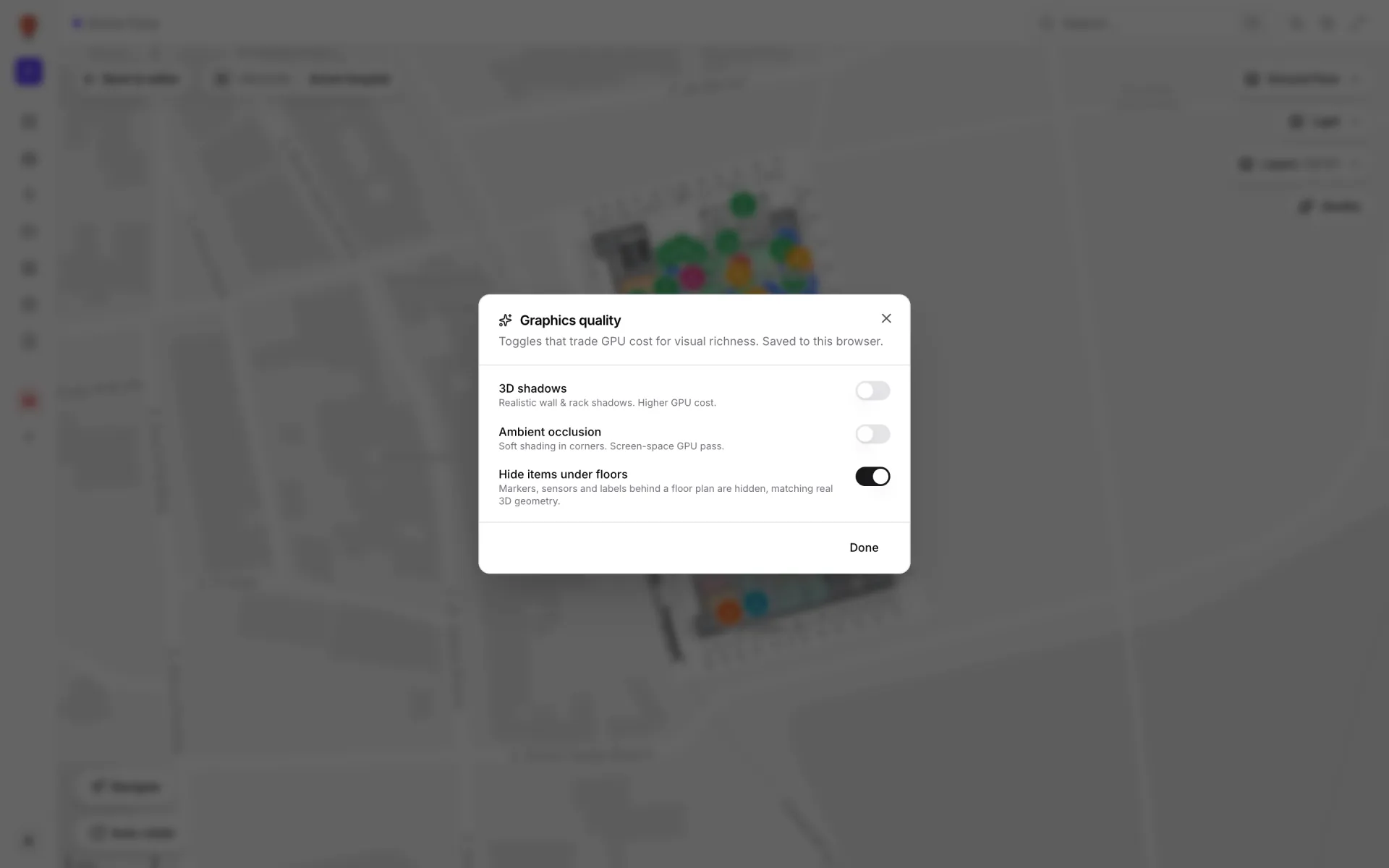
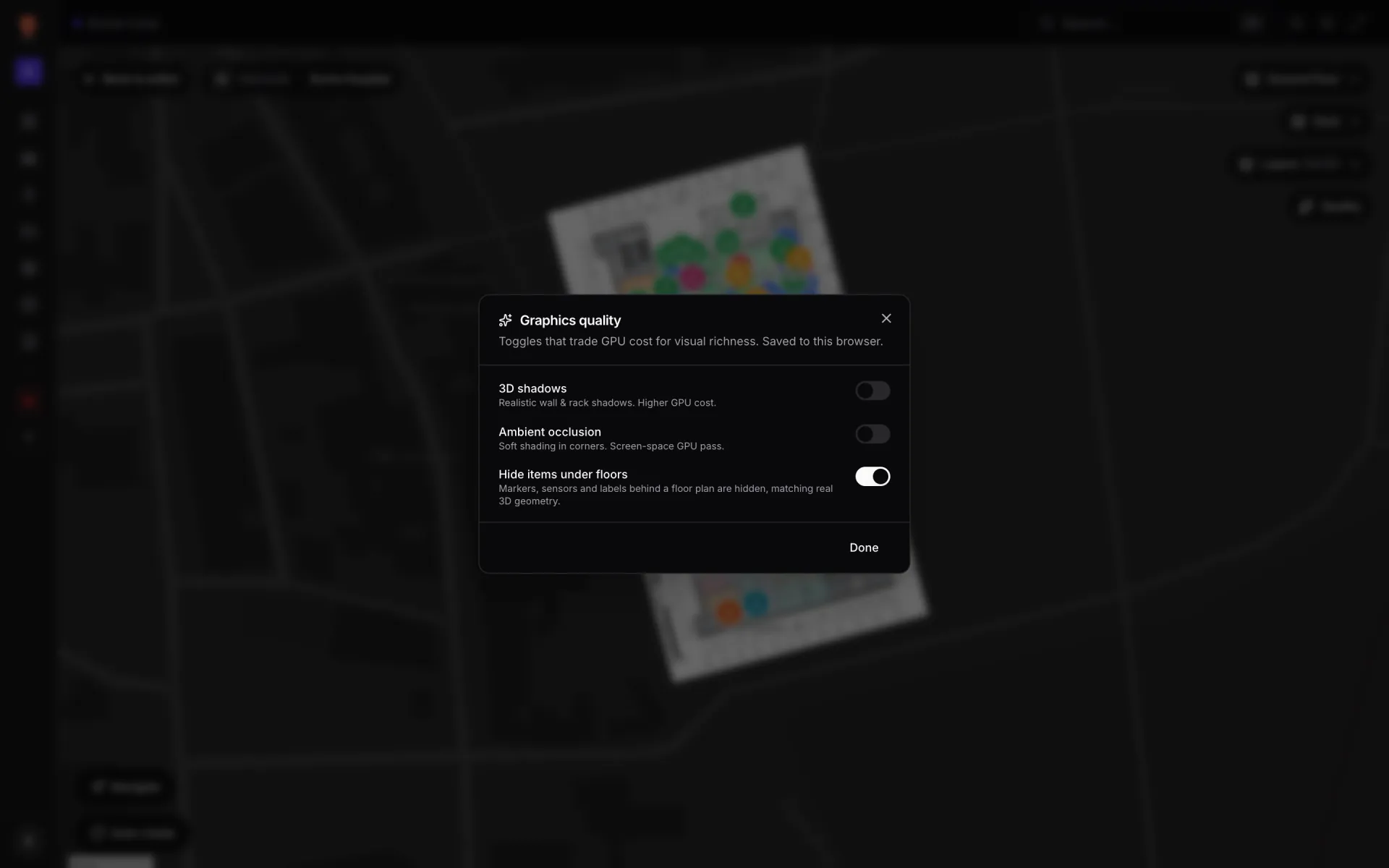
It matters most on stacked sites: a multi‑floor store with escalators and lifts (see multi‑floor stores), a shopping mall or a multi‑floor office building, where a top‑down view should show the floor you are looking at, not every floor’s pins at once. Use the floor picker described in layers and floors to isolate one level.
Pitfalls
Try the platform your data belongs on.
Spatial Map turns spreadsheets, sensor streams, and CAD drawings into one live 3D facility view — nothing to install, seven-day free trial.
Keep reading
- Deep-diveWhat is indoor mapping? A practical guide (2026)Indoor mapping turns a building’s floor plans into a structured, multi-floor digital map. This guide explains how indoor maps are made, how they become digital twins, and how to choose software.
- Deep-diveIndoor wayfinding software: turn-by-turn directions on your floor planGPS stops at the front door. Here’s how Spatial Map builds walking routes from the floor plan you already maintain, gives visitors turn-by-turn directions in the viewer, and, honestly, where floors, lifts and accessibility fit in today.
- Deep-diveAI floor plan to digital twin: what’s coming, and how to do it todayAI that turns a floor plan into rooms and walls is the most requested shortcut in digital-twin projects. Ours, AI Map, is in development and not usable yet. Here is what it is being built to do, and the workflow that gets you the same result today.