
Multi‑floor 3D warehouse maps: why stairs, lifts and doors matter more than you think
Build a multi-floor 3D facility map: per-floor elevation, parametric stairs, lifts and escalators, doors that open routes, and share links by floor.
Why this matters beyond the render
What multi‑floor 3D actually looks like
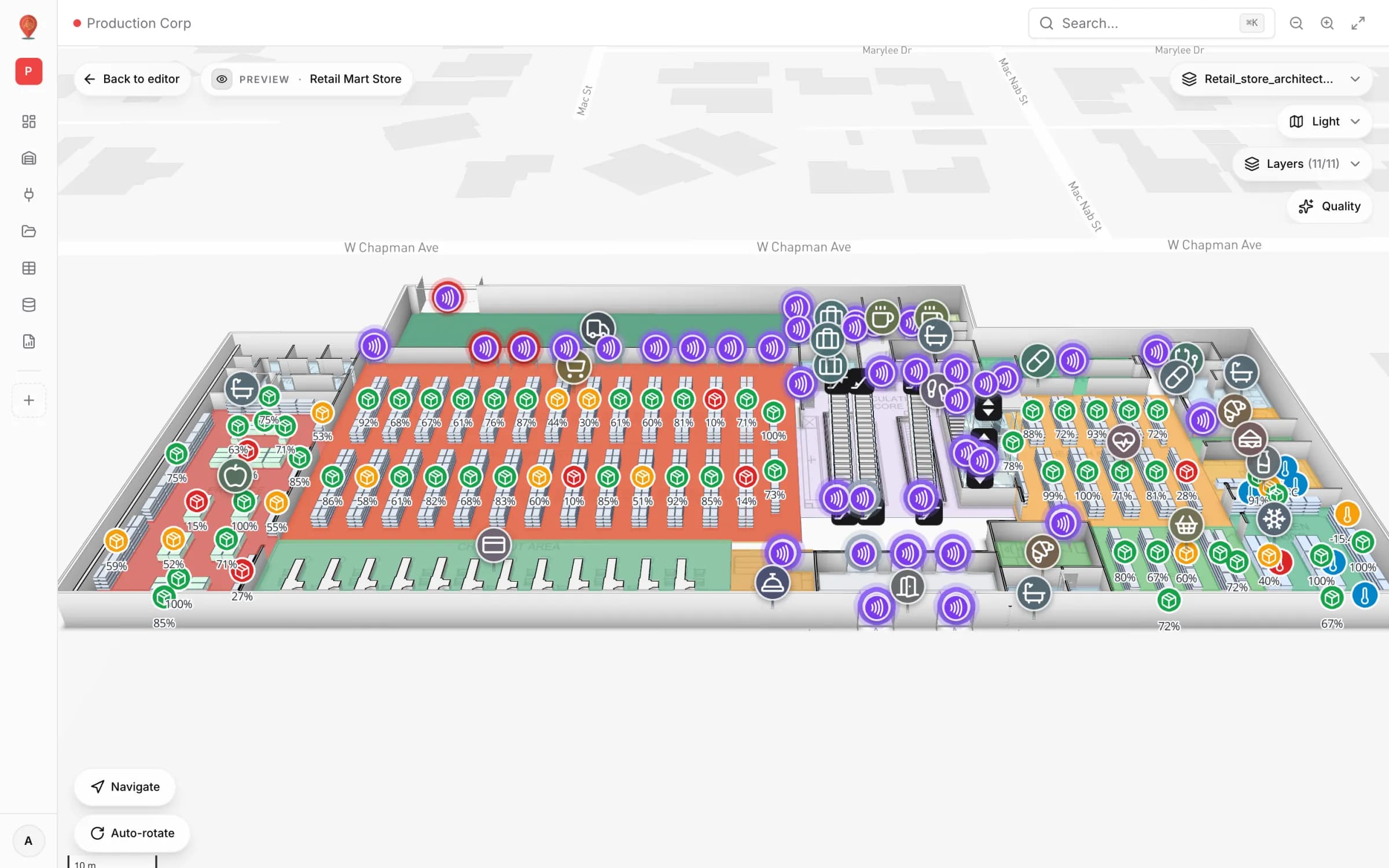
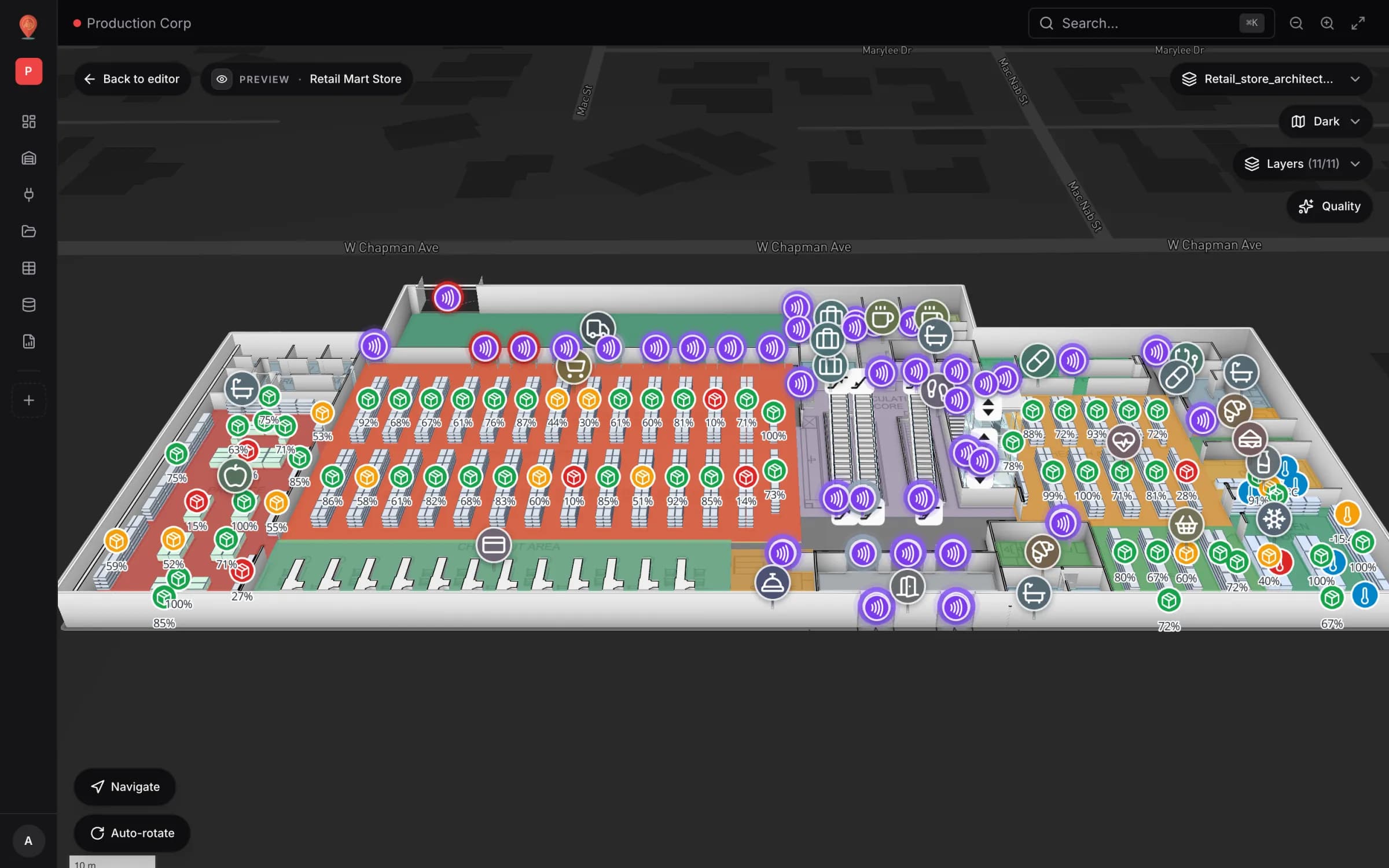
A multi-floor facility in Spatial Map is a stack of floor plans placed on one map, each at its own elevation. A shape you draw on the first floor lands at the right coordinates and the right height, and the isometric view is just a camera pitch away from the plan view — same geometry. Our Acme Warehouse demo happens to be a single ground floor, so the multi-level example here is the Retail Mart Store demo: three floor plans (ground, first and second floor) joined by escalators, a lift and a stair. Importing levels is covered in the CAD & PDF import guide, and the floor controls in layers, floors and basemap.
Why stairs, lifts and doors matter
- Doors open the walls they sit on — no door, no gap, no walkable path into the room (Door tool).
- Walls and rack cells block the route, with about 0.3 m of clearance, so very narrow gaps count as closed.
- Doors carry real parameters: single, double, sliding or revolving; hinge side, swing direction, and open, ajar or closed.
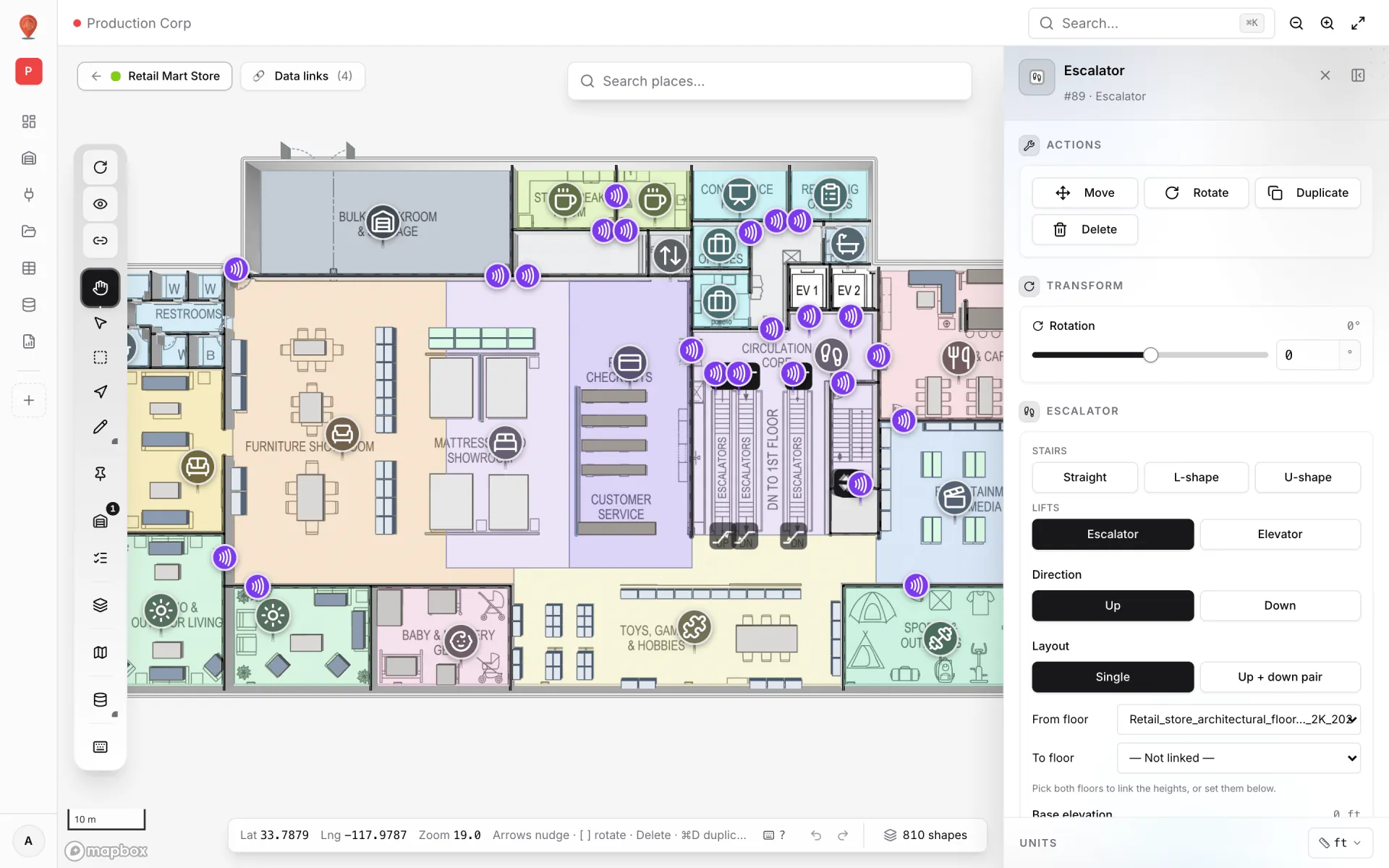
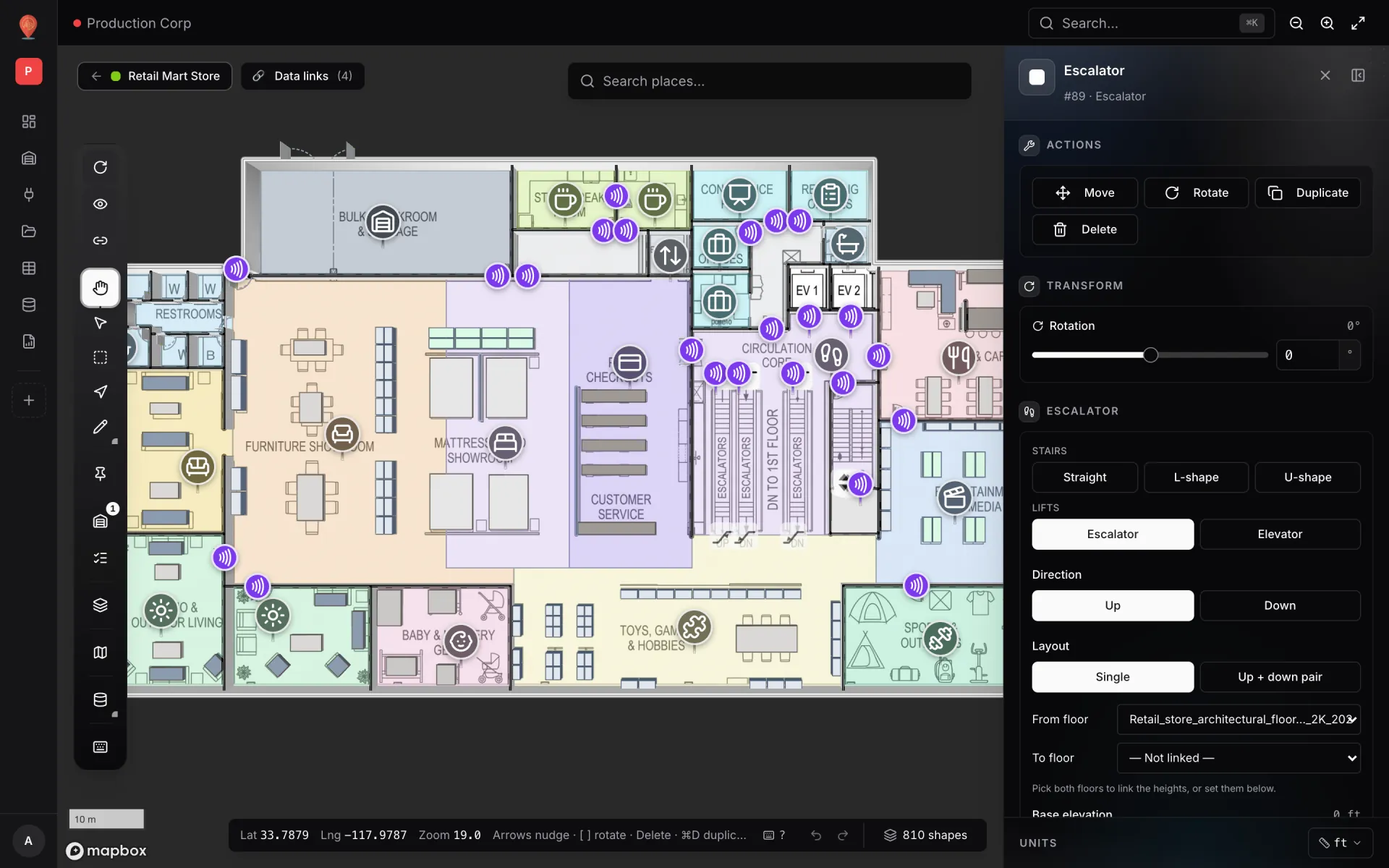
- Stairs come as Straight, L-shape or U-shape with steps, riser height and tread depth. Escalators have a direction (Up or Down), a Single or Up + down pair layout, and a From floor / To floor pair that sets their heights.
- Lifts list the floors they serve (Floors served), with stops and floor-to-floor height, and can be marked out of service (lifts and escalators).
- All of them are parametric shapes, not raster overlays — change a floor height and you adjust the numbers, not redraw the stair.
Evacuation and audits: what the map gives you
Every inspector asks the same questions: where are the exits, how far is it to one, and is the way clear? With doors and walls modelled as shapes, you can answer the floor-level part in the browser: run Route preview (N) from the far corner of each floor to the nearest exit and read the distance and walking time in the Directions panel. Draw the official evacuation path with the Route tool (Y) so it shows in every view. Getting between floors is still two routes — to the stair, then from the landing — because routing doesn’t climb stairs or ride lifts. See the wayfinding docs.

Pitfalls
Try the platform your data belongs on.
Spatial Map turns spreadsheets, sensor streams, and CAD drawings into one live 3D facility view — nothing to install, seven-day free trial.
Keep reading
- Deep-diveWhat is indoor mapping? A practical guide (2026)Indoor mapping turns a building’s floor plans into a structured, multi-floor digital map. This guide explains how indoor maps are made, how they become digital twins, and how to choose software.
- Deep-diveIndoor wayfinding software: turn-by-turn directions on your floor planGPS stops at the front door. Here’s how Spatial Map builds walking routes from the floor plan you already maintain, gives visitors turn-by-turn directions in the viewer, and, honestly, where floors, lifts and accessibility fit in today.
- Deep-diveAI floor plan to digital twin: what’s coming, and how to do it todayAI that turns a floor plan into rooms and walls is the most requested shortcut in digital-twin projects. Ours, AI Map, is in development and not usable yet. Here is what it is being built to do, and the workflow that gets you the same result today.