
RFID gate readers on a retail floor
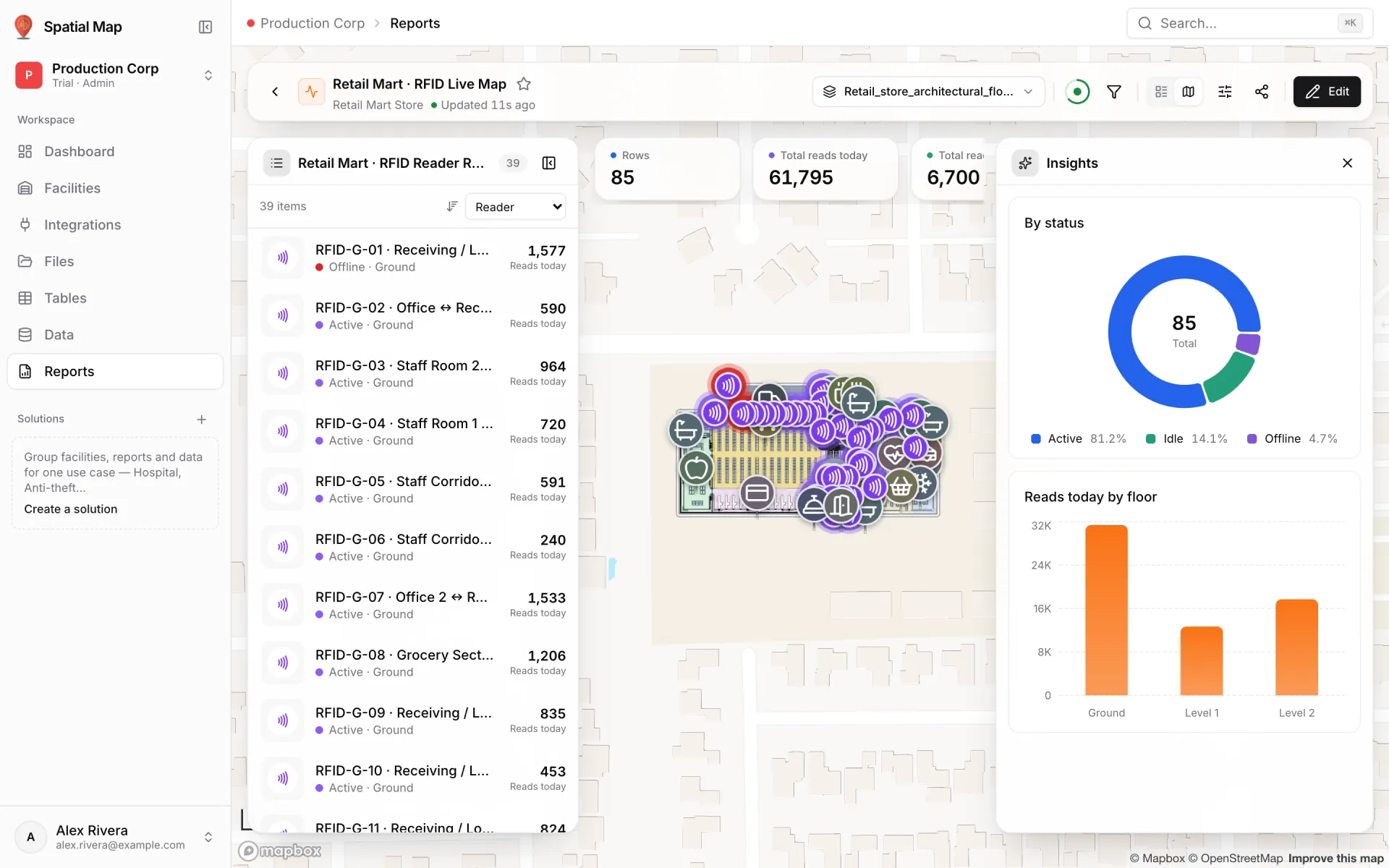
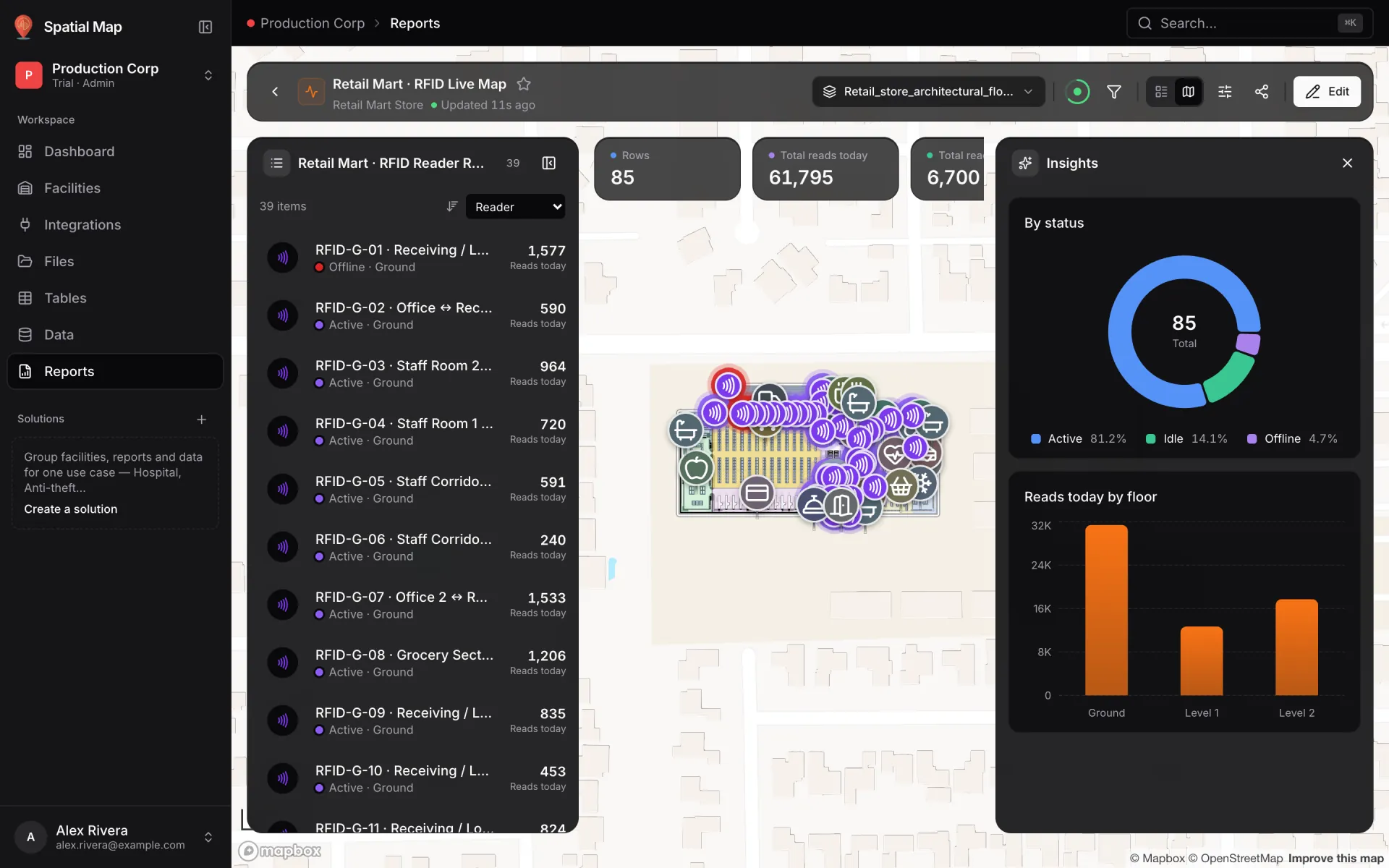
Retail Mart Store has 85 RFID readers — gates, stairs, escalator and lift readers — spread over three floors. The RFID Reader Reads table holds one row per reader with its status and read counts; the RFID reader activity link draws a pulsing ring with a count on each reader’s marker, and the RFID Live Map report puts the same data beside the map.
Steps
- 1
Place a marker per reader
In the editor press M (Add asset) and drop a marker on each reader, on the right floor. Name each marker exactly like the reader in your data, for example "RFID-G-01 · Receiving / Loading Docks ↔ Outside".
- 2
Create the reader table
Tables → Create new table, name "RFID Reader Reads", kind RFID tag. Fields: reader_id (Required), reader_name, floor, reader_type, status (Active, Idle or Offline), reads_today, reads_last_hour, unique_tags_today (Integer), last_read_at, last_tag_epc. Your reader middleware updates the counts through the API.
- 3
Create the pulsing layer
Data links → New link, name "RFID reader activity", pick the table and choose Pulsing zone activity ("Animated ring + count badge at a shape’s center"). Under Attach to which shapes? pick Shape kind marker, Match by attribute, Payload field reader_name, Compare against Shape name.
- 4
Map the floors
Under Which floors? keep From record, set the floor field to floor and map each value ("Ground", "Level 1", "Level 2") to its floor plan. In Connect fields set the Label field to reads_last_hour, so the badge shows recent traffic.
- 5
Colour by status
Add three Style rules with Scope Marker: status = Offline → red, Idle → grey, Active → purple. Tick them on the link’s Style rules step and save.
- 6
Build the live map report
Saving the first link on a table creates a report named after it. On Reports, use that report’s ⋯ menu → Duplicate, rename the copy "RFID Live Map", and in Edit → Layout choose Full map. Add big values for total reads today (Sum of reads_today) and a bar chart of reads today grouped by floor — see Build a full-map command center.
Related
More live data on the map recipes
- Colour rooms by live statusTint every room green, amber, purple or grey from a rooms table with a Color a shape data link and style rules — and flag overdue cleaning in red.
- Track staff and equipment with live markersShow staff badges and RTLS-tagged equipment as named live markers that move as positions update, with a detail drawer and history for every asset.
- Stock by bin on a rack gridDraw racks, import stock per bin from a spreadsheet and colour every bin occupied, empty, blocked, reserved or picking with rack-cell style rules.
- Environmental sensors with live readings on the mapPlace temperature, CO₂, pressure and fridge sensors on the floor plan with their latest reading as the label, coloured by status with marker style rules.