
Stock by bin on a rack grid
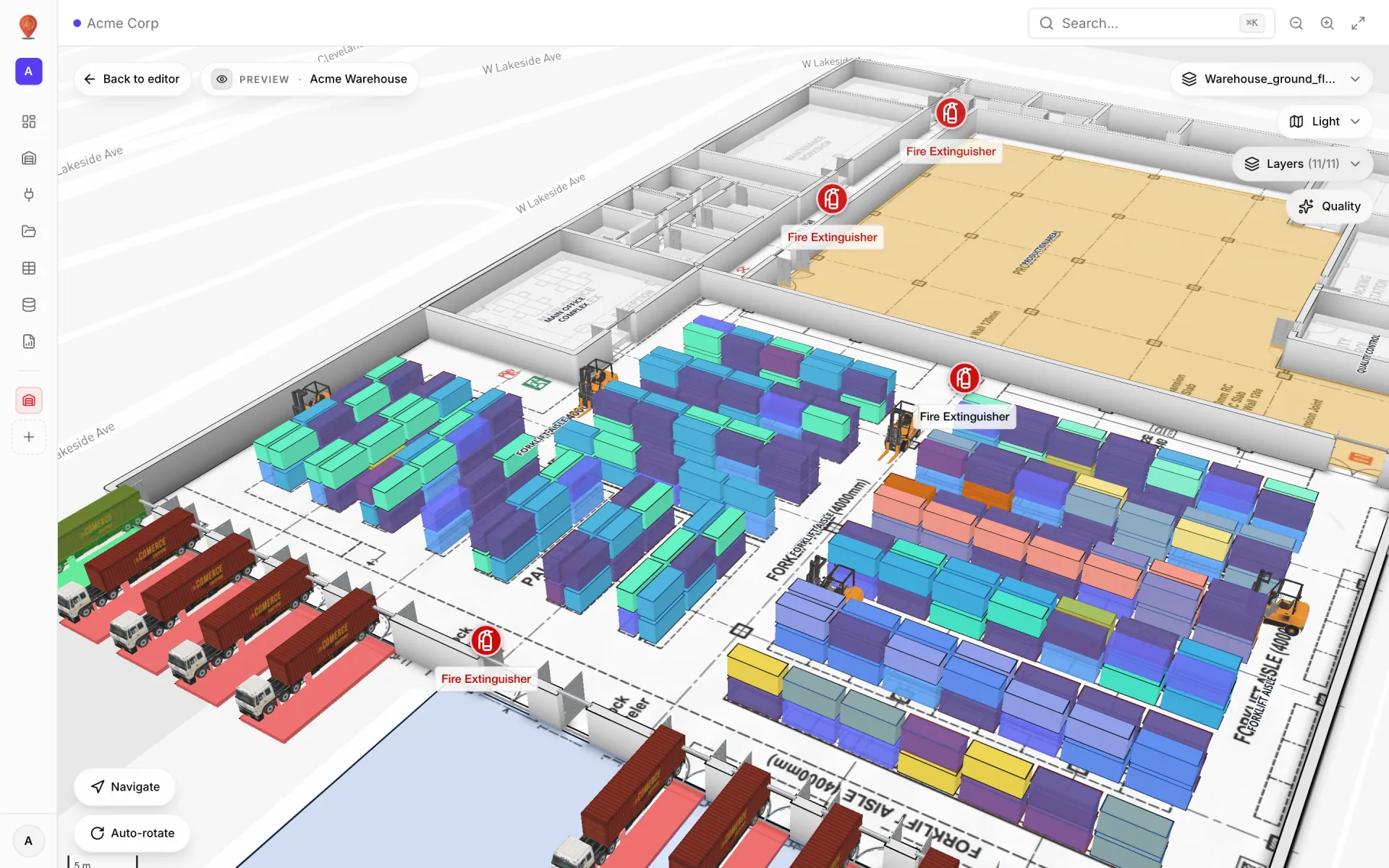
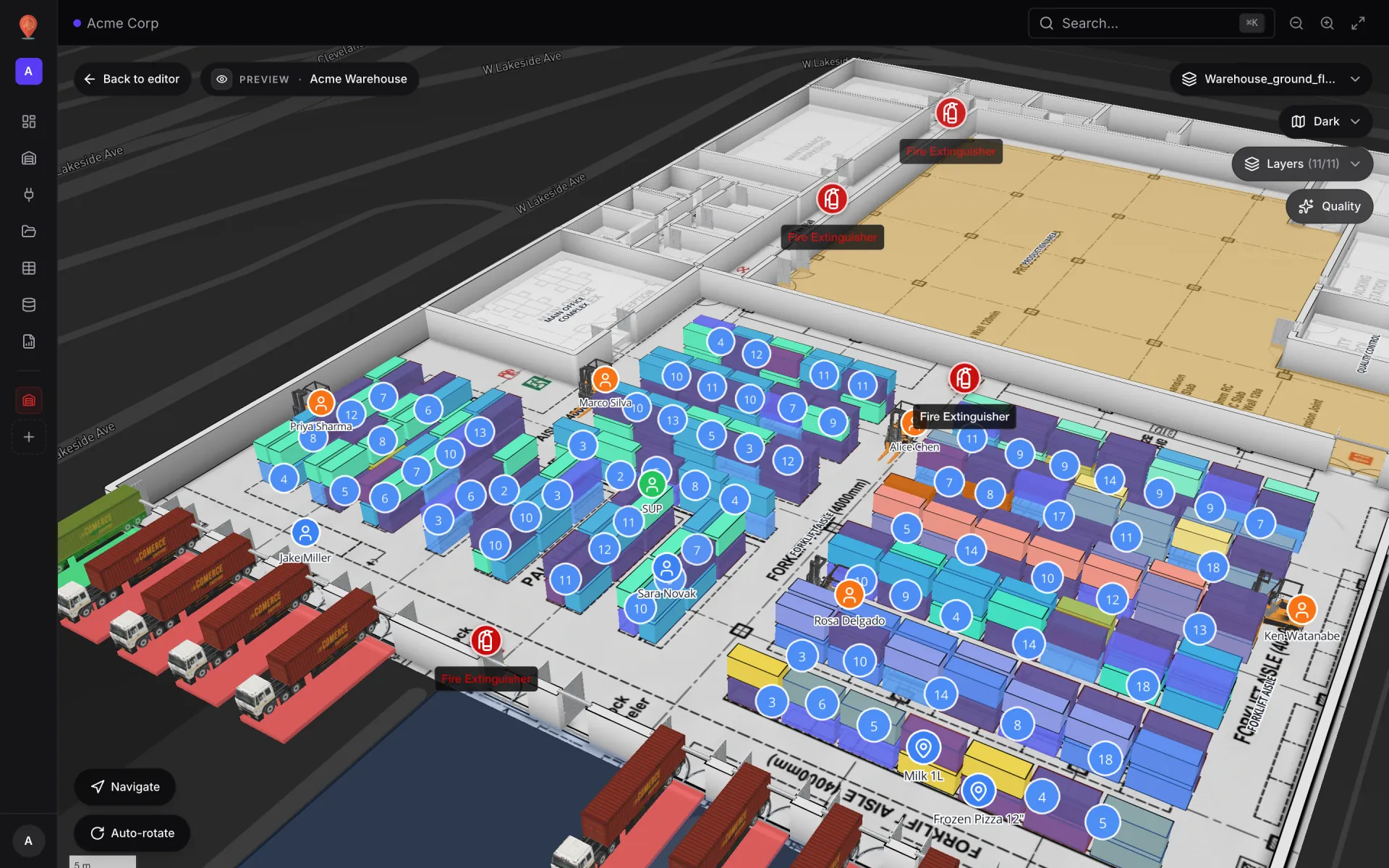
In the Acme Warehouse demo, 314 bins each carry a status — occupied, empty, blocked, reserved or picking — and the racks show it in colour, while the Rack Inventory report lists the same bins. This recipe gets you there from a spreadsheet: bin data lives on the bins themselves, imported and matched to each rack cell, and style rules paint the cells.
Steps
- 1
Draw the racks
Press G (Draw rack), click one corner and then the opposite corner. Rename the rack from the panel header ("Rack A") and set Levels and Level height to match the shelving. Click any cell to see its row and column address — you will need them for the import.
- 2
Prepare the spreadsheet
One row per bin, with the rack name, the row, column and level of its cell (counted from 0) and any values you want on the bin. The example below shows the shape. Keep column names free of spaces; they become attribute keys.
- 3
Start the import
Go to Integrations → Add integration → Upload file and drop the CSV (CSV, Excel, JSON and GeoJSON are accepted; CSV and XLSX need a header row). In the Match step give it a Source name, choose the facility and set Match each row by to Grid cell: Grid column = rack (holding the Grid name), Row column = row, Column-number column = col, Level column = level.
- 4
Map the columns
In Mapping, send bin_code to the built-in External code field and the stock columns to custom attributes, and keep Create missing attributes automatically ticked so the side panel shows them. Check Preview — rows should land under Matched grid cells — and import.
- 5
Colour the bins
In the editor, with nothing selected, open Style rules → Add rule: name "Blocked", Scope Rack cell, condition status (custom) = blocked, Fill red and the Label template "BLOCKED". Add "Picking" (pink), "Reserved" (amber), "Occupied" (blue) and "Empty" (grey). Lower priority numbers run first, so give Blocked the lowest.
- 6
Check it
Each bin now shows its colour in the editor and in Preview; hover a cell to see its SKU, description and quantity. The rack’s geometry locks ("Scale and redraw are disabled to keep row/col addresses stable") so imported data never lands on the wrong cell. Re-import the same file layout whenever stock is counted.
rack,row,col,level,bin_code,sku,description,quantity_on_hand,status
Rack A,0,0,0,A-B01-L1,SKU-10231,Paper towels 12-pack,24,occupied
Rack A,0,1,0,A-B02-L1,SKU-10232,Dish soap 1 L,0,empty
Rack A,1,0,0,A-B03-L1,SKU-10240,Bottled water 24-pack,40,reserved
Rack A,1,1,0,A-B04-L1,SKU-10251,Laundry detergent 3 L,12,picking
Rack A,2,0,0,A-B05-L1,,,0,blockedRelated
More live data on the map recipes
- Colour rooms by live statusTint every room green, amber, purple or grey from a rooms table with a Color a shape data link and style rules — and flag overdue cleaning in red.
- Track staff and equipment with live markersShow staff badges and RTLS-tagged equipment as named live markers that move as positions update, with a detail drawer and history for every asset.
- Environmental sensors with live readings on the mapPlace temperature, CO₂, pressure and fridge sensors on the floor plan with their latest reading as the label, coloured by status with marker style rules.
- RFID gate readers on a retail floorShow every RFID reader in a multi-floor store as a pulsing ring with its reads in the last hour, coloured active, idle or offline, plus a full-map report.