
Draw rooms, walls, stairs and lifts
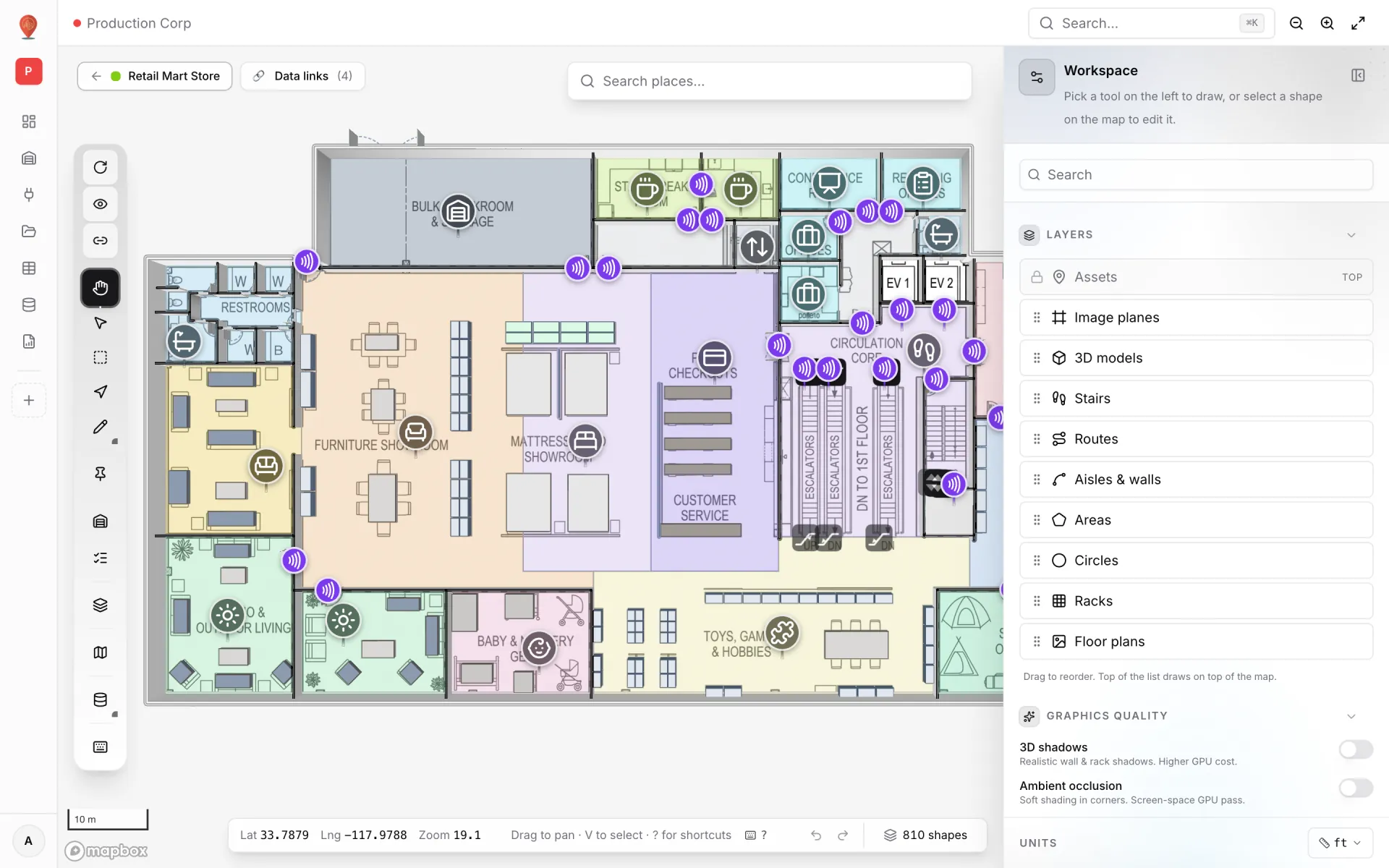
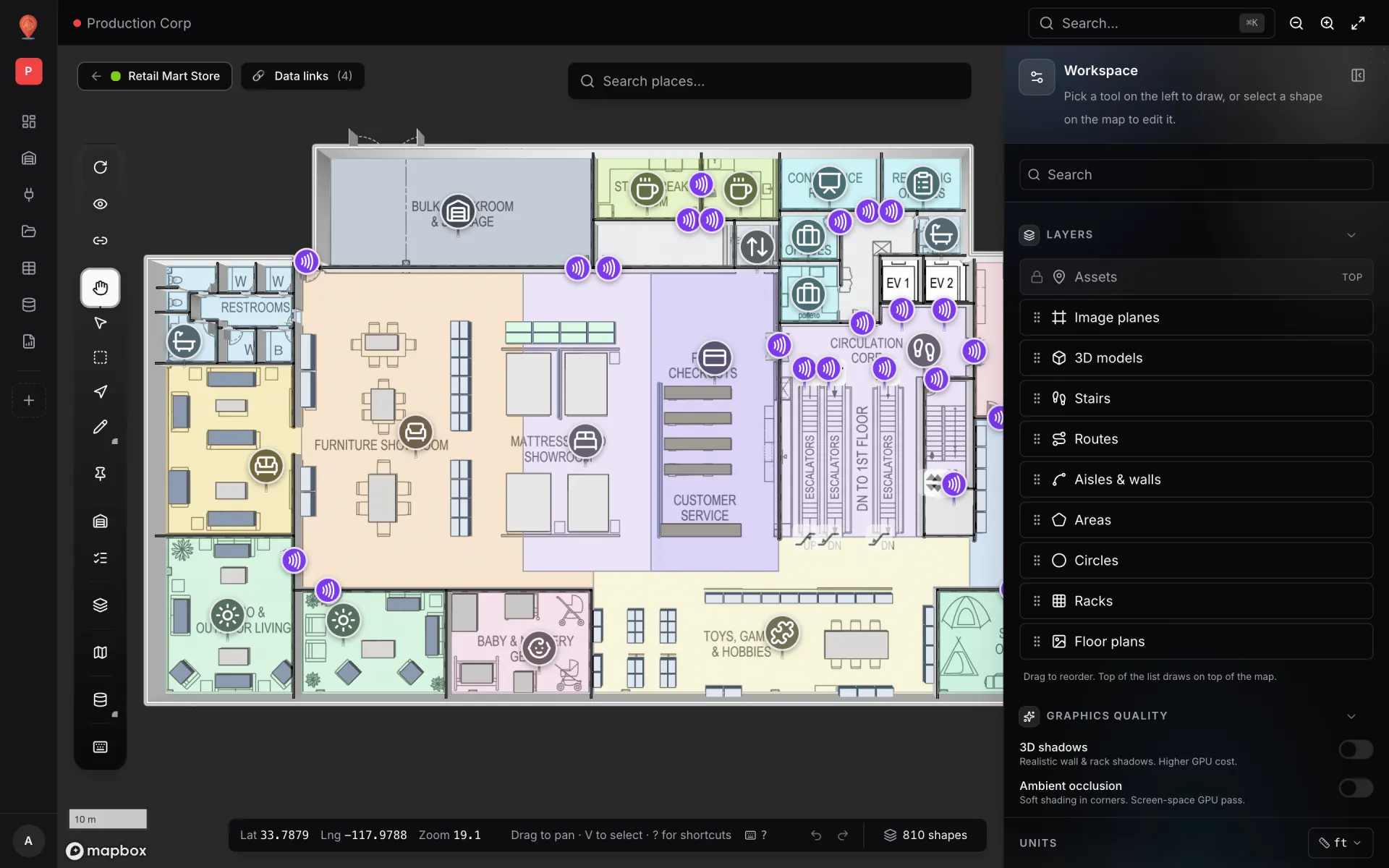
Once a floor plan is placed, the layout on top of it is drawn by hand: areas for rooms and departments, walls, stairs, lifts and text labels. Retail Mart Store, shown here, is built from the same pieces — coloured departments, walls, an escalator core and two lifts. This recipe shows the tools and settings behind each of them, so you can draw your own floor.
Steps
- 1
Pin new shapes to the floor
In the toolbar, set Default floor plan for new shapes to the floor you are drawing: "New shapes drawn from now on will be pinned to this floor plan." It matters as soon as a building has more than one level.
- 2
Draw the first room
Press P (Add area). Click the corners of the room, then press Enter or double-click (Backspace removes the last vertex, Esc cancels). Click the name in the side-panel header and type a name such as "Room 101", then set Role to Room and pick a colour under Appearance.
- 3
Repeat a row of rooms
With the room selected press ⌘D / Ctrl D to duplicate it, then nudge the copy into place with the arrow keys (Shift + arrow moves 10 steps). Rename each copy. Names matter later: data links match records to shapes by name, ignoring case and punctuation.
- 4
Generate the walls
Press W (Magic walls), click every room on the floor and click Generate walls (n areas). Party walls between neighbouring rooms become one wall. For a wall that has no area behind it, use L (Add aisle) and give it a height above 0.
- 5
Add the stairs
Press S (Add stairs & lifts), choose Straight, L-shape or U-shape (a stair core between floors is usually U-shaped), click the anchor points and press Enter.
- 6
Add the lifts
With the same tool choose Elevator. "Standing in front of the lift, click the left corner of the door side", then click the right corner; the shaft extends back from that line. Set Shaft (Glass or Solid), Shaft depth and Door width. On a single-floor facility set the heights by hand; with several floor plans, tick Floors served.
- 7
Label and review
Press T (Add text) for signage such as "RECEIVING" or "CUSTOMER SERVICE". Then open Preview, tilt the camera and check the 3D result. The built-in Areas, Walls & doors and Stairs, lifts & escalators reports list everything you drew.
Related
More drawing & 3d recipes
- Turn a PDF floor plan into a 3D facilityImport an architectural PDF at true scale, pick the sheet, place it on the map, then trace rooms and generate walls so the plan becomes a 3D facility.
- Model a multi-floor store with escalators and liftsStack one floor plan per level at its real height, then add escalators and lifts linked to the floors they serve — the way the Retail Mart demo store is built.