
Build an operations summary report
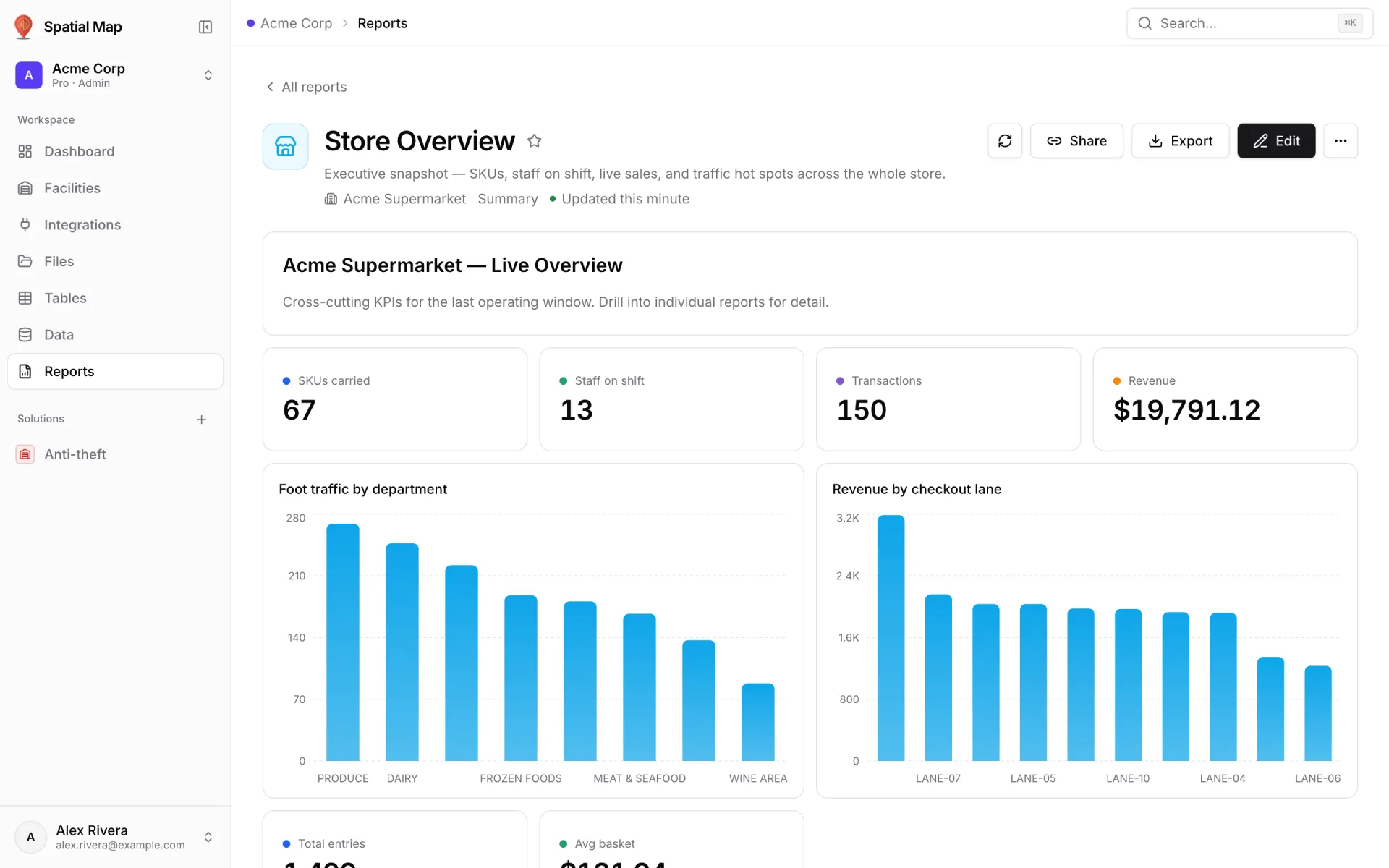
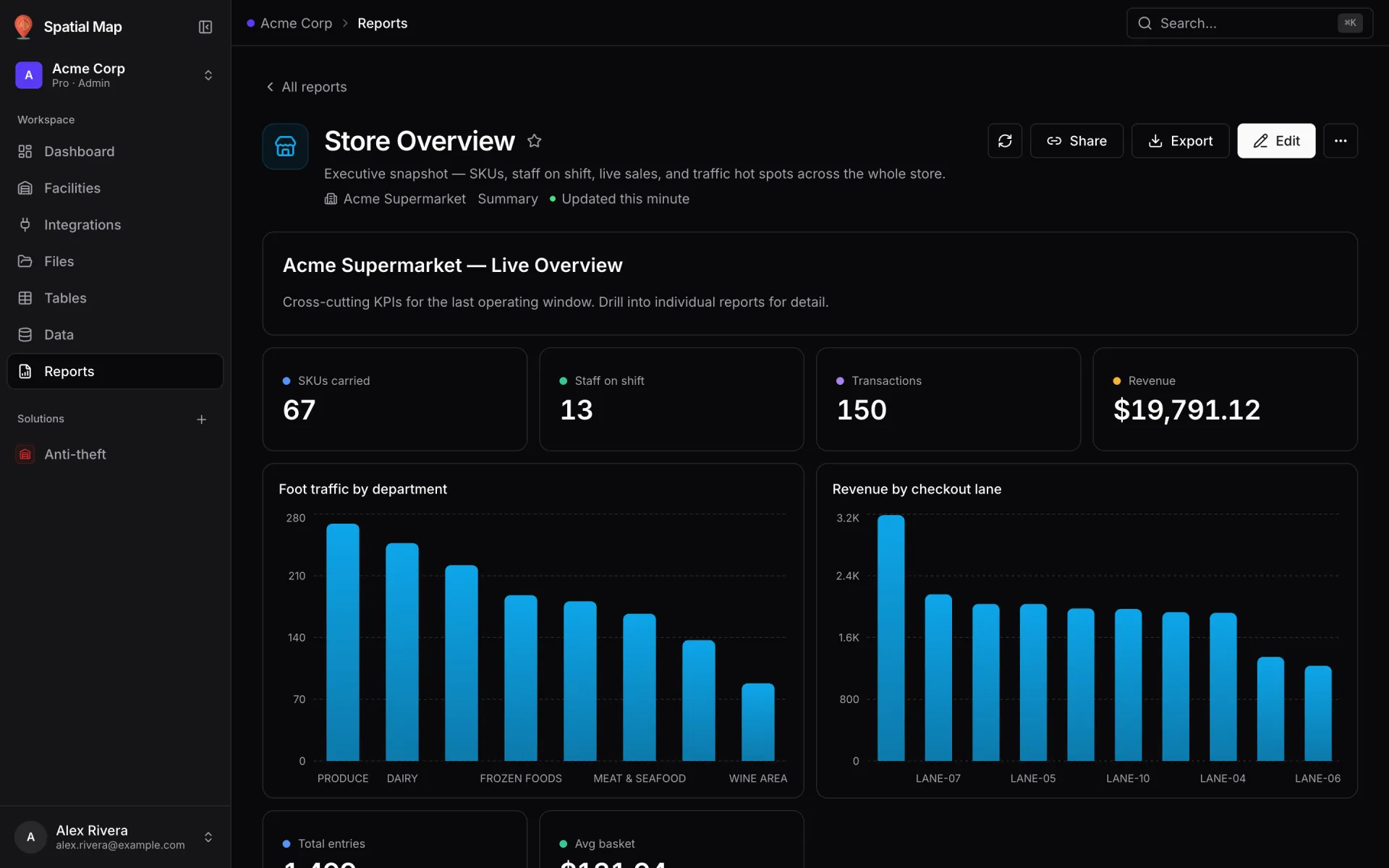
Acme Supermarket’s Store Overview is an executive snapshot on one page: SKUs carried, staff on shift, transactions and revenue, then foot traffic by department and revenue by checkout lane. It is a Summary report on a grid layout, built entirely in the report builder. This recipe builds the same kind of report from your own tables.
Steps
- 1
Have the data in tables
Put the main log in a table, for example "Transactions" with transaction_id, checkout_lane (Text), total (Number) and completed_at (Date & time). Other numbers can come from other tables, such as staff on shift or foot traffic by department. Load history with one bulk API call and keep it current from your own system.
- 2
Start the report
Go to Reports → New report. In Basics, name it "Store Overview", add a description, set Facility to the site ("Only appears under this facility’s tab") and choose Report type → Summary ("Group rows and aggregate (sum / avg / count) for charts and KPIs").
- 3
Pick the source and the main grouping
In Data source, choose the Transactions table. In Group & aggregate, group by checkout_lane with a sum of total — Summary reports need at least one group and one aggregation. This primary query drives the revenue-by-lane chart.
- 4
Add extra queries
In Extra queries, add one named query per number or chart: "transactions" with a count of rows and "revenue" with a sum of total. For a rolling figure, filter completed_at with last N days.
- 5
Add the widgets
In Widgets, click Add widget for each tile: Big value + delta cards for transactions and revenue, and a Bar chart of revenue by checkout lane. For numbers from another table — staff on shift, SKUs carried, foot traffic by department — use Own data on the widget to set its source and aggregation directly.
- 6
Lay it out and save
In Layout choose Grid ("Fixed 12-col grid for pixel-precise Grafana-style dashboards") and drag the tiles into place: four KPIs on top, charts below. Check Review & save and save. Star it so it stays at the top of Reports.
Related
More reports & exports recipes
- Build a full-map command centerTurn the report generated for a linked table into a full-map command center: the live facility map fills the page, with records, KPIs and insights around it.
- Export a weekly report to PDF and ExcelExport any report as a print-ready PDF and an Excel workbook with real numbers, dates and conditional colours, then share a link to the live version.