
Turn a PDF floor plan into a 3D facility
Most facilities start as an architectural PDF. Spatial Map renders the sheet in your browser, suggests a drawing scale and places it at real-world size, so the plan lands on the map the size the building is. Everything after that is drawn by you on top of the picture — nothing is extracted automatically, which keeps the result exactly as accurate as you make it.

Steps
- 1
Open the floor plan tool
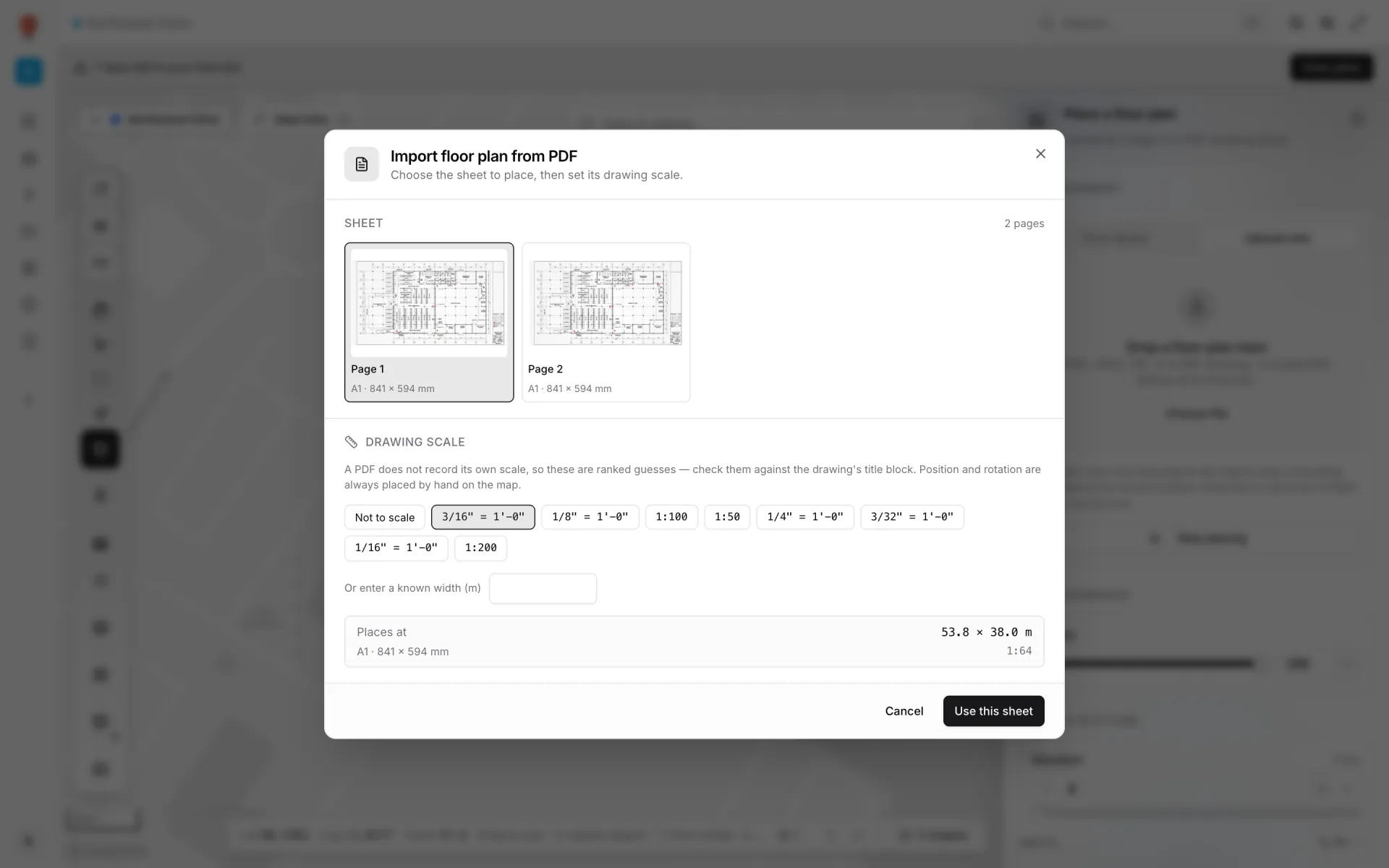
In the editor press I (Add floor plan) and drop the PDF on Drop a floor plan here. The Import floor plan from PDF dialog opens: "Choose the sheet to place, then set its drawing scale."
- 2
Pick the sheet
Under Sheet, choose the page with the floor plan, not the cover or the legend. Each page shows as a thumbnail with its paper size.
- 3
Set the drawing scale
Under Drawing scale, pick from the ranked guesses — "A PDF does not record its own scale, so these are ranked guesses — check them against the drawing’s title block." If you know one real dimension, use Or enter a known width (m) instead, or choose Not to scale to size it by hand. Places at shows the resulting size. Click Use this sheet.
- 4
Place it on the map
Drag on the map to position the sheet; with a scale set, its size stays fixed. Fine-tune in the side panel: Rotation to line it up with the street grid, Opacity, and Crop to trim title blocks (non-destructive). Click the plan’s name in the panel header to rename it, for example "Ground Floor".
- 5
Trace the rooms
Press P (Add area), click each corner of a room and press Enter or double-click to finish. Name it from the panel header and set its Role (for example Room). Work through the plan — receiving, storage, offices, restrooms — until every space you care about is an area.
- 6
Generate the walls
Press W (Magic walls), click the areas you want walled and click Generate walls. "Shared edges between adjacent areas become a single party wall; segments already covered by an existing wall are skipped." Draw any extra wall with L (aisle) and a height above 0 — the line then extrudes as a wall.
- 7
Check it in 3D
Click Preview in the toolbar and tilt the camera. Every facility also gets built-in reports — Floors, Areas, Walls & doors and more — that list what you drew with sizes, which is a quick way to sanity-check the trace. A DWG works the same way through Import floor plan from CAD drawing; it too becomes a floor plan picture.
Related
More drawing & 3d recipes
- Draw rooms, walls, stairs and liftsDraw a floor on top of a placed floor plan, step by step: named rooms with roles, magic walls, U-shaped stairs, lift shafts and text labels, ready for 3D.
- Model a multi-floor store with escalators and liftsStack one floor plan per level at its real height, then add escalators and lifts linked to the floors they serve — the way the Retail Mart demo store is built.