
Set up a new workspace and first facility in 15 minutes
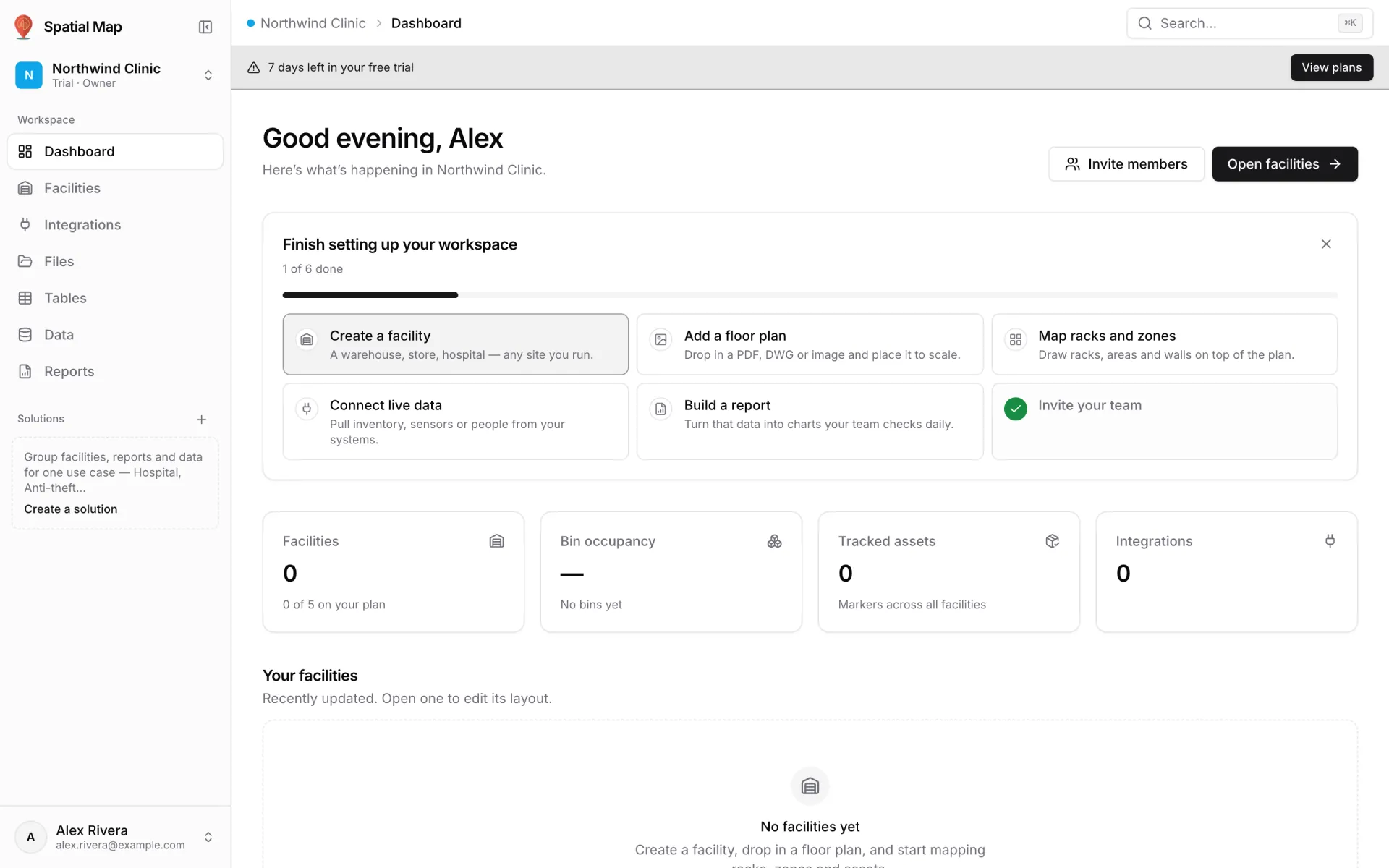
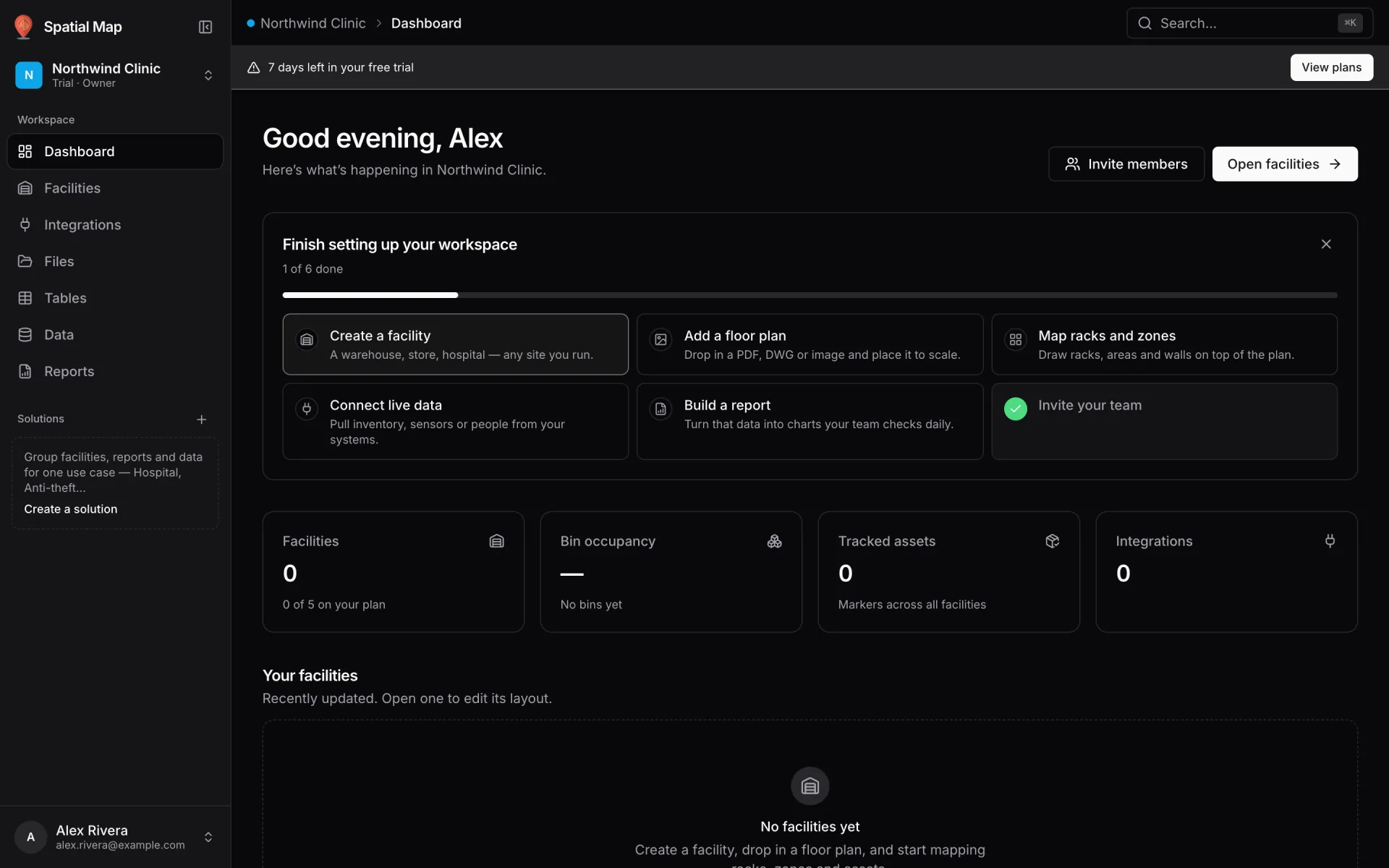
This recipe takes you from nothing to a workspace your team can use. Each new workspace runs its own 7-day trial with room for up to 5 facilities and no card. The Dashboard’s Finish setting up your workspace checklist ticks itself off as you go.
Steps
- 1
Create the workspace
New to Spatial Map? Sign up at app.spatialmap.io/signup: enter your Work email, type the 6-digit code from your inbox and set a password (at least 12 characters, 3 of lowercase / uppercase / digits / symbols). Create account & start 7-day trial creates your first workspace. Already have an account? Open the workspace switcher at the top of the sidebar, choose Manage workspaces and create one; "A workspace starts empty — no facilities, no integrations, no data. You’ll be the owner."
- 2
Read the Dashboard
You land on the Dashboard with a trial banner ("7 days left in your free trial") and the six-step checklist: Create a facility, Add a floor plan, Map racks and zones, Connect live data, Build a report and Invite your team. The Facilities card counts against your plan ("0 of 5 on your plan").
- 3
Create the facility
Go to Facilities → Add facility. In New facility, type a Facility name (for example "Main building"), optionally an Address, pick a colour and click Create facility.
- 4
Open the editor and find your site
On the facility card, open the ⋯ menu and choose Edit layout. Use Search places… at the top of the map to fly to your building, so everything you draw sits at its real location.
- 5
Place the floor plan
Press I (Add floor plan) and drop a PNG, JPEG, GIF, WebP, PDF or DWG on Drop a floor plan here. A PDF asks for its sheet and drawing scale first; see Turn a PDF floor plan into a 3D facility for the full flow.
- 6
Invite your team
Back on the Dashboard click Invite members, then Invite people. Enter an email, pick a role and click Add to workspace. Owner: everything, including billing and deleting the workspace. Admin: manage members, integrations and files, plus everything editors can do. Editor: create and edit facilities, tables and reports. Viewer: see facilities, data and reports, but can’t change anything.
- 7
Know what invites need
The person must already have a Spatial Map account. If they don’t, you’ll see "No Spatial Map account uses …" — ask them to sign up first, then invite them again. They see the workspace after their next sign-in. You can change a role or remove someone from the Members list at any time.