
Group a site into a solution
A Solution is a named view inside a workspace that groups the facilities, reports, tables and integrations for one use case. Nothing is moved or copied, an item can be in several solutions, and deleting a solution never deletes data. Here we group a store’s anti-theft setup — for example Retail Mart Store with its RFID Reader Reads and Item Tags tables and its RFID Live Map report — into one Anti-theft solution.
Steps
- 1
Have the pieces in place
You need at least the facility. The recipe is most useful once the site also has its tables (RFID reads, tagged items) and a report or two, as built in RFID gate readers on a retail floor.
- 2
Start a new solution
In the sidebar’s Solutions section click + (or Create a solution if you have none yet). The New solution dialog lists the templates — Warehouse, Retail, Anti-theft, Manufacturing, Logistics and more — plus Blank solution.
- 3
Pick a template
Choose the template closest to the use case, here Anti-theft. The template fills in the name, icon and colour and pre-ticks items whose names match. For a warehouse, Warehouse ("Racks, stock levels, forklifts and dock activity.") works the same way.
- 4
Name it and check the contents
Adjust Name, Description, Icon and Colour. Under Contents, review the Facilities, Reports, Tables and Integrations lists — "Matching items are pre-ticked — adjust as you like." Tick anything the template missed (a table called "Shelf Stock" may not match) and untick what doesn’t belong.
- 5
Create it
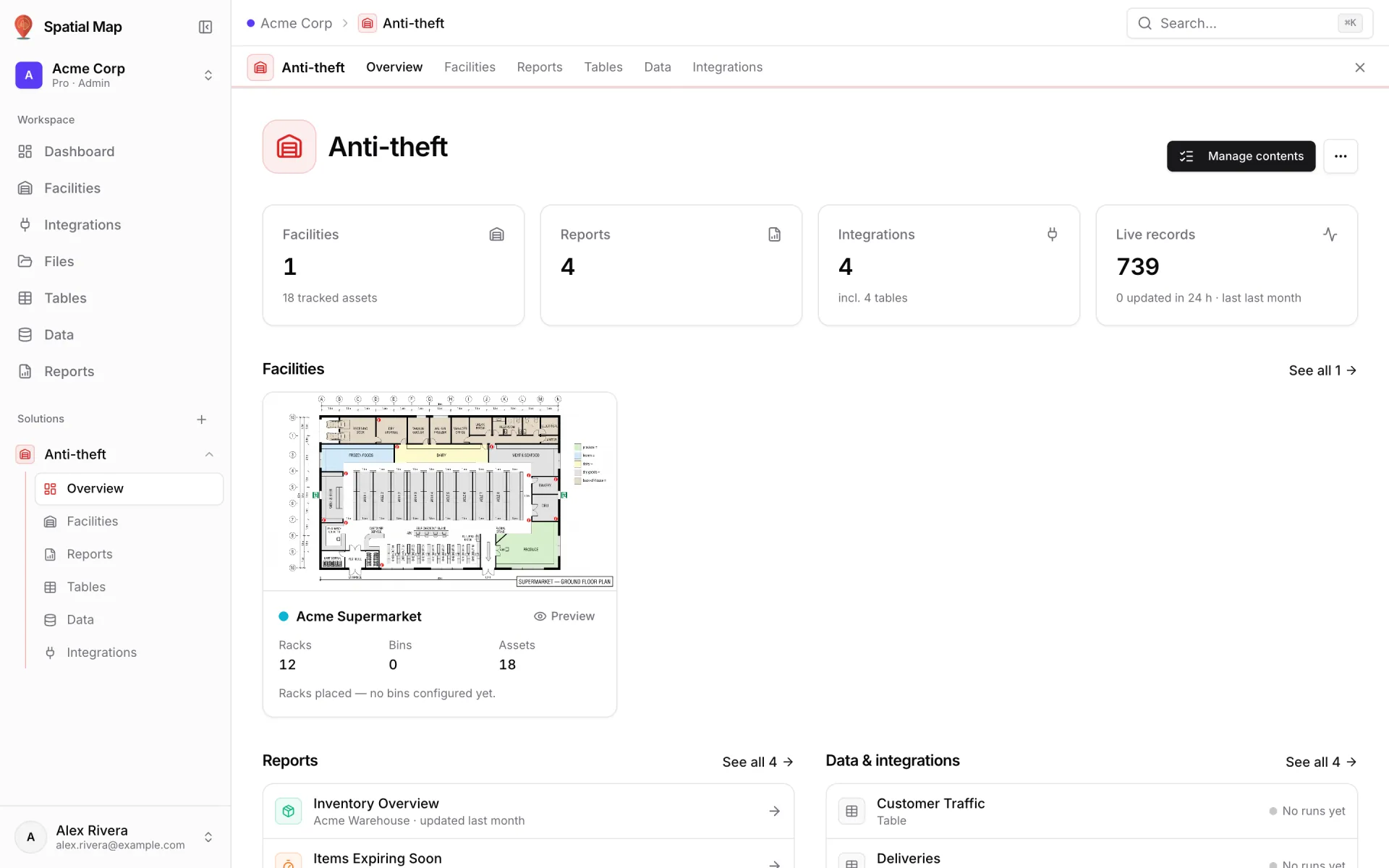
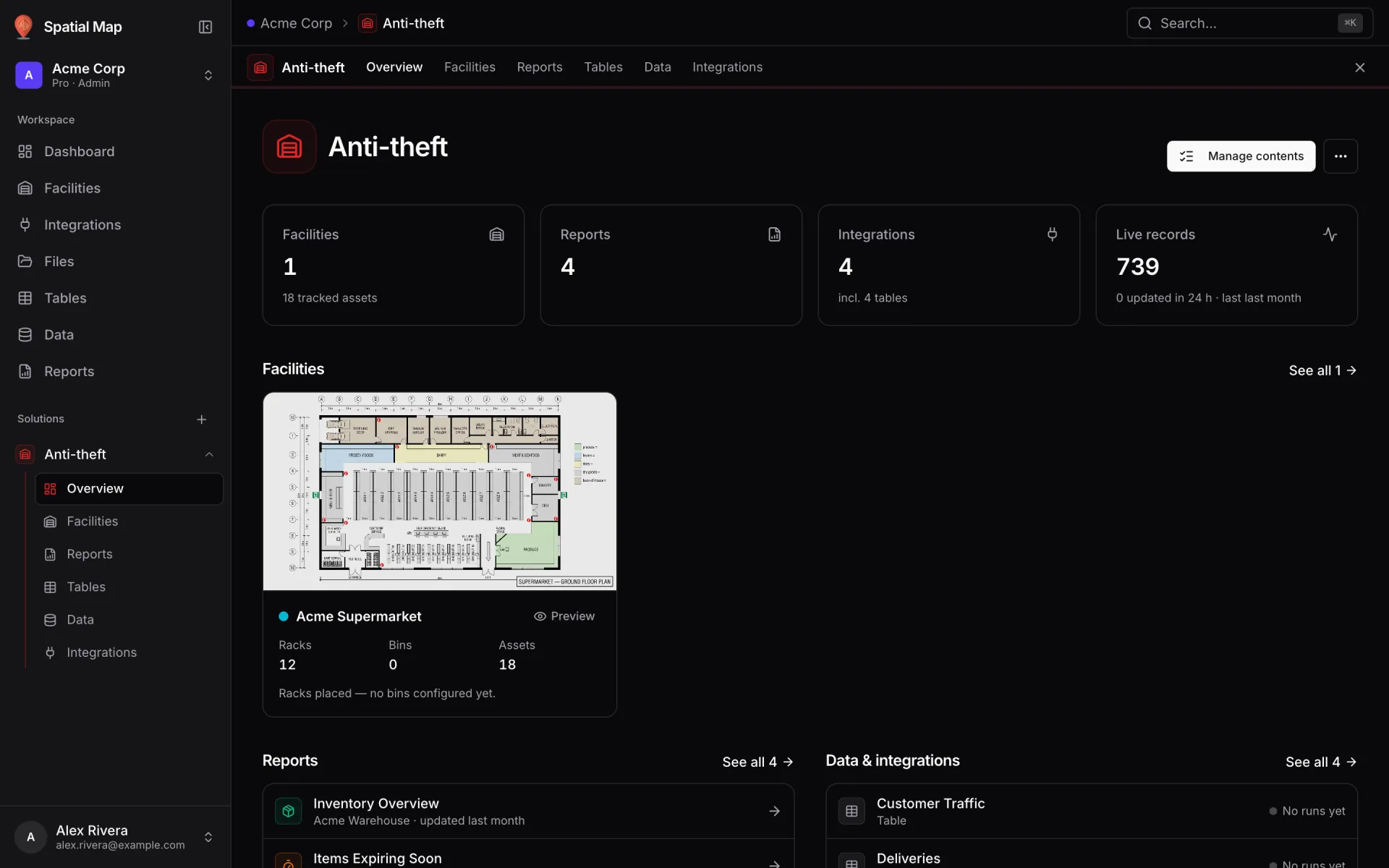
Click Create solution. It appears in the sidebar and opens on its home page with Solution totals (including Live records), its facilities and reports, Data & integrations with a health status per source (Healthy, Partial, Failing or No runs yet) and Recent imports.
- 6
Work inside it
While the solution is open, the Facilities, Reports, Tables, Data and Integrations pages show only its items, and a facility or report you create from there joins it. Click Leave solution — show the whole workspace to drop the filter.
- 7
Maintain it
Use Manage contents to add or remove items and Edit name & look to restyle it. Delete solution removes only the grouping: "Its facilities, reports, tables and integrations stay in the workspace."